Sort, filter and arrange columns
s opens the Sort & Filter sidebar, where you sort, filter, hide, move, freeze and size columns.
It opens on what is in effect: the sort and the filters, one row each. The Columns tab beside it lists every column. The tab bar is the first row: ← → there switch tabs. The sidebar takes the keys every dialog takes:
| Key | Does |
|---|---|
| ↓ ↑ or Tab Shift+Tab | Next or previous row, wrapping |
| ← → | Change the row’s value: the tab, a sort’s direction, a filter’s and/or, a column’s sort |
| Space | Act on the row: flip a sort, edit a filter, add one, step a column’s sort |
Filter, sort and hide columns
Open Food nutrition (fast food) from Example datasets: 515 menu items from eight chains, nutrients per item. Find the chicken dishes with at least 40 g of protein, heaviest first:
- Press / to find, then Ctrl+T for letters
in order. Type
chickenand press Ctrl+G to keep the 178 of 515 that match. - Press s: the sidebar opens on
add sort…. Press ↓ twice, past the find’s filter, toadd filter…and Space. Typeproteinand press Enter,>=and Enter,40and Enter. - Press ↑ three times to
add sort…and Space. Typecaloriesand press Enter, then Space on the new sort for descending. - Press ↑ to the tab bar, → for Columns and
↓ into the find field. Type
vit, then ↓ v ↓ v to hidevit_aandvit_c. - Press Enter to apply.
The table shows 30 of 515, led by McDonald’s 20 piece Buttermilk Crispy
Chicken Tenders at 2,430 calories. The calories header carries ▼.
Filter on a cell
At the table, + and - filter on the cell under the cursor, where the row cursor and the column cursor cross.
| Key | Does |
|---|---|
| + | Keep the rows whose value in this column is the cell’s; on a null cell, keep the nulls |
| - | Drop those rows; on a null cell, drop the nulls |
Each press adds a filter to the Sort & Filter tab, joined to the others
with and, so you can edit or delete it there and R clears it. The
value is the cell’s exactly as stored: a float to its last digit, so 0.1 + 0.2
and 0.3 are two values even where the table draws both as 0.3, and a date
and time to its last fraction of a second, in its zone. A list, struct or
binary cell has no value to compare; the bar says so.
Apply or cancel changes
| Key | Does |
|---|---|
| Enter | Apply everything staged and close, from any row (in the filter editor, Enter takes the step) |
| Ctrl+Enter or Ctrl+J | Apply from anywhere, including mid-edit — the row in progress is saved. Ctrl+Enter needs a terminal that tells it from Enter; Ctrl+J works on every terminal |
| Esc | Close an open picker or filter editor; otherwise close without changing anything |
| C | Clear the current tab’s staged state |
Sidebar filters and sort apply to the current query or reshape result. Running
a new query clears them, so apply the query first and the sidebar settings
afterward. The footer names the filters and the sort, and counts the rows kept
beside the cursor’s: 1 / 30. Info shows the dataset’s total.
Canceling the sidebar discards whatever was staged; reopening it shows what
is actually applied.
Columns tab
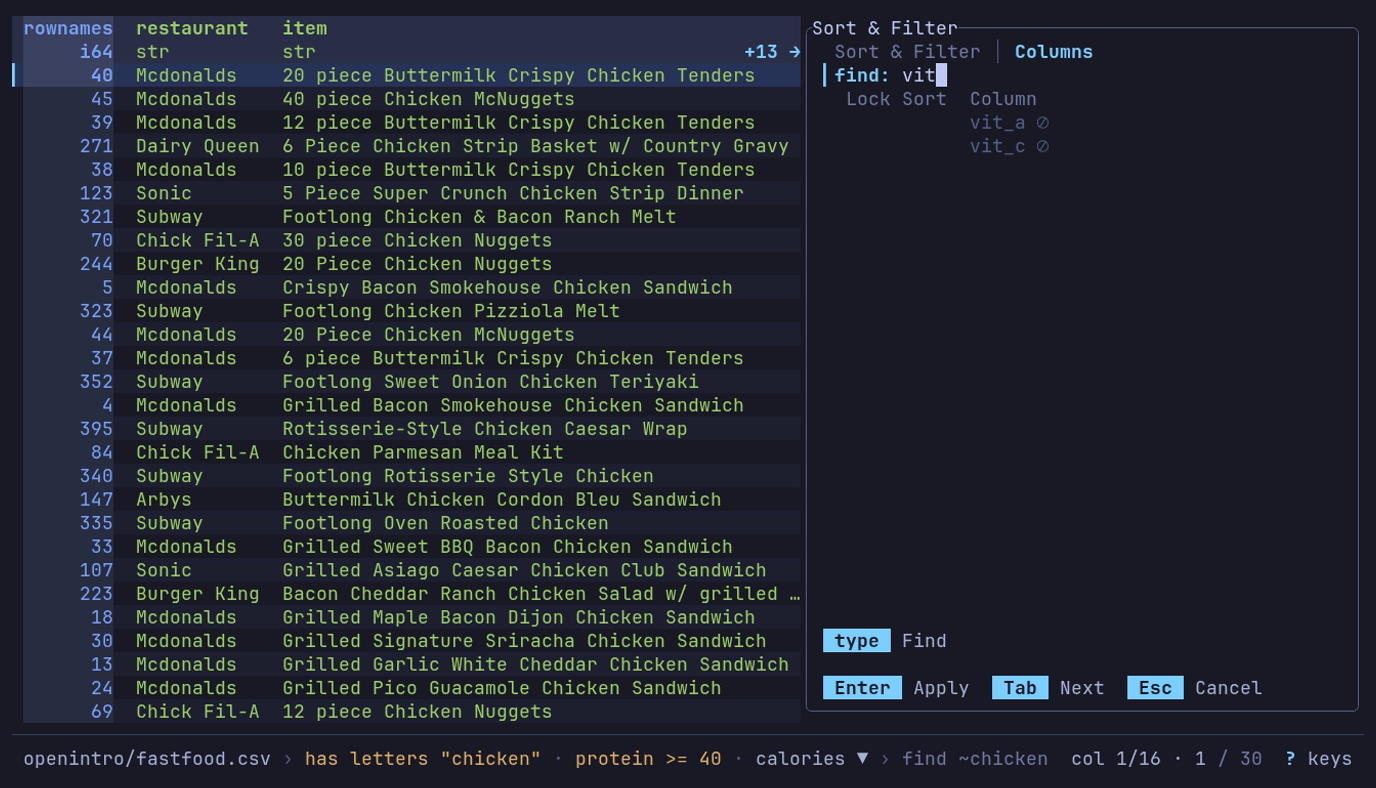
Which chicken dishes have the most protein, heaviest first? The
five steps above: 30 of 515, McDonald’s 20
piece Buttermilk Crispy Chicken Tenders first. s again,
↑ → to Columns, ↓ and vit show the two
hidden columns.
One row per column, with its lock, its place and direction in the sort
(1▲, 2▼), a width set by hand, and a ⊘ when it is hidden. Each sorted column’s header in the
table carries its own direction mark (▲/▼), so the sort and r
reversing it are visible at a glance. ↓ from the tab bar reaches
the find field; type in it to narrow the list, and ↓ again goes to
the list, on the table’s column cursor (or the first match), then:
| Key | Action |
|---|---|
| ↑ ↓ PgUp PgDn Home End | Move in the list; ↓ stops at the last column, and … 12 more counts those out of view above and below |
| Space → | Cycle this column’s sort: none, ascending, descending (← steps back) |
| Del | Remove this column from the sort |
| 1 to 9 | Put this column at that position in the sort order; 0 removes it. A digit past the end of the order says so on the status line |
| [ ] | Move this column earlier or later in the sort order |
| + - | Move this column left or right in the table |
| L | Freeze this column and every column above it on the left |
| v | Hide or show this column (it keeps its place in the list, dimmed) |
| < > (, .) | Make this column 4 cells narrower or wider |
| f | Fit this column to the rows on screen; the list shows fit until you apply |
| w | Back to the automatic width |
Column widths
Each column keeps the width it was first drawn at, so paging, scrolling,
reordering, hiding and opening a sidebar move nothing. A longer value on a
later page ends in … (ASCII ...).
| Column | Automatic width |
|---|---|
| Text, lists, structs and names | The first page’s widest, at most two fifths of the window: 32 cells at 80 columns, 48 at 120 (16 to 64) |
| Numbers, dates, times, flags | The widest value seen so far, never cut; paging does not narrow it |
The last column on screen also takes the room left at the right edge, so a long text there shows more of each value. A number column, which sits flush right, and a width set by hand keep their width.
A number is cut only when it is the first scrolling column and has no room; otherwise it waits, whole, for the scroll.
A query, a pivot or melt, drilling down or back up, a new sort, r and a new filter change the rows, so automatic widths are learned again from the first page they show.
At the table, the column cursor’s column takes < > (4 cells narrower or wider), = (fit to the rows on screen) and w (automatic) at once, so you see each change as you make it. The Columns tab stages the same keys for any column until Enter.
A width set with < >, = or f is kept through paging, resizing and reordering until w, C or R. Text gets exactly that width; a number column is never narrower than its numbers. Applying only width changes leaves the table on the page you were on.
The space between columns is the display.cell_padding setting:
"comfortable" (2 cells, the default), "compact" (1) or a number. See the
settings reference.
Frozen columns
Frozen columns stay at the left edge, left of a │, while the rest scroll.
When the window is too narrow for all of them beside a usable scrolling
column, the separator turns dashed (┆, ASCII :) and the frozen columns
that do not fit scroll after it, so every column stays reachable. The freeze
is kept: a wider window shows them all frozen again. A value or name cut
short at the edge of its column ends in … (ASCII ...).
Every column carries its own direction, so calories can run descending while
restaurant runs ascending. Nulls go last in either direction.
Back in the main view, r reverses every direction at once and R resets everything: query, filters, sort, column order, hidden columns and widths, frozen columns, pivot/melt, drill-down and the applied view.
Move across a wide table
The table has a column cursor as well as a row cursor: the cursor’s column is
tinted from header to last row, and the cell where it crosses the current row
stands out from both. On a 16-color terminal, or with NO_COLOR, its header
and that cell are drawn reversed.
| Key | Moves |
|---|---|
| ← → or h l | The cursor one column. The columns scroll only when it would leave the screen |
| Shift+← → | A page of columns; the cursor goes to its first column |
| { } | The cursor to the first column, or to the last on the last page |
| g | The cursor to a column you name: type to narrow the list, Enter goes |
- Shift+→ starts the next page at the first column not shown whole, so a column cut at the edge is read whole there. A column wider than the window still moves one at a time.
- The last page is full: it ends with the last column.
- Shift+← right after Shift+→ goes back to the page it left; otherwise it ends the page before with the column left of the first one shown.
- g leaves a column already whole on screen where it is; another becomes the first after the frozen ones, or lands on the last page.
- Frozen columns stay put, and the cursor walks them too: h from the first scrolling column goes to the last frozen one, and l back goes to the first scrolling column, scrolling back to it.
- At the last page, Shift+→ takes the cursor to the last column; at the first, Shift+← takes it to the page’s first column, then the first.
- The cursor stays on its column when columns are hidden, moved or frozen in the sidebar; when its own column is hidden, the column that takes its place takes the cursor.
- g lists the columns the table shows, in its order. Hidden columns are not listed: show them with v on the Columns tab. A frozen column is on screen already, so choosing it moves nothing.
H and L move the cursor’s column itself one place left or right, the cursor with it: the same column order the Columns tab’s + - set, and R puts it back. A frozen column moves among the frozen ones, and a scrolling column among the scrolling ones.
The keys that act on one column act on the cursor’s:
| Key | On the cursor’s column |
|---|---|
| F | Value counts |
| [ ] | Sort by it, ascending or descending, in place of the sort in effect; again to take the sort away |
| + - | Filter on its cell |
| s | The sidebar opens with its Columns cursor there, and a new filter starts on it |
| y | The Cell scope copies its value in the current row |
| Space | The inspector opens on its field |
| / | Ctrl+L in the prompt finds in it alone; a match moves the cursor to its column |
Once the column cursor moves, the footer offers those keys: +/- Filter [/] Sort F Counts. It says where the cursor is too: col 43/300 before the row, while
there is room. It counts the columns the table shows, frozen first; hidden
columns are not counted.
Sort & Filter tab
What is in effect, under two rules: Sort, one row per key in order
(1 ▲ restaurant), then add sort…; Filters, one row per filter
(column, operator, value, and how it joins the row above: and/or),
then add filter….
| Key | On a sort | On a filter |
|---|---|---|
| Space | Flip ascending and descending | Edit it: column, operator, value |
| ← → | Flip ascending and descending | Toggle and/or |
| [ ] | Move it earlier or later in the sort | Move it up or down the list |
| d Del | Remove it | Remove it |
Space on add sort… opens a list of the columns not sorted yet, on
the table’s column cursor: type to narrow, Enter adds the column as
the last key, ascending. Space on add filter… starts a new
filter on the column cursor’s column. C removes every sort and
filter. While something is staged, the footer’s Apply is in the accent.
Editing a filter walks three steps on the row: pick the column (type to narrow, ↑ ↓ move, Enter chooses), pick the operator the same way, then type the value — Enter saves the row, and Esc abandons the edit and only the edit. Then Enter applies.
| Operator | Meaning |
|---|---|
= != | equal, not equal |
< > <= >= | less, greater, or equal |
contains !contains | text contains, or does not contain, the value |
is null not null | the value is null, or is not; these take no value |
The operator list offers what the column’s type takes: a number, date or time
has no contains, and a flag only =, != and the null tests.
The value is read as the column’s type, so > 1000 on a number column is a
numeric comparison and >= 2024-01-01 on a date column compares dates:
| Column | Write the value as |
|---|---|
| Whole number, float | 1000, -3.5, 1e-6; a float compares exactly, so = 0.3 does not hold 0.1 + 0.2 |
| Flag | true or false |
| Date | 2024-01-01 |
| Date and time | 2024-01-01 (its midnight), 2024-01-01 05:30, 2024-01-01T05:30:00.25; a column with a time zone reads the clock there, and an offset (+01:00, Z) names the instant instead |
| Time | 05:30, 05:30:00, 05:30:00.25 |
| Duration | 1d 2h 30m, 90s, 1500ms, -5m: whole numbers of d h m s ms us ns |
| Decimal | 1.5, read at the column’s scale, so it is 1.50 |
A value the column cannot read keeps the sidebar open, and the line above the
keys says why, such as day: "2024-13-01" is not a date written YYYY-MM-DD. A
clock a time zone skips or repeats (the night clocks change) asks for its
offset. Filters stay in place while you chart, analyze or export, and are
saved in views.
From the command line
For anything more involved, a SQL WHERE or the where clause of a
q query takes
expressions, OR groups and date arithmetic.