Copy to the clipboard
y copies a cell, a row, the view, the table or a Python script that rebuilds it to the system clipboard.
In the dialog you pick a scope and a format. It remembers your last choices, so repeating a copy is y Enter.
Copy a table into a note
On Food nutrition (fast food), summarize each chain:
SELECT restaurant, ROUND(AVG(calories), 0) AS avg_calories,
       ROUND(AVG(protein), 1) AS avg_protein, COUNT(*) AS items
FROM df
GROUP BY restaurant
ORDER BY avg_calories DESC
- Press y. On Scope, press → until it reads Table.
- ↓ to Format, → until it reads Markdown.
- Press Enter to copy. The status line says
Copied 8 rows as Markdown.
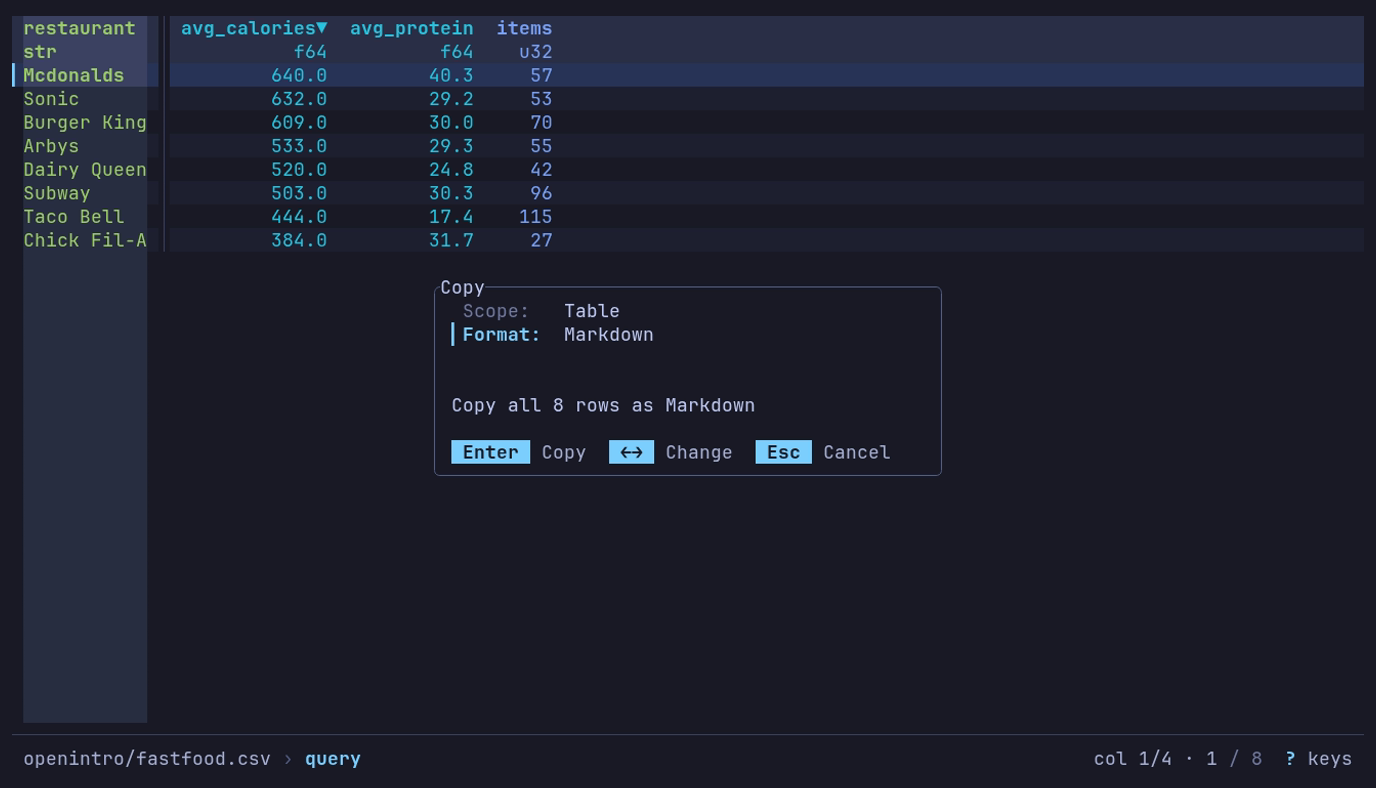
The dialog says what Enter copies: all 8 rows. Paste them into a note:
| restaurant  | avg_calories | avg_protein | items |
| ----------- | -----------: | ----------: | ----: |
| Mcdonalds   |        640.0 |        40.3 |    57 |
| Sonic       |        632.0 |        29.2 |    53 |
| Burger King |        609.0 |        30.0 |    70 |
| Arbys       |        533.0 |        29.3 |    55 |
| Dairy Queen |        520.0 |        24.8 |    42 |
| Subway      |        503.0 |        30.3 |    96 |
| Taco Bell   |        444.0 |        17.4 |   115 |
| Chick Fil-A |        384.0 |        31.7 |    27 |
Values are copied raw, so round them in the query. The data spells McDonald’s
Mcdonalds.
For a spreadsheet, choose TSV instead. Table includes all matching rows; View includes only the rows on screen.
| Scope | What it copies |
|---|---|
| Cell | The current row’s value in one column, as plain text. The column is the column cursor’s unless you pick another |
| Row | The current row |
| View | The rows on screen, with every displayed column |
| Table | Everything in the view, as an export would write it: all rows and columns as queried, filtered and sorted |
| Python (Polars) | The view as a Python script that rebuilds it; see below |
| Format | Details |
|---|---|
| TSV | Tab-separated, what spreadsheets expect from a paste |
| CSV | Comma-separated |
| Markdown | A pipe table, padded and aligned, numeric columns right-aligned |
A TSV or CSV copy to the native clipboard also carries an HTML table, so a
paste into a spreadsheet or an email keeps its columns, while a paste into a
terminal is plain text.
Values are copied raw, as in an export: display formatting is not applied, a
float is copied as stored rather than rounded as on screen, and a null is an
empty field. List and struct cells are JSON,
as in a CSV export, and a duration is
ISO 8601 text such as PT3723.004S. A binary column is
base64 in a Table copy. Cell, Row and View copies
hold the ‹binary› placeholder, because the screen never reads the bytes.
The Header toggle is on for View and Table and off for Row, and a Markdown table always has its header. The dialog hides Header for the Cell and Python scopes and the Markdown format, and hides Format for the Python scope, since they do not apply there.
To copy one field of the current row, including a hidden or binary one, press Space to inspect the row, move to the field and press y.
A large Table copy asks you to confirm first, counting a binary column at its
base64 size. datui learns a binary column’s size from the Parquet footers it
reads to open a local directory of Parquet files or a single Parquet object in
cloud storage. A copy also asks when its size is not known: the row count is
still being read, or no footer gave a binary column’s size, as for a single
local file. A copy over 200 MiB is refused, and the message points to
export. An osc52 copy asks only when its cap is over
10 MiB, since it never copies more than the cap.
Copy the view as Python
Press y, choose Python (Polars) on Scope and press Enter. The clipboard gets a script that builds the view with Polars:
import polars as pl

df = (
    pl.scan_csv("sales.csv", try_parse_dates=True)
    .filter((pl.col("region") == "north") & (pl.col("qty") > 1))
    .sort(["amount", "order_id"], descending=[True, False], nulls_last=True, maintain_order=True)
    .select(["order_id", "customer", "amount"])
)
df is a LazyFrame, and df.collect() reads it. The steps come in the order
you applied them:
| In datui | In the script |
|---|---|
| The file | The reader from the table below, with the options datui used (delimiter, header, comment lines, skipped lines and rows, null values). Then the column names datui trimmed, and the text columns it read as numbers or dates. A directory or bucket prefix becomes a glob |
| Query | .filter, .group_by().agg() ordered by the keys, .select, .unique |
| SQL | .sql(..., table_name="df") |
| A find kept with Ctrl+G | .filter on each column as text, pl.any_horizontal across them |
| Pivot, Melt | .group_by().agg() then .pivot(); .unpivot() |
| Drill-down | .filter on the grouped rows with eq_missing |
| Filters, sort, r | .filter, .sort(..., nulls_last=True, maintain_order=True), .reverse() |
| Hidden and moved columns | .select([...]) |
The reader matches the format datui read the data as, including for a file it
recognized by its contents rather than its name (a .bin log, a Parquet part
file with no extension):
| Format | Reader |
|---|---|
| Parquet | pl.scan_parquet |
| CSV | pl.scan_csv |
| TSV | pl.scan_csv |
| PSV | pl.scan_csv |
| JSON | pl.read_json |
| NDJSON | pl.scan_ndjson |
| Arrow IPC | pl.scan_ipc |
| Avro | pl.read_avro |
| ORC | df = ... |
| Excel | pl.read_excel |
| SafeTensors | df = ... |
| GGUF | df = ... |
| NMEA | df = ... |
| GPX | df = ... |
| audio | df = ... |
| MIDI | df = ... |
| SQLite | pl.read_database |
| VCD | df = ... |
| FIX | df = ... |
| SDF | df = ... |
| NumPy | pl.from_numpy |
| ELF | df = ... |
| ULog | df = ... |
| DataFlash | df = ... |
| candump | df = ... |
| text | pl.LazyFrame |
| systemd journal | pl.scan_ndjson |
A reader that is not a scan reads the whole file and ends in .lazy(). So
does an Arrow IPC stream, which is read with pl.read_ipc_stream. A SQLite
table is read with SELECT * through Python’s sqlite3, including the one
table of a database opened without --table. A NumPy array is loaded with
np.load (by its name, from an archive), and its columns get the names datui
gives them. When datui read the data lazily but the script reads it whole, a
comment says so, in the words of the Info panel’s Read: line: # Read: lazy in datui; pl.read_database reads the file whole into memory.
In these cases the script starts with df = ... for you to fill in, and a
comment names the file and the table on screen (flight.bin --table GPS):
- Data piped in on standard input. If you recorded it with
--tee FILE, the script reads FILE instead - A format with
df = ...above, or a read through a format spec - A file compressed with bzip2 or xz
- A CSV read with
--header-rows,--skip-initial-space, or a--commentlonger than five characters
A step the script cannot repeat, such as a drill-down into a group whose rows are lists, becomes a comment, and the steps after it are commented out.
A file in an object store is read from the same place, with storage_options
holding the settings datui used that are not secret:
| Store | storage_options |
|---|---|
| S3 | The endpoint and region in effect; for s3://<source>@bucket, the named source’s own |
| Azure | The account an abfss:// URL names |
| Any, read with no signature | skip_signature |
Credentials are never included. Give Polars yours where it looks for them,
such as the provider’s environment variables. pl.read_json, pl.read_avro
and pl.read_excel cannot read from an object store, so the script says to
download the file. A user name and password in a URL, and an HTTP URL’s query
string (where a signed URL keeps its signature), are left out, and a comment
says so.
Keys
The dialog takes the keys every dialog takes:
| Key | Action |
|---|---|
| ↓ ↑ or Tab Shift+Tab | Move between rows |
| ← → | The previous or next scope, column or format; on Header, toggle |
| Space | The next scope or format; on Column, open its picker; on Header, toggle |
| Enter | Copy, from anywhere in the form; in a picker, choose |
| ? | Help |
| Esc | Close a picker, then the dialog, without copying |
In the column picker, typing narrows the list and ↑ ↓ move.
How the copy reaches the clipboard
[clipboard] backend in the configuration
chooses the mechanism:
| Backend | How |
|---|---|
auto (default) | native where a display server answers, osc52 elsewhere |
native | The display server (Wayland, X11, macOS, Windows), with the HTML flavor |
osc52 | An escape sequence the terminal applies to the system clipboard |
osc52 works over SSH because no display server is involved: the terminal you
are sitting at does the copy. Terminals limit it:
- tmux needs
set-clipboard onto pass the sequence through. - Terminals cap the sequence length, so datui refuses a copy larger than
osc52_limit(default 100 KiB) rather than send one that arrives cut short. A Table copy is read in batches and stops at the first batch over the cap, so a copy that is too large is refused without reading the whole table. The clipboard keeps what it held. Some terminals disable OSC 52 writes entirely by default. - No HTML flavor: the terminal takes plain text only.
On Wayland and X11, a native copy belongs to the datui process. It stays on
the clipboard while datui runs, but quitting can drop it unless a clipboard
manager keeps a copy.