Save and apply views
A view saves the active sample, query, filters, sort, column layout, frozen columns, reshape and chart, and applies them to the next file of the same shape. v opens the views list.
Save and reuse a query
Central Park’s daily highs, in NOAA’s public weather data, for 2024 and then 2023:
- Open
s3://noaa-ghcn-pds/parquet/by_year/YEAR=2024/ELEMENT=TMAX/, as thedatuiargument or from the home screen: Enter on NOAA daily weather (GHCN-D), → onby_yearand onYEAR=2024, then Enter onELEMENT=TMAX. Typing narrows each list. - Run the station query: 366 rows.
- Press v, then s. The name starts as the directory’s
name,
ELEMENT=TMAX. TypeCentral Park highsover it and press Enter to save. - Open
YEAR=2023/ELEMENT=TMAX/the same way. Press v: the view is listed with Matchsame columns. Press Enter.
The view runs the query on 2023: 365 rows, 2023-01-01 to 2023-12-31.
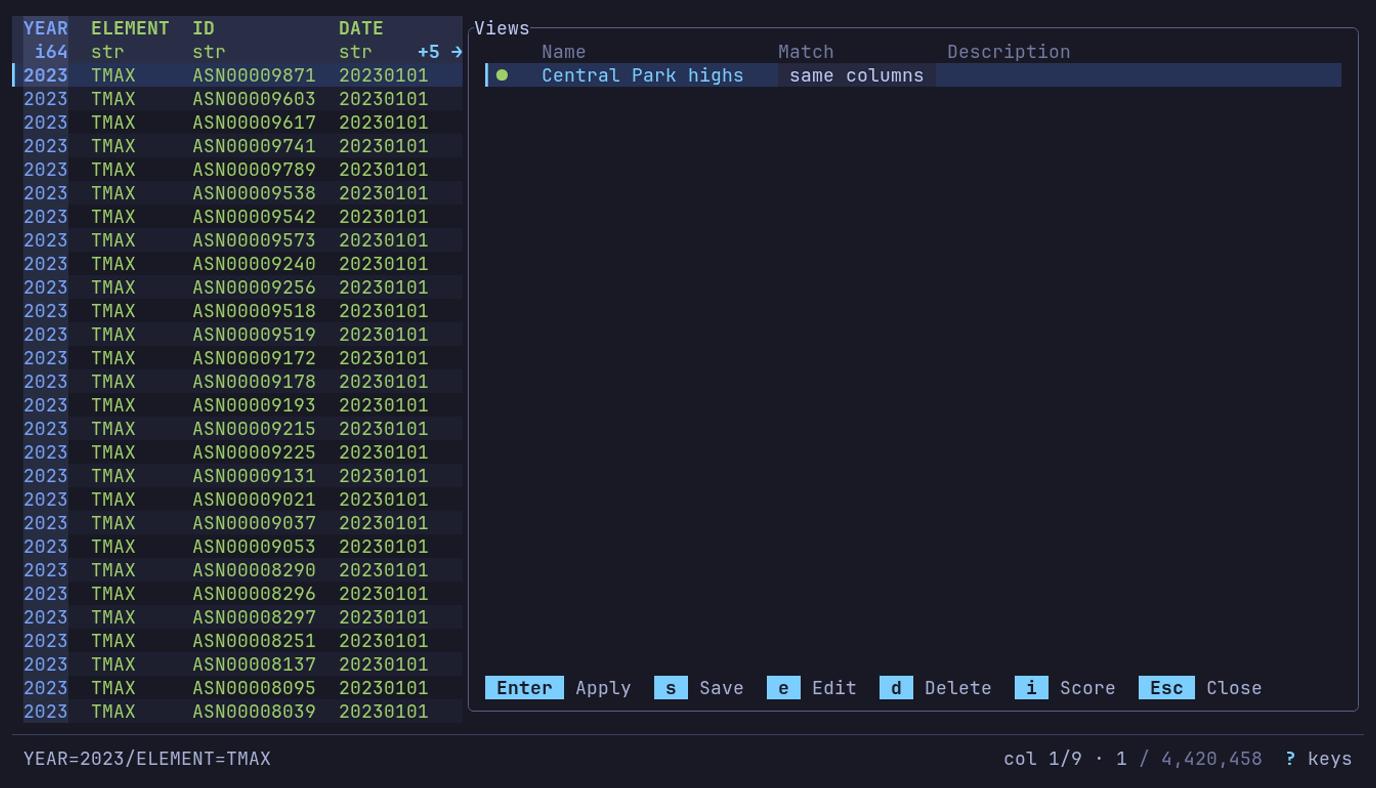
The views list on YEAR=2023/ELEMENT=TMAX shows Central Park highs, matched
by same columns.
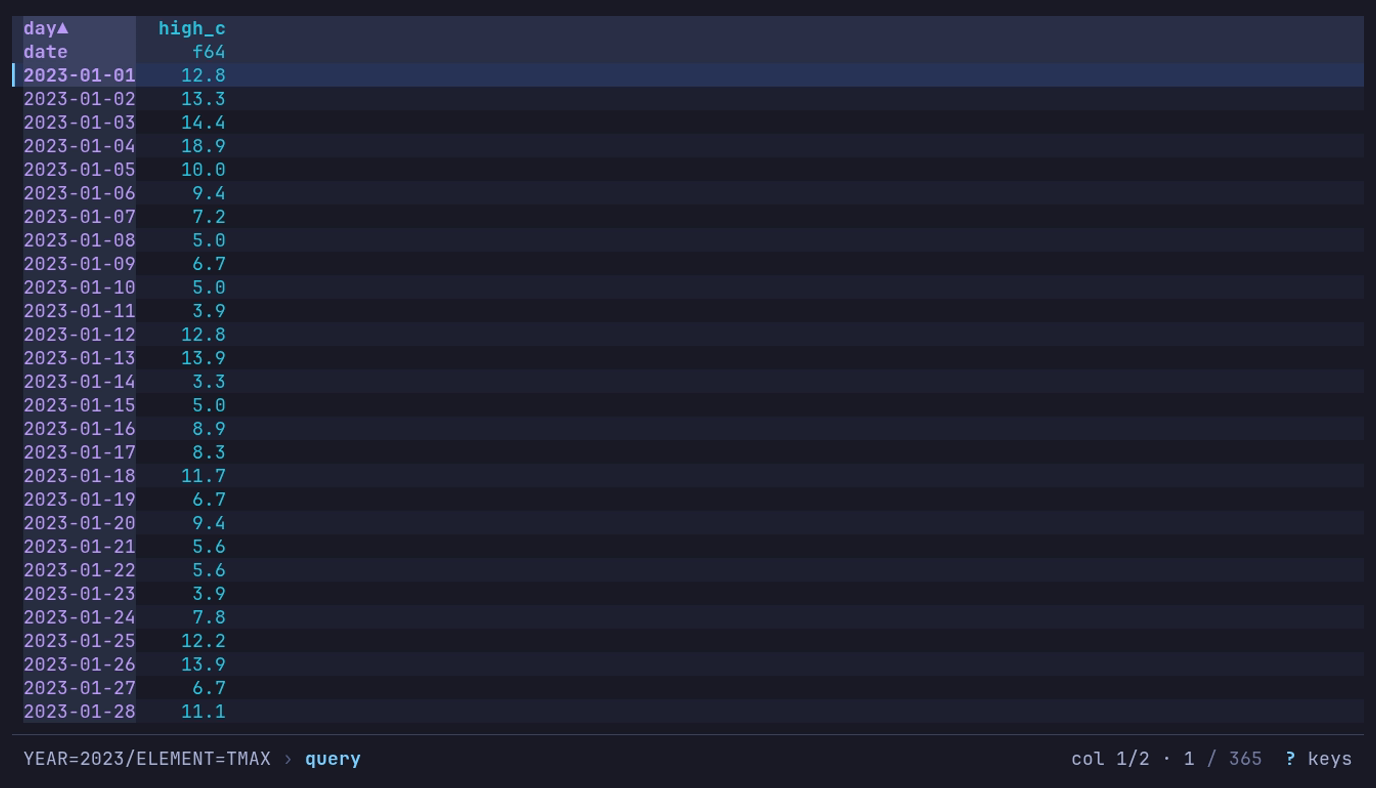
Enter applies it: 365 daily highs for 2023, starting at 12.8 °C on New Year’s Day.
A view stores transformations, not a copy of the data. The next file produces its own results.
| A view with | When applied |
|---|---|
| A sample | Draws the sample again from its scope, method, size and seed, which gives the same rows without storing them. Its query, filters and sort apply as the rows arrive |
| A chart | Opens on the table, and the footer offers c. c draws the chart with its options and its last export settings |
You can save only once the current table has a change to store. In the description field, Enter inserts a newline. To save from there, press Ctrl+J, or Tab out and press Enter. The form takes the keys every dialog takes, except that in the description ↑ ↓ move between its lines first.
Open the views list
| Key | Action |
|---|---|
| v | Open the views list |
| V | Apply the best-matching view without opening the list; when none matches, the list opens instead |
When V or automatic application applies a
view, the footer names it and says why it matched:
View "Central Park highs" applied: same columns.
To apply a view from the command line, use --view. Replace <NAME> with the
view’s name and <PATH> with what to open, as in
datui --view "Central Park highs" s3://noaa-ghcn-pds/parquet/by_year/YEAR=2022/ELEMENT=TMAX/:
datui --view "<NAME>" <PATH>
A view’s pivot and first rows are read in the background, with a spinner in the footer. Esc stops it and keeps the table as it was. A view that fails on the data is not applied, and a dialog says why.
List controls
Views are sorted by how well they fit the open file, and a score mark beside each shows how well. A check mark marks the view currently applied, and the Match column says why a view fits:
| Match | The view’s rule that fits |
|---|---|
same file | Exact path or relative path |
same columns | Schema |
glob | Path pattern or filename pattern |
| Key | Action |
|---|---|
| Enter | Apply the selected view |
| s | Save the current state as a new view |
| e | Edit the selected view |
| d | Delete it, after confirming: the question starts on No; ← picks Delete, Enter confirms |
| i | Show how the selected view’s score was computed |
| Esc | Close |
Save a view
The save form starts with the file name as the view’s name, selected. A name is required. Typing replaces it, and an arrow key keeps it for editing. Add a description if needed, then expand Matching with Space to choose which files should match the view:
| Match | Fits a file when |
|---|---|
| Exact path | its absolute path, or its URL for remote data, is the same |
| Relative path | its path relative to the current directory is the same; local files only |
| Path pattern | its path matches a glob |
| Filename pattern | its name matches a glob |
| Schema | it has all the view’s columns; extra columns are fine |
A view saved on one table of a SQLite database or NumPy archive records the
table, shown as Table under Matching. Its path rules then fit only that
table: shop.db/orders and shop.db --table orders are the same file, and
shop.db/customers is not. Schema matching still matches any table that
has its columns.
Data piped to standard input and frames passed from Python
(datui.view(frame)) have no path, so their views match by schema alone.
Schema matching is enabled by default. It records the columns as loaded, before the query, so a view whose query renames columns still matches the next file. Matching views rank above unrelated ones, and matches combine: a view fitting by relative path and exact schema outranks one fitting by exact path alone. A file that has the view’s columns plus others scores low, below a pattern match. Other match rules, and how often and how recently a view was used, also affect the score. Press i to see how a score was computed. V and automatic application use only views with a matching rule.
Only the active query is saved, along with its mode: SQL, Text or q. Filters, sort, column order and reshape are always saved. After a pivot or melt, the view also keeps the query, filters and sort the reshape ran over, and applies them before the reshape. A reshape of a reshape, such as a melt of a pivot, cannot be replayed: the view keeps only the last one.
Editing (e) changes a view’s name, description and matching. When you edit the view that is currently applied, saving also stores the table’s current settings and columns in it. Editing any other view leaves its saved settings and the columns its schema rule matches on alone, so renaming a view never overwrites what it holds.
Apply on open
views.auto_apply applies the best-matching
view when a file opens:
[views]
auto_apply = true
Manage views
Views are JSON files in the views/ directory beside your
config file.
| Command | Does |
|---|---|
datui views list | List the saved views: name, what files they match, when last used |
datui views rm <NAME> | Remove one |
datui views clear | Remove them all |