Introduction
Datui is an interactive terminal user interface (TUI) for exploring and analyzing data files.
Datui is in rapid development—features and interfaces are evolving.
See It In Action
Use arrow keys or vim-style bindings (j/k for up/down, h/l for left/right) to explore interactively.

For more demonstrations of Datui’s features, see the Demos page.
Getting Started
To get started with Datui, see the Getting Started guide.
Demo Gallery
This page showcases interactive demonstrations of Datui’s features.
Overview
Navigation
What it shows:
- Loading a Parquet file (
people.parquet) - Scrolling through data using
↑/↓(orj/k) keys
See Loading Data for more information about file formats and options.
Querying
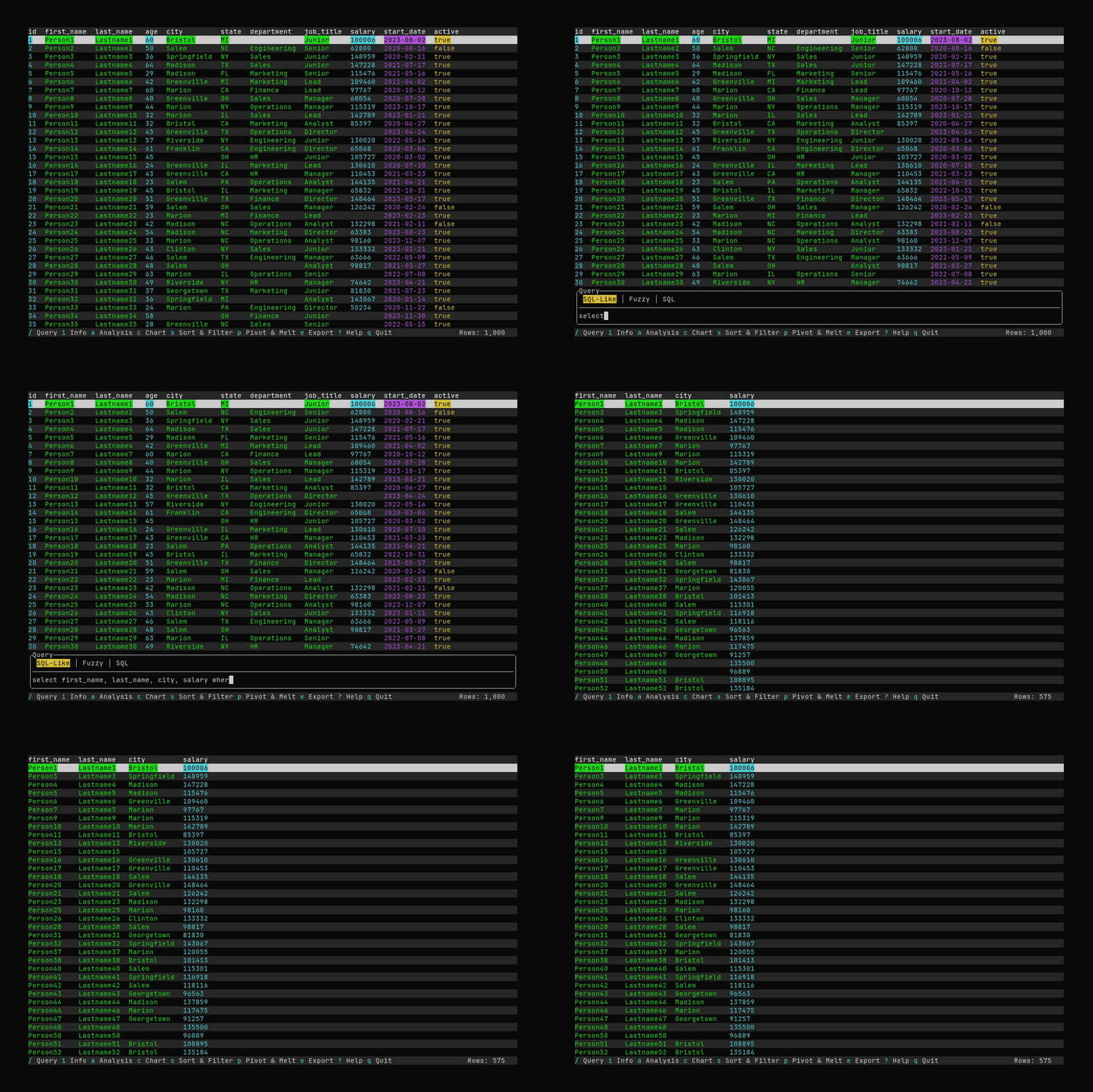
What it shows:
- Opening the query input with
/ - Typing a query:
select first_name, last_name, city, salary where salary > 80000 - Executing the query and seeing filtered results
See Querying Data for detailed query syntax and examples.
Info Panel
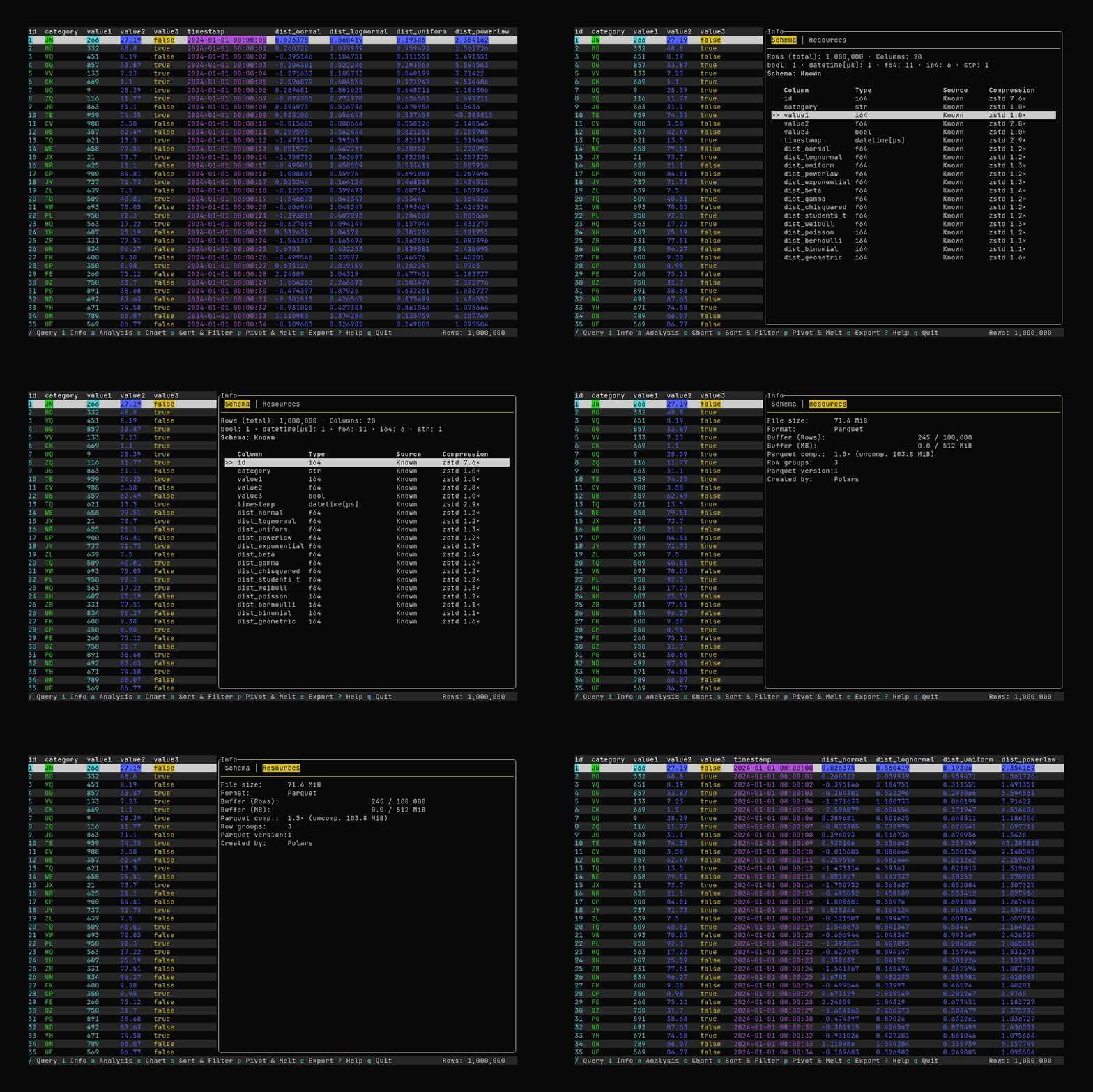
What it shows:
- Opening the Info panel with
i - Viewing information about the dataset
See Dataset Info for details about the Schema and Resources tabs.
Pivot
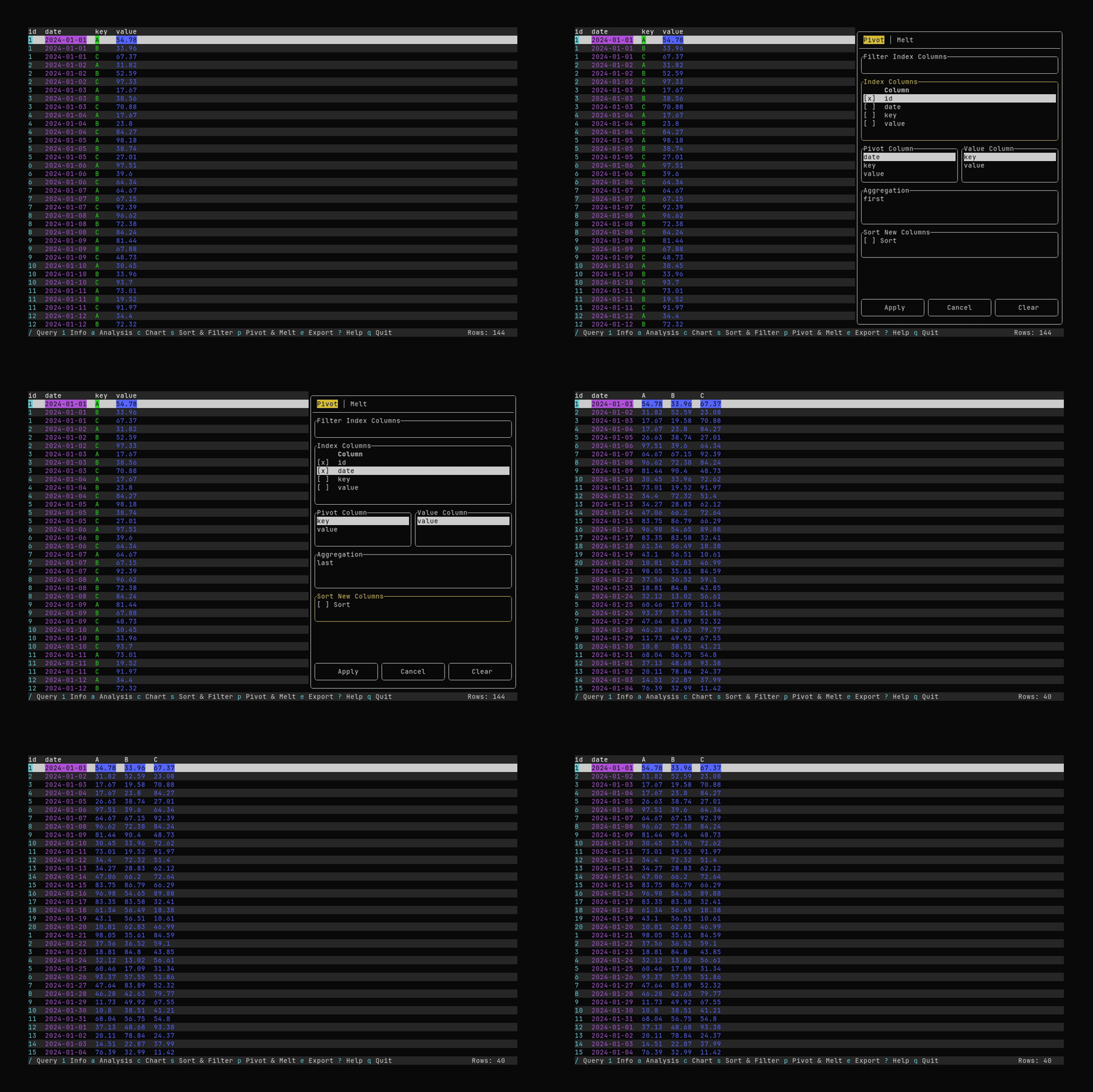
What it shows:
- Opening the Pivot & Melt dialog with
p - Selecting index columns and applying a pivot (long → wide)
See Pivot and Melt for pivot and melt options.
Melt
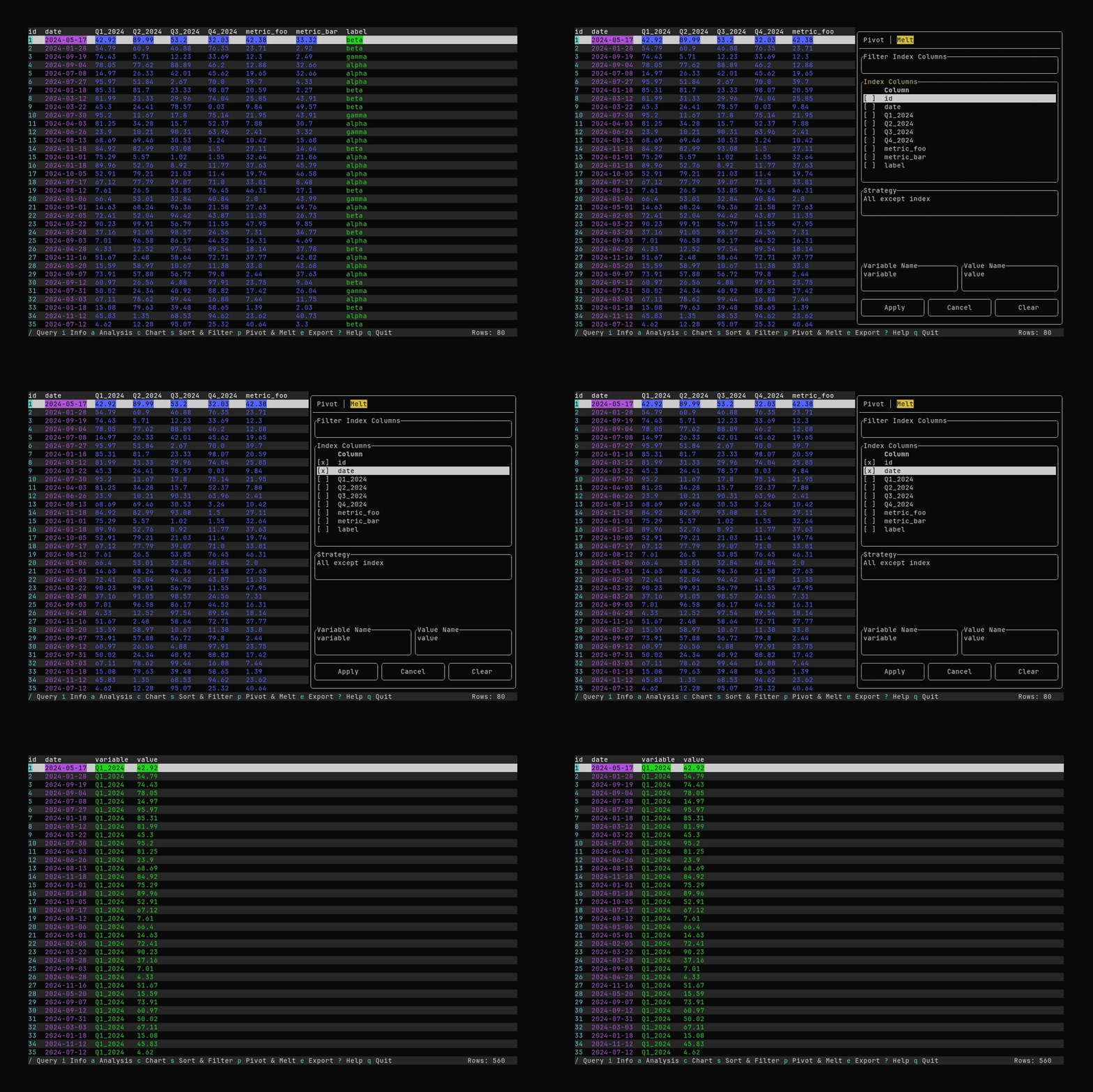
What it shows:
- Switching to the Melt tab and selecting index columns
- Applying a melt (wide → long)
See Pivot and Melt for pivot and melt options.
Sorting
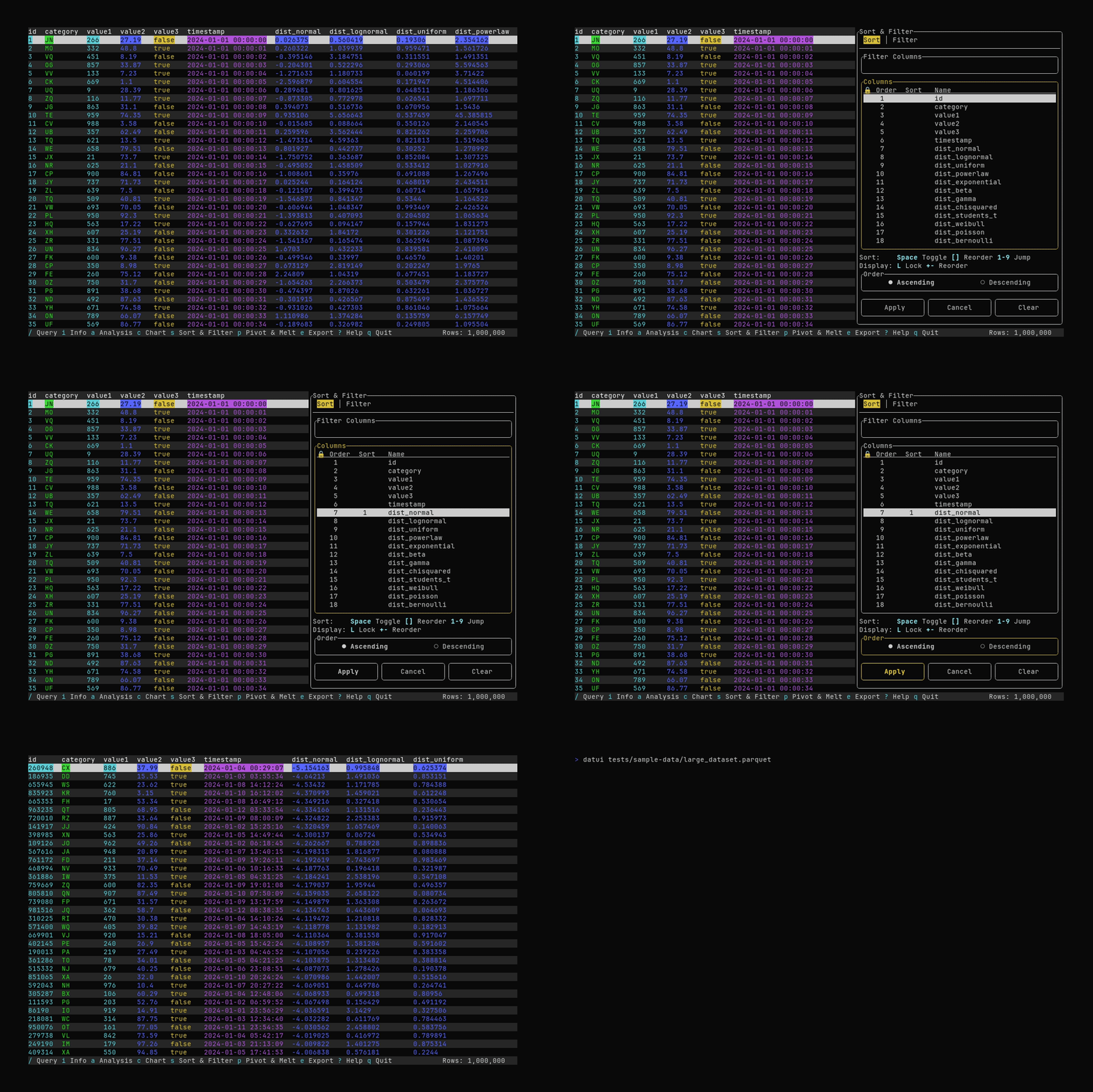
What it shows:
- Opening the Sort & Filter dialog with
s - Selecting a sort column and applying the sort
See Filtering and Sorting for sort and filter options.
Filtering
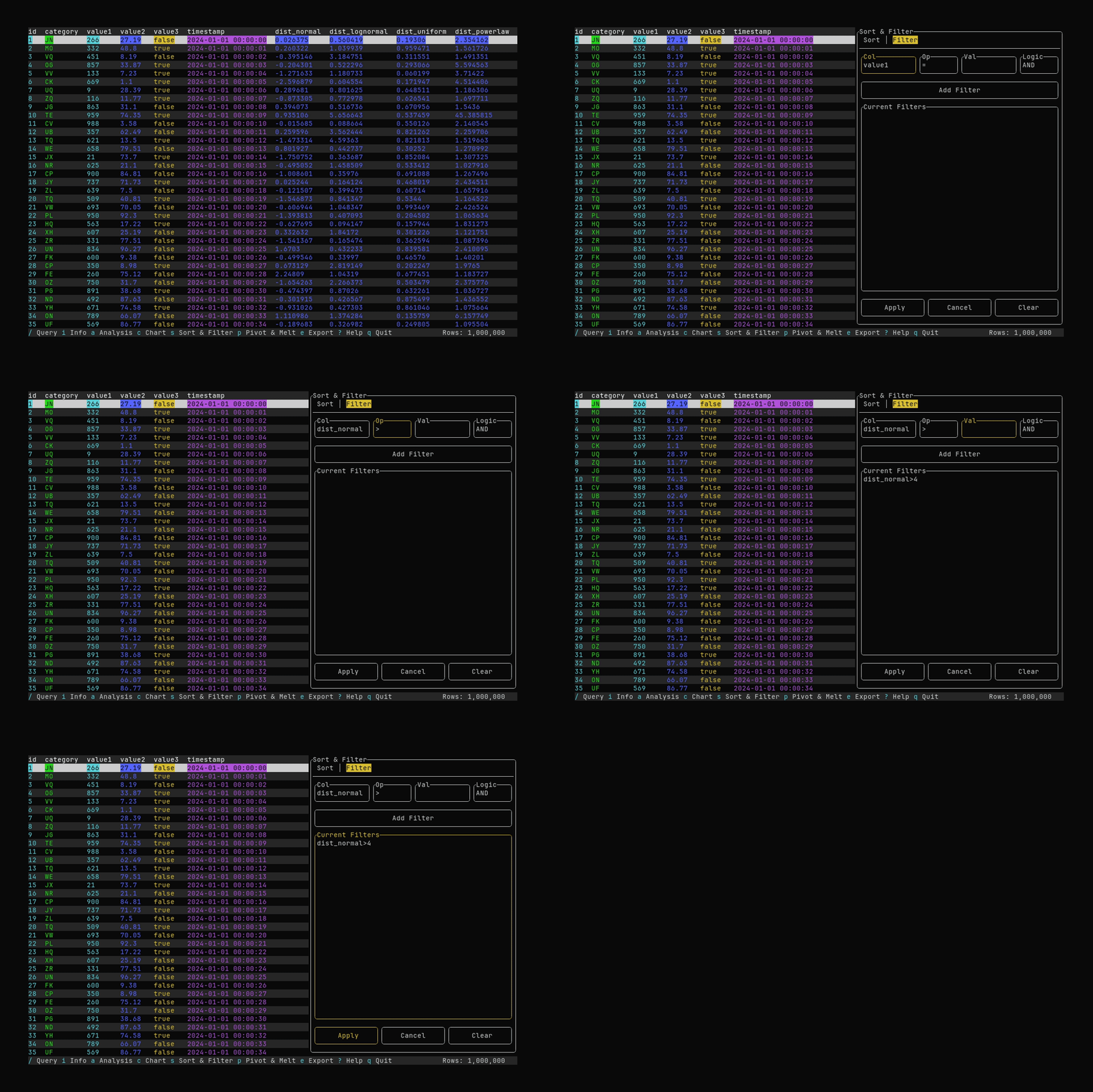
What it shows:
- Switching to the Filter tab and adding a filter (e.g.
dist_normal > 4) - Applying the filter to the table
See Filtering and Sorting for sort and filter options.
Export
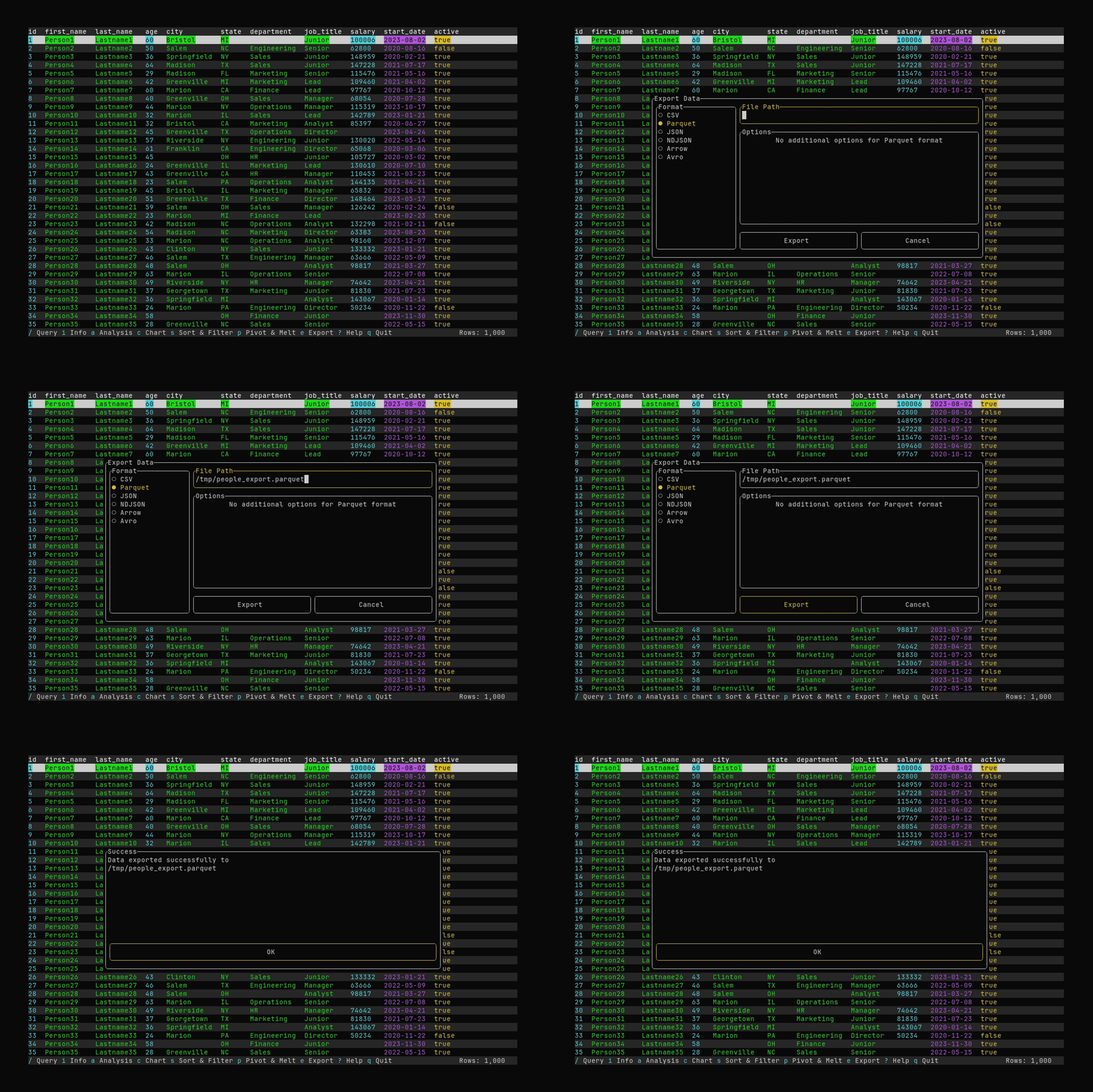
What it shows:
- Opening export with
eand entering an output path - Exporting the current data to Parquet in
/tmp
See Exporting Data for supported formats and options.
Correlation Matrix
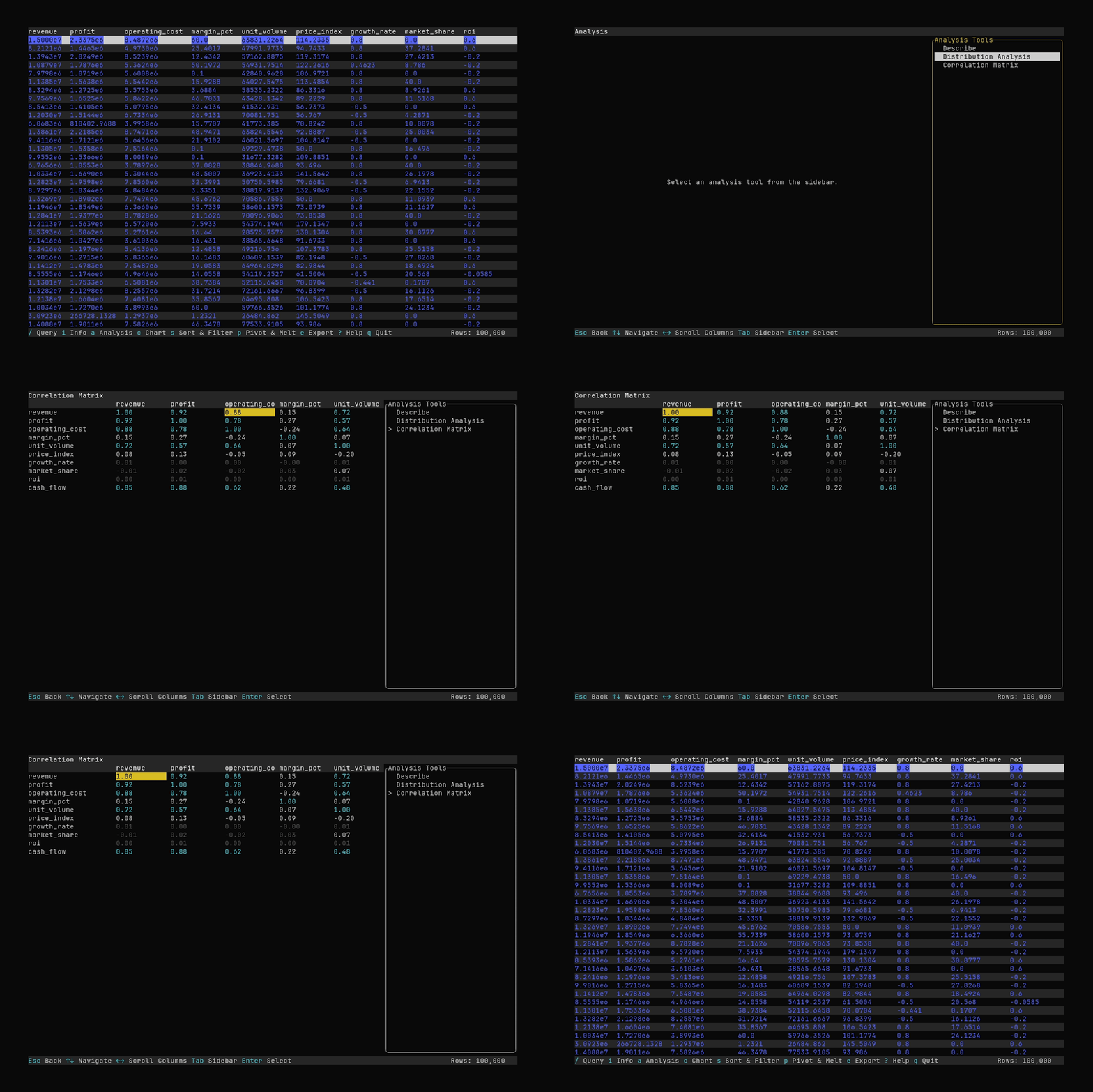
What it shows:
- Opening analysis with
aand selecting the Correlation Matrix tool - Scrolling the correlation matrix
See Analysis Features for details.
Charting
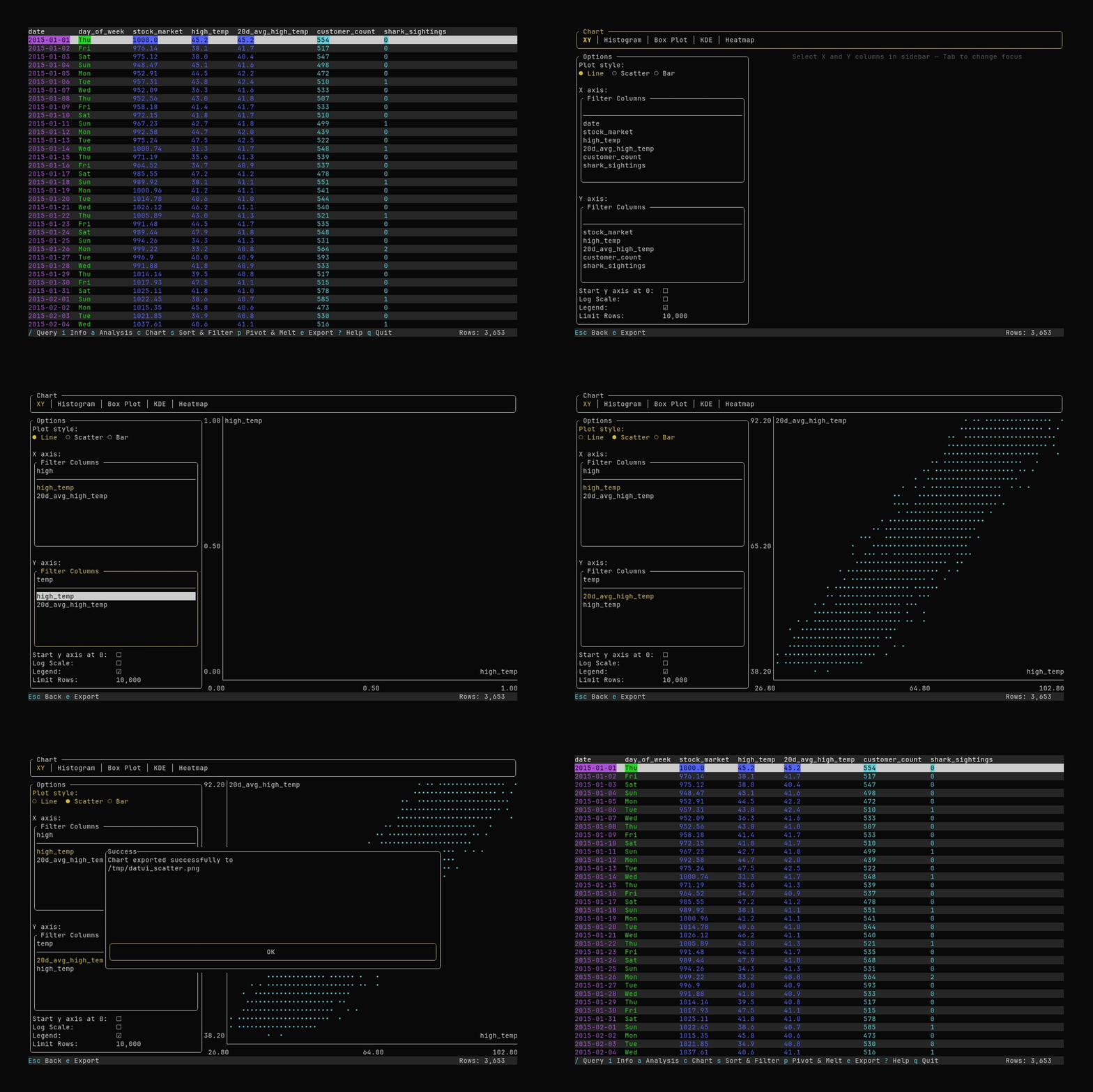
What it shows:
- Opening the chart with
c - Viewing data in a line chart, and then a scatter plot
- Exporting the chart to a PNG file
See Charting for more details.
Overview
What it shows:
- Scrolling up and down on a Parquet file (
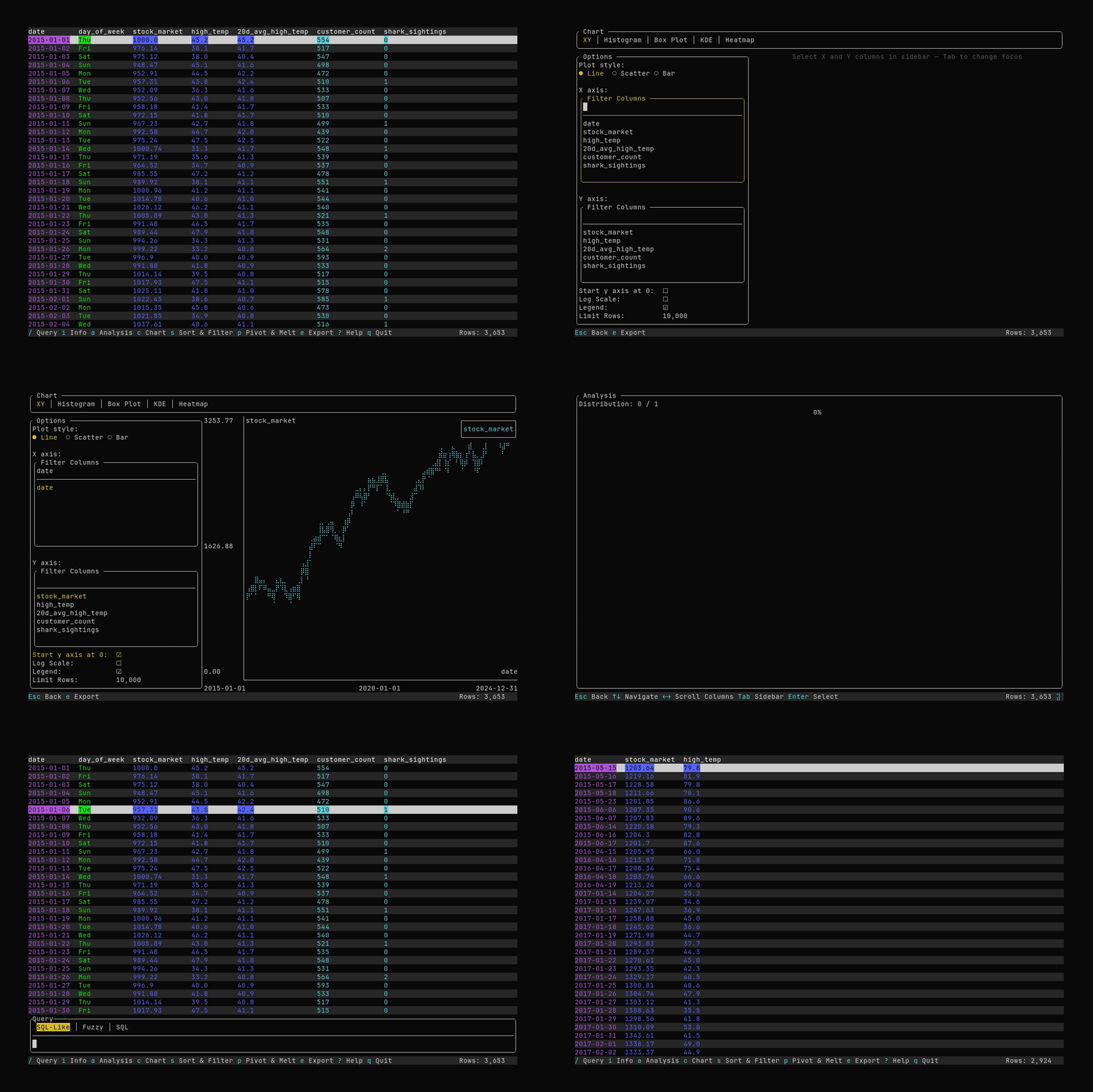
charting_demo.parquet) - Opening the chart and plotting the stock_market series with date on the x-axis
- Opening the Analysis page and the Describe tool (column statistics)
- Returning to the main table and running a query (
select date, stock_market, high_temp where stock_market > 1200)
A single ~30–45 second tour of table navigation, charting, analysis, and querying.
To install and run Datui, see the Getting Started Guide.
Getting Started
- See the Installation Manual
- Read the Quick Start Guide to get started
For Developers
See the For Developers section.
Installation
Once installed, have a look at the Quick Start Guide.
✨ Quick Install for Linux and macOS
curl -fsSL https://raw.githubusercontent.com/derekwisong/datui/main/scripts/install/install.sh | sh
Don’t like piping to shell? See the alternative methods below.
Releases
Download a ready-to-use copy from the Latest Release on GitHub.
Datui runs on Linux, macOS, and Windows
Package Managers
Homebrew (macOS)
Install via the derekwisong/datui tap:
brew tap derekwisong/datui
brew install datui
Windows (WinGet)
Install via WinGet: The Windows Package Manager:
winget install derekwisong.datui
Arch Linux (AUR)
Datui is available in the Arch User Repository
as datui-bin. Install it with an AUR helper such as
paru or yay:
paru -S datui-bin
or
yay -S datui-bin
Pip
Get the module from PyPI and launch Datui right from a Python console.
pip install datui
See Python Module.
RPM-based (Fedora, RedHat)
Get the link to the .rpm file for the release version you want from the Latest Release.
Use dnf to install that link.
dnf install https://github.com/derekwisong/datui/releases/download/vX.Y.Z/datui-X.Y.Z-1.x86_64.rpm
Deb-based (Debian, Ubuntu)
Download the .deb file for the release version you want from the Latest Release.
Use apt to install that file:
apt install datui-X.Y.Z-1.x86_64.deb
Compiling from Source
Datui is built using Rust, leveraging its Cargo toolkit for compilation.
To compile a release-quality executable, clone the repository and use cargo to build:
git clone https://github.com/derekwisong/datui.git
cd datui
cargo build --release
If desired, before building you could check out a specific release tag
git tag --list
git checkout <tag from the list>
cargo build --release
The datui executable can be found in the target/release directory.
Run it directly, or copy the file to a location on your PATH environment variable to make it
discoverable by your terminal.
Using cargo install
You may use cargo to install Datui locally into Cargo’s binary cache. (The ~/.cargo/bin
directory on Linux).
cargo install --path .
Quick Start
Datui is used to visualize tabular data in the terminal.
See the Installation Manual for help installing Datui.
Opening a File
To open a file, simply provide it as an argument.
datui /path/to/file.csv
Datui will load your data into a full screen terminal display.
See the Loading Data section for details about supported file formats and options.
Navigating
You may scroll through your data using the arrow keys, or familiar vim keybindings (j/k for
up/down, h/l for left/right).
You may also jump pages with the Page Up and Page Down keys.
Getting Help
See command line arguments:
datui --help
Activate the built-in help display at any time by pressing ? or F1 (F1 works
in text fields too, e.g. query input). Press Esc or ? to close it.
Understanding the UI
- The main Datui view window shows your data in full screen, with a header row at the top and a toolbar across the bottom of the screen.
- The toolbar at the bottom contains a quick reference for the keystrokes to activate the various features of Datui.
- Certain features will open pop-over menus, or change the full screen view. Press
Escto go back to the prior page.
More Examples
Open a hive-partitioned directory:
datui --hive /path/to/directory
Note: The directory should contain files all of the same type
Or, a glob pattern to hive-partitioned parquet:
datui --hive "/path/to/directory/**/*.parquet"
Note: It is usually necessary to quote the glob pattern to prevent shell expansion.
Learning More
Now that you understand the basics, learn about the rest of Datui’s features by reading the User Guide.
User Guide
See the Reference section for the details of the command line options, keyboard shortcuts, and query syntax.
Configuring Datui
Datui can be configured to your preferences and needs. Set up a configuration file to make it just right for your environment.
See the Configuration Guide for details.
Loading Data
To learn about the supported formats and features when loading a dataset with Datui, see the Loading Data Guide.
Charts
Render charts in the terminal and export them to images. See the Charting Guide for details.
Exporting Data
See Exporting Data for a guide to exporting to common formats.
Dataset Info
See the Dataset Info Guide to find out about the schema and resources of your dataset.
Querying, Filtering, and Sorting
Query Syntax
Datui’s query syntax makes filtering, grouping, and aggregating your dataset easy. You can also use it to make drilling down into subgroups of your data simple.
To learn more about it, see the Querying Data Guide.
Filtering and Sorting Dialogs
In addition to a query language, filtering and sorting can be done by using a dialog window in the TUI. See Filtering and Sorting for more.
Pivot and Melt
See the Pivot and Melt Guide to learn about reshaping your data.
Save your Work with Templates
Save and reapply your queries, sorts, and transformations using the Templates system. Templates save your customizations so they can be quickly re-applied later to the same or similar files.
Analysis Features
Use tools to explore characteristics or extract insight from your data.
- Discover relationships with a correlation matrix
- Learn about the characteristics of your data with distribution analysis
See the Analysis Features for full details.
Configuration
Datui supports extensive customization through TOML configuration files. You can customize colors, defaults, performance settings, and more.
Quick Start
Generate a default configuration file:
datui --generate-config
This creates ~/.config/datui/config.toml with all available options and helpful comments.
Configuration File Location
- Linux:
~/.config/datui/config.toml - macOS:
~/.config/datui/config.toml - Windows:
%APPDATA%\datui\config.toml
Configuration Priority
Settings are applied in this order (later values override earlier ones):
- Default values (hardcoded)
- Config file (
~/.config/datui/config.toml) - Command-line arguments (highest priority)
Configuration Sections
File Loading Defaults
Customize how data files are loaded:
[file_loading]
delimiter = 44        # CSV delimiter (44 = comma). null = auto-detect
has_header = true     # Whether files have headers. null = auto-detect
skip_lines = 0        # Lines to skip at file start
skip_rows = 0         # Rows to skip when reading
parse_dates = true    # When true (default), CSV reader tries to parse string columns as dates (e.g. YYYY-MM-DD, ISO datetime)
decompress_in_memory = false  # When true, decompress compressed CSV into memory; when false (default), decompress to a temp file so scan can be used
temp_dir = null       # Directory for temp files when decompressing compressed CSV. null = system default (e.g. /tmp)
- delimiter — ASCII value of the CSV column separator (e.g. 44 for comma). Omit or set to
nullto use auto-detection. - has_header — Whether the first row is a header. Omit or
nullfor auto-detect;trueorfalseto force. - skip_lines / skip_rows — Number of lines (or rows) to skip before reading the header and data.
- parse_dates — When
true(default), the CSV reader attempts to parse string columns that look like dates (e.g.YYYY-MM-DD,YYYY-MM-DDTHH:MM:SS) into Polars Date or Datetime. Set tofalseto keep such columns as strings. Overridden by the--parse-datesCLI flag (e.g.--parse-dates falseto disable; see command-line options). - decompress_in_memory — When
false(default), compressed CSV is decompressed to a temporary file so the lazy CSV reader can scan it. Whentrue, compressed data is decompressed into memory (eager load). Usetrueif you have no temp filesystem. Overridden by--decompress-in-memory/--decompress-in-memory false. - temp_dir — Directory used for temporary files when decompressing compressed CSV. Omit or set to
nullto use the system default (e.g./tmpon Unix). Overridden by the--temp-dirCLI option.
Display Settings
Control how data is displayed:
[display]
pages_lookahead = 3   # Pages to buffer ahead (smoother scrolling)
pages_lookback = 3    # Pages to buffer behind
row_numbers = false   # Show row numbers on left side
row_start_index = 1   # Starting index for row numbers (0 or 1)
table_cell_padding = 1   # Spaces between columns in the main table (>= 0)
Example: Enable row numbers starting at 0
[display]
row_numbers = true
row_start_index = 0
Performance Settings
Tune performance and responsiveness:
[performance]
# sampling_threshold = 10000   # Optional: when set, sample datasets >= this size for analysis
event_poll_interval_ms = 25  # UI polling interval (lower = more responsive)
- event_poll_interval_ms — UI event polling interval in milliseconds. Lower values feel more responsive but use more CPU.
sampling_threshold (optional)
Controls whether Analysis Mode uses a sample of the data for large datasets. Default: sampling is off (full dataset is used).
| Config / CLI | Behavior |
|---|---|
Omit sampling_threshold in config (default) | Full dataset is used. No “Resample” keybind or “(sampled)” label. |
sampling_threshold = N in config | For datasets with ≥ N rows, analysis runs on a sample (faster, less memory). r resamples; tool shows “(sampled)”. |
--sampling-threshold N on the command line | Overrides config for that run. Use a positive N to enable sampling, or 0 to force full-dataset analysis. |
Example: to sample only when a table has at least 50,000 rows, set sampling_threshold = 50000 under [performance], or run datui --sampling-threshold 50000 …. See command-line options for the CLI flag.
Chart View
Default limit for how many rows are used when building chart data (display and export). You can also change this in chart view with the Limit Rows option.
[chart]
row_limit = 10000  # Max rows for chart data (1 to 10_000_000). Default 10000
Color Themes
Customize the entire UI appearance:
[theme.colors]
keybind_hints = "cyan"              # Keybind hints
keybind_labels = "yellow"           # Action labels
primary_chart_series_color = "cyan" # Chart data
secondary_chart_series_color = "dark_gray" # Chart theory
chart_series_color_1 = "cyan"       # Chart view: first series
chart_series_color_2 = "magenta"    # Chart view: second series
chart_series_color_3 = "green"      # Chart view: third series
chart_series_color_4 = "yellow"    # Chart view: fourth series
chart_series_color_5 = "blue"      # Chart view: fifth series
chart_series_color_6 = "red"       # Chart view: sixth series
chart_series_color_7 = "bright_cyan" # Chart view: seventh series
error = "red"                       # Error messages
success = "green"                   # Success indicators
warning = "yellow"                  # Warnings
dimmed = "dark_gray"                # Dimmed elements
alternate_row_color = "default"    # Background for every other row ("default" = off, or a color name)
Color Formats
Three color formats are supported:
1. Named Colors
keybind_hints = "cyan"
error = "bright_red"
dimmed = "dark_gray"
background = "default"  # Use terminal default background
text_primary = "default"  # Use terminal default text color
Available names:
- Basic:
black,red,green,yellow,blue,magenta,cyan,white - Bright:
bright_red,bright_green,bright_blue, etc. - Grays:
gray,dark_gray,light_gray - Special:
resetordefault(uses terminal default colors - works in both light and dark themes)
2. Hex Colors
background = "#1e1e1e"
sidebar_border = "#007acc"
controls_bg = "#2d2d2d"
- Format:
#rrggbb(6 hex digits) - Case-insensitive:
#FF0000or#ff0000 - Automatically adapted to your terminal’s capabilities
3. Indexed Colors
controls_bg = "indexed(236)"  # Example: specific palette entry
surface = "indexed(239)"
- Direct reference to xterm 256-color palette (0-255)
- Respects your terminal’s color scheme
- Useful for matching specific terminal themes
Terminal Compatibility
Colors automatically adapt to your terminal:
- True color terminals (Alacritty, kitty, iTerm2): Hex colors display exactly
- 256-color terminals (xterm-256color): Hex converted to nearest palette match
- Basic terminals (8/16 colors): Colors map to nearest ANSI color
- Monochrome: Set
NO_COLOR=1to disable colors - Light Theme Support:
- The default values for
backgroundandtext_primaryare set to"default" - Datui will inherit your terminal’s default colors
- The application renders correctly in both light and dark terminal themes
- Be aware that setting explicit colors like
"black"or"white"may result in poor visibility in certain terminal themes
- The default values for
Available Colors
All UI colors can be customized:
| Color | Purpose | Default |
|---|---|---|
keybind_hints | Keybind hints (modals, breadcrumb, correlation matrix) | cyan |
keybind_labels | Action labels in controls bar | yellow |
throbber | Busy indicator (spinner) in control bar | cyan |
primary_chart_series_color | Chart data (histogram bars, Q-Q plot data points) | cyan |
secondary_chart_series_color | Chart theory (histogram overlays, Q-Q plot reference line) | dark_gray |
chart_series_color_1 … chart_series_color_7 | Chart view: series colors (line/scatter/bar) | cyan, magenta, green, yellow, blue, red, bright_cyan |
success | Success indicators, normal distributions | green |
error | Error messages, outliers | red |
warning | Warnings, skewed distributions | yellow |
dimmed | Dimmed elements, axis lines | dark_gray |
background | Main background | default (uses terminal default) |
surface | Modal/surface backgrounds | default (uses terminal default) |
controls_bg | Controls bar and table header backgrounds | indexed(235) |
text_primary | Primary text | default (uses terminal default) |
text_secondary | Secondary text | dark_gray |
text_inverse | Text on light backgrounds | black |
table_header | Table column header text | white |
table_header_bg | Table column header background | indexed(235) |
column_separator | Vertical line between table columns | cyan |
table_selected | Selected row style | reversed |
sidebar_border | Sidebar borders | dark_gray |
modal_border_active | Active modal elements | yellow |
modal_border_error | Error modal borders | red |
distribution_normal | Normal distribution indicator | green |
distribution_skewed | Skewed distribution indicator | yellow |
distribution_other | Other distribution types | white |
outlier_marker | Outlier indicators | red |
Query System
Configure query behavior:
[query]
history_limit = 1000      # Max queries to remember
enable_history = true     # Enable query history
Template Settings
Configure template behavior:
[templates]
auto_apply = false  # Auto-apply most relevant template on file open
Debug Settings
Configure debug overlay:
[debug]
enabled = false             # Show debug overlay by default
show_performance = true     # Show performance metrics
show_query = true           # Show LazyFrame query
show_transformations = true # Show transformation state
Example Configurations
Minimal Configuration
Simple customization for common preferences:
version = "0.2"

[display]
row_numbers = true
row_start_index = 0

[theme.colors]
keybind_hints = "blue"
Dracula Theme
Complete Dracula color scheme using the official palette (hex colors):
version = "0.2"

[theme.colors]
# Keybinds and UI chrome
keybind_hints = "#bd93f9"              # Purple
keybind_labels = "#ff79c6"             # Pink
throbber = "#bd93f9"                   # Purple

# Chart colors
primary_chart_series_color = "#bd93f9" # Purple
secondary_chart_series_color = "#6272a4" # Comment
chart_series_color_1 = "#8be9fd"       # Cyan
chart_series_color_2 = "#ff79c6"       # Pink
chart_series_color_3 = "#50fa7b"       # Green
chart_series_color_4 = "#f1fa8c"       # Yellow
chart_series_color_5 = "#bd93f9"       # Purple
chart_series_color_6 = "#ff5555"       # Red
chart_series_color_7 = "#ffb86c"       # Orange

# Status
success = "#50fa7b"                    # Green
error = "#ff5555"                      # Red
warning = "#ffb86c"                    # Orange
dimmed = "#6272a4"                     # Comment

# Backgrounds
background = "#282a36"                 # Background
surface = "#44475a"                    # Selection / current line
controls_bg = "#44475a"                # Controls bar

# Text
text_primary = "#f8f8f2"               # Foreground
text_secondary = "#6272a4"             # Comment
text_inverse = "#282a36"               # Background (for inverse)

# Table
table_header = "#f8f8f2"               # Foreground
table_header_bg = "#44475a"            # Selection
row_numbers = "#6272a4"                # Comment
column_separator = "#bd93f9"           # Purple
table_selected = "reversed"
alternate_row_color = "default"        # No stripe (or use "#3d3f4a" for subtle stripe)

# Column type colors (when column_colors enabled)
str_col = "#50fa7b"                    # Green
int_col = "#8be9fd"                    # Cyan
float_col = "#bd93f9"                  # Purple
bool_col = "#f1fa8c"                  # Yellow
temporal_col = "#ff79c6"               # Pink

# Borders and modals
sidebar_border = "#6272a4"             # Comment
modal_border_active = "#ff79c6"        # Pink
modal_border_error = "#ff5555"         # Red

# Cursor (query input, etc.)
cursor_focused = "#f8f8f2"             # Foreground
cursor_dimmed = "#6272a4"              # Comment

# Analysis / distributions
distribution_normal = "#50fa7b"        # Green
distribution_skewed = "#ffb86c"        # Orange
distribution_other = "#f8f8f2"         # Foreground
outlier_marker = "#ff5555"             # Red
Performance Tuned
Optimize for large datasets:
version = "0.2"

[display]
pages_lookahead = 5   # More buffering for smoother scrolling
pages_lookback = 5

[performance]
sampling_threshold = 50000  # Optional: sample only datasets >= 50k rows (omit to use full data)
event_poll_interval_ms = 16 # ~60 FPS polling (more responsive)
High Contrast Theme
Using named colors for maximum compatibility:
version = "0.2"

[theme.colors]
keybind_hints = "bright_cyan"
keybind_labels = "bright_yellow"
primary_chart_series_color = "bright_cyan"
secondary_chart_series_color = "dark_gray"
error = "bright_red"
success = "bright_green"
warning = "bright_yellow"
dimmed = "dark_gray"

background = "black"
controls_bg = "dark_gray"
text_primary = "bright_white"
Command-Line Overrides
CLI arguments always override config file settings:
# Config has row_numbers = true, but disable for this run:
datui data.csv --row-numbers=false

# Override page buffering:
datui data.csv --pages-lookahead 10

# Override delimiter:
datui data.csv --delimiter=9  # Tab character (ASCII 9)
Managing Configuration
View Current Config
Your config file is at ~/.config/datui/config.toml. Edit it with any text editor:
# Linux/macOS
nano ~/.config/datui/config.toml
vim ~/.config/datui/config.toml
code ~/.config/datui/config.toml

# Windows
notepad %APPDATA%\datui\config.toml
Reset to Defaults
Regenerate the default config file:
datui --generate-config --force
This overwrites your existing config with a fresh template.
Remove Configuration
Simply delete the config file:
# Linux/macOS
rm ~/.config/datui/config.toml

# Windows
del %APPDATA%\datui\config.toml
Datui will use default values when no config file exists.
Troubleshooting
Config Not Loading
If your config isn’t being used:
- Check file location: Ensure config is at
~/.config/datui/config.toml - Check syntax: TOML must be valid. Run
datui <file>and check for warnings - Check version: Config must start with
version = "0.2" - Check validation: Ensure values are in valid ranges (e.g., if set,
sampling_threshold > 0)
Invalid Color
If you see an error about invalid colors:
Error: Invalid color value for 'keybind_hints': Unknown color name: 'notacolor'
Solutions:
- Use valid color names (see list above)
- Use hex format:
#ff0000 - Use indexed format:
indexed(236) - Check spelling and case (names are case-insensitive)
Config Parse Error
If TOML parsing fails:
Error: Failed to parse config file: expected newline, found ...
Solutions:
- Check TOML syntax at https://toml.io/
- Ensure proper quotes around strings
- Verify no typos in section names
- Regenerate config:
datui --generate-config --force
Colors Look Wrong
If colors don’t look right:
- Check terminal capabilities: Some terminals don’t support true color
- Try named colors: More portable than hex colors
- Try indexed colors: Match your terminal’s palette exactly
- Check NO_COLOR: Unset with
unset NO_COLORif colors are disabled
Table Headers or Toolbar Text Cut Off or Deformed (VS Code, xterm-256)
On some terminals (e.g. VS Code integrated terminal, xterm-256color), custom background colors on headers/toolbar can cause text to render cut off or deformed. By default, controls_bg and table_header_bg use indexed(235), which works well on most setups.
If you see deformed text, set them to "default" or "none" for no custom background:
[theme.colors]
controls_bg = "default"
table_header_bg = "default"
See Also
- Command-Line Options - CLI flags that override config
- Quick Start Guide - Getting started with datui
- Keyboard Shortcuts - Available keybindings
Loading Data
Load data with Datui by passing it command line options
and a path to open. The path can be a local file or directory, an S3 URI (Amazon S3 or MinIO), a GCS URI (gs://), or an HTTP/HTTPS URL. Cloud and HTTP support are included by default.
Remote data (S3, GCS, and HTTP)
You can open data from Amazon S3, Google Cloud Storage (GCS), S3-compatible storage (e.g. MinIO), or HTTP/HTTPS by passing the appropriate URI. Support is included by default when you build or install datui.
Same behavior for all cloud and HTTP: Parquet (and Parquet globs/prefixes) are read directly where supported; all other formats (CSV, JSON, NDJSON, etc.) are downloaded to a temporary file first, then loaded. That applies to AWS S3, custom S3 (MinIO, etc.), and GCS.
One remote path at a time: If you pass more than one path and the first is a remote URL (S3, GCS, or HTTP), datui reports an error. Open a single remote URL per run; local files can still be opened as multiple paths (concatenated).
Amazon S3 (s3://)
Credentials: Datui does not add its own credential system. It uses the same credentials as the rest of the AWS ecosystem:
-
Environment variables (good for scripts and one-off use):
AWS_ACCESS_KEY_ID— access keyAWS_SECRET_ACCESS_KEY— secret keyAWS_REGION(orAWS_DEFAULT_REGION) — e.g.us-east-1- Optionally
AWS_SESSION_TOKENfor temporary credentials
-
Shared config (good for daily use):
~/.aws/credentials— profiles and keys~/.aws/config— region and other settings
-
IAM roles — If you run on EC2, ECS, Lambda, or similar, the instance/task role is used automatically; no env or config needed.
Set at least one of these before running Datui. Example:
export AWS_ACCESS_KEY_ID=AKIA...
export AWS_SECRET_ACCESS_KEY=...
export AWS_REGION=us-east-1
datui s3://my-bucket/data/myfile.parquet
Usage
-
Single Parquet file:
datui s3://bucket-name/path/to/file.parquet -
Hive-style partitioned data on S3:
Use a prefix or glob so Polars can discover partitions:datui s3://bucket-name/prefix/datui "s3://bucket-name/prefix/**/*.parquet"
-
Other formats (CSV, JSON, NDJSON, etc.) on S3:
Datui downloads the object to a temporary file and then loads it like a local file. Use the same URI style:datui s3://bucket-name/path/to/file.csv
The file is downloaded to your system temp directory (or--temp-dirif set), then opened normally. This is the same approach used for HTTP/HTTPS URLs.
Configurable S3 (MinIO and other S3-compatible backends)
You can point S3 at a custom endpoint (e.g. MinIO) via config, environment variables, or CLI options. Priority is: CLI > env > config. That lets you keep a default in config and override per run when you use multiple backends.
Config — In ~/.config/datui/config.toml add a [cloud] section:
[cloud]
# MinIO example
s3_endpoint_url = "http://localhost:9000"
s3_access_key_id = "minioadmin"
s3_secret_access_key = "minioadmin"
s3_region = "us-east-1"
Environment variables (override config; standard for S3 tools):
AWS_ENDPOINT_URLorAWS_ENDPOINT_URL_S3— custom endpoint (e.g.http://localhost:9000)AWS_ACCESS_KEY_ID— access keyAWS_SECRET_ACCESS_KEY— secret keyAWS_REGIONorAWS_DEFAULT_REGION— region (e.g.us-east-1)
CLI options (override env and config):
--s3-endpoint-url URL--s3-access-key-id KEY--s3-secret-access-key SECRET--s3-region REGION
Examples for multiple backends without editing config each time:
# MinIO in another terminal/shell
export AWS_ENDPOINT_URL=http://localhost:9000
export AWS_ACCESS_KEY_ID=minioadmin
export AWS_SECRET_ACCESS_KEY=minioadmin
export AWS_REGION=us-east-1
datui s3://my-bucket/file.parquet

# Different MinIO or S3-compatible endpoint
datui --s3-endpoint-url https://s3.other.example s3://other-bucket/file.parquet
Google Cloud Storage (gs://)
You can open Parquet files from Google Cloud Storage using gs:// URIs. Credentials use Application Default Credentials:
- User or service account key file: set
GOOGLE_APPLICATION_CREDENTIALSto the path of your JSON key file. - gcloud CLI: run
gcloud auth application-default login. - GCE/Cloud Run: workload identity is used automatically.
Example:
export GOOGLE_APPLICATION_CREDENTIALS=/path/to/key.json
datui gs://my-bucket/path/to/file.parquet
- Parquet and Hive-style prefixes/globs work as for S3:
datui gs://bucket/prefix/ordatui "gs://bucket/prefix/**/*.parquet". - Other formats (CSV, JSON, NDJSON, etc.) work the same as S3 and HTTP: the object is downloaded to a temporary file, then loaded. Example:
datui gs://my-bucket/path/to/file.csv
Minimal build (no cloud)
To build without S3 support and avoid the extra cloud dependencies:
cargo build --release --no-default-features
If you pass an S3 or gs:// URI to a binary built that way, you will see an error suggesting a build with default features.
Supported Formats
| Format | Extensions | Eager load only | Hive partitioning |
|---|---|---|---|
| Parquet | .parquet | No | Yes |
| CSV (or other-delimited) | .csv, .tsv, .psv, etc. | No | No |
| NDJSON | .jsonl | No | No |
| JSON | .json | Yes | No |
| Arrow IPC / Feather v2 | .arrow, .ipc, .feather | No | No |
| Avro | .avro | Yes | No |
| Excel | .xls, .xlsx, .xlsm, .xlsb | Yes | No |
| ORC | .orc | Yes | No |
Eager load only — The file is read fully into memory before use; no lazy streaming. Hive partitioning — Use the --hive flag with a directory or glob; see Hive-partitioned data below.
Excel — Use the --sheet flag to specify which sheet to open.
CSV date inference — By default, CSV string columns that look like dates (e.g. YYYY-MM-DD, YYYY-MM-DDTHH:MM:SS) are parsed as Polars Date/Datetime. Use --parse-dates false or set parse_dates = false in configuration to disable.
Compression
Compressed files are identified by extension and decompressed before loading. Use the --compression option to specify the format when the file has no extension or the extension is wrong.
Supported Compression Formats
- gz
- zstd
- bzip2
- xz
Hive-partitioned data
You can load a Hive-style partitioned dataset (e.g. a directory tree with key=value segment names such as year=2024/month=01/) by using the --hive flag and passing a directory or a glob pattern instead of a single file.
- Directory: point at the partition root, e.g.
datui --hive /path/to/data - Glob: use a pattern that matches the partition layout, e.g.
datui --hive /path/to/data/**/*.parquet
You may need to quote the glob so your shell does not expand it (e.g.datui --hive "/path/to/data/**/*.parquet").
Only Parquet is supported for hive-partitioned loading. If you pass a single file with --hive, it is loaded as usual and the flag is ignored.
Schema from one file (default): For faster loading, datui infers the Parquet schema from a single file along one partition branch (single-spine) instead of scanning all files. This applies to both local Hive directories and S3/GCS prefixes (e.g. s3://bucket/prefix/ or gs://bucket/prefix/). If your dataset has inconsistent schemas or other complications and you prefer Polars to discover the schema over all files, disable this with --single-spine-schema=false or set single_spine_schema = false under [file_loading] in configuration.
Partition columns (the keys from the path, e.g. year, month) are shown first in the table and listed in the Info panel under the Partitioned data tab.
Querying Data
Press / to open the query prompt. The prompt has three tabs:
- SQL-Like — Datui’s built-in query language (described below).
- Fuzzy — Filter rows by typing text; matches any string column, tokens AND, case-insensitive (see Fuzzy search).
- SQL — Run standard SQL against the current table (see Using the SQL tab).
Use Tab or Shift+Tab (or Left / Right) to switch tabs. Focus stays on the tab bar when you change tabs; press Tab to move focus into the text input for the selected tab.
See the Query Syntax Reference for additional detail about the structure of SQL-Like queries.
Fuzzy search
In the Fuzzy tab, type text and press Enter to filter rows. The search matches any string column: characters must appear in order (not necessarily adjacent). Space-separated words are ANDed (each must match). Matching is case-insensitive. Up / Down — browse fuzzy search history. Esc — cancel.
Using the SQL tab
When the SQL tab is selected and focus is in the input box, you can run SQL against the current data. The table is registered as df, so use FROM df in your queries.
- Up / Down — Browse SQL history (stored separately from SQL-Like history).
- Enter — Run the query (or submit an empty line to reset the view to the full table).
- Esc — Cancel and close the prompt.
Example:
SELECT * FROM df LIMIT 100
SELECT category, COUNT(*) AS n FROM df GROUP BY category ORDER BY n DESC
Selecting Columns (SQL-Like)
The select clause can be used to select columns:
select a, b, c
Use select alone to select all columns:
select
Rename columns using the : assignment operator (creates a column d that is the same as a):
select a, b, c, d: a
To create, or query, columns with spaces in their names, use the col["name"] syntax:
select no_spaces:col["name with spaces"]
or
select col["name with space"]: no_spaces
Filtering Results
The where clause can be used to filter results.
select where a > 10
Separate where clause expressions with , (logical and).
Get all data where a > 10 and b < 2:
select where a > 10, b < 2
Use the | to form a logical or between a bool column and a numeric:
select where some_bool | a > 10
Select a, b, and c where a > 10 and b < 2 and (d > 7 or e = 2)
select a, b, c where a > 10, b < 2, (d > 7) | (e = 2)
Calculations and Transformations
There is a simple expression language built-in to the query language using:
+, -, *, and % for arithmetic (the % is division, not modulo).
select a, b: c+d where c > 0
See the Syntax Reference for important details about the expression syntax.
Working with dates and times
For columns of type Date or Datetime, use dot accessors to extract components:
select event_date: timestamp.date, year: timestamp.year
select where created_at.date > 2024.01.01, created_at.month = 12
select order_date, order_date.month, order_date.dow by order_date.year
Use YYYY.MM.DD for date literals in comparisons (e.g. where dt_col.date > 2021.01.01).
Available accessors include date, time, year, month, week, day, dow (day of week), month_start, month_end, and tz (timezone). See the Query Syntax Reference for the full list and more examples.
Grouping and Aggregation
The by clause in the query language allows you to group your data, or aggregate it within group.
Enabling Drill-Down with Grouping
Executing a query with a by clause will result in a grouped table. This table can be drilled down into
through the UI by selecting the resultant grouped row and pressing Enter. Go back to the grouped result
by pressing Esc.
select name, city, state, salary by department
Aggregate Queries
Using the same by syntax, you can introduce an aggregation function to summarize your data.
select min_salary: min salary, avg_salary: avg salary, max_salary: max salary by department
Filtering and Sorting
Open the Sort & Filter dialog with s. The dialog has two tabs:
Sorting demo:
Filtering demo:
- Sort: Manage column order, sort order, locking, and visibility.
- Filter: Add and manage row filters (column, operator, value).
Use Tab / Shift+Tab to move focus; Left / Right on the tab bar to switch tabs. Apply runs changes and closes the dialog; Cancel closes without applying; Clear resets the current tab.
Exporting Data
The data export controls can be used to save your data to a file.
Press the e key from the main window to export your data. See
Keyboard Shortcuts.
Supported Formats
You can export to: CSV, Parquet, JSON, NDJSON, Arrow IPC (.arrow), and Avro (.avro).
Excel is supported for loading only, not export.
See Loading Data for the full list of input formats.
Chart View
The chart view supports multiple chart types using tabs across the top: XY, Histogram, Box Plot, KDE, and Heatmap.
Press c from the main view to open the chart.
Controls in Chart View
- Tab bar: Switch chart type with ←/→ when the tab bar is focused.
- XY:
- Plot style: Line, Scatter, or Bar (cycle with ↑/↓ or ←/→ when focused).
- X axis: Search for and select a numeric or temporal column (single selection).
- Y axis: Search for and select one or more numeric columns. Use
Spaceto toggle columns on or off; up to seven series can be plotted at once. - Options:
- Y axis starts at 0 (defaults to data range)
- Log scale
- Show legend
- Histogram:
- Value column: Select a numeric column.
- Bins: Adjust with
+/-or ←/→ when focused.
- Box Plot:
- Value column: Select a numeric column.
- KDE:
- Value column: Select a numeric column.
- Bandwidth: Adjust with
+/-or ←/→ when focused.
- Heatmap:
- X axis / Y axis: Select numeric columns.
- Bins: Adjust with
+/-or ←/→ when focused.
- Limit Rows (all chart types, at bottom of options): Maximum rows used to build the chart. Adjust with
+/-or ←/→ when focused. Default comes from config (chart.row_limit, typically 10,000). Tab/Shift+Tabmove focusEscreturns to the main view
Export to File
Press e to open the chart export dialog.
- Choose format
- Enter a file path
- Press
Enteror navigate to theExportbutton to export.
If the file already exists, you will be asked to confirm overwrite.
Extensions (like
.png,.eps) are added automatically if missing.
Configuration
- Series colors: In
theme.colors, setchart_series_color_1throughchart_series_color_7. See Configuration. - Default row limit: In
[chart], setrow_limit(e.g.10000) to change the default maximum rows used for chart data. You can override it in the UI with Limit Rows.
Dataset Info Panel
The Info panel shows technical details about the loaded dataset. Press i from the main view to open it. Esc or i closes it.
Navigation (when the panel is open):
- Tab / Shift+Tab: On the Schema tab, move focus between the tab bar and the schema table. On the Resources tab, focus stays on the tab bar.
- Left / Right: On the tab bar, switch between Schema and Resources.
- ↑ / ↓: When the schema table has focus (Schema tab), scroll the column list and change the selection. The first row is selected by default when the Schema tab is active.
Tabs
Schema
- Rows (total) and Columns: Size of the full dataset (not the visible slice).
- Columns by type: Counts per data type (e.g.
Int64: 3 · Utf8: 2). - Schema: Known / Inferred: Parquet uses a stored schema (Known); CSV and JSON infer types (Inferred).
- Column table: Name, type, source, and for Parquet files optionally Compression (codec and ratio per column).
Resources
- File size: Size on disk (when loaded from a file).
- Buffered (visible): Estimated memory of the currently buffered slice (not the full dataset).
- Parquet: Overall compression ratio, row groups, version, and Created by when available.
- Format: Detected format (CSV, Parquet, JSON, NDJSON).
See also
Analysis Mode
Use Datui to get insights about your data.
If you configure a sampling threshold (see Configuration), analysis uses a subset of the data when the dataset is large. In that case the tool shows “(sampled)” and you can press
rto resample.By default, analysis uses the full dataset (no sampling).
Starting Analysis Mode
Open analysis mode using the a key.
See Keyboard Shortcuts for more key bindings.
You will see a collection of tools on the right. Using the Tab key to navigate to the list,
select a tool to analyze your data with. The Describe tool is selected by default.
To exit analysis mode, press the Esc key.
Tools
Describe
Displays summary statistics about your data, similar to Polars’ describe.
Distribution Analysis
- Compares your data against a set of hypothetical distributions and suggests the best fit.
- Select a column and press
Enteron it to view a Q-Q plot and a histogram for the column.
Correlation Matrix
Discover the relationships in your data with the correlation matrix tool. Colors are used to note the degree of correlation.
Pivot and Melt
Datui supports reshaping tabular data between long and wide formats via the Pivot & Melt dialog.
Open it with p from the main view.
Pivot demo:
Melt demo:
- Pivot (long → wide): Turn rows with a key column into new columns. Example:
id,date,key,value→id,date,key_A,key_B,key_C. - Melt (wide → long): Collapse many columns into
variableandvaluecolumns. Example:id,Q1,Q2,Q3→id,variable,value.
Both operations run on the current table—i.e. the result of any filters, sorts, or queries you’ve applied. You can filter or sort first, then pivot or melt that view.
Pivot (long → wide)
Pivoting a table is by nature an eager operation. To form the columns, the data must be read. Be sure to filter or query the data as appropriate before pivoting to manage memory usage.
- Index columns: Group columns that stay on the left (e.g.
id,date). Use the filter to search, Space to toggle selection. Order matters. - Pivot column: The column whose distinct values become new column headers (e.g.
key→A,B,C). Use ↑/↓ to select. - Value column: The column whose values fill the new cells. Use ↑/↓ to select.
- Aggregation: How to combine multiple values per group: last, first, min, max, avg, med, std, count. Default is last. If the value column is string-typed, only first and last are available.
- Sort new columns: Toggle to sort new column names alphabetically.
Apply runs the pivot and closes the dialog. Cancel or Esc closes without changing the table. Clear resets the form.
Melt (wide → long)
- Index columns: Columns to keep as identifiers (e.g.
id,date). Same multi-select pattern as Pivot. - Value-column strategy:
- All except index: Melt every column not in the index. Good default when you want to unpivot all measure columns.
- By pattern: Regex over column names (e.g.
Q[1-4]_2024,metric_.*). Type the pattern in the Pattern field. - By type: Melt all Numeric, String, Datetime, or Boolean columns (excluding index).
- Explicit list: Manually pick value columns with Space to toggle.
- Variable name / Value name: Output column names for the melted dimension and values. Defaults:
variable,value.
Apply runs the melt and closes the dialog. Cancel or Esc closes without applying. Clear resets the form.
Keyboard Shortcuts
- Tab / Shift+Tab: Move focus (tab bar → form fields → Apply → Cancel → Clear → tab bar).
- Left / Right: On the tab bar, switch between Pivot and Melt. In text fields (filter, pattern, variable/value names), move the cursor.
- ↑ / ↓: Move selection in lists (index, pivot, value, aggregation, strategy, type, explicit list).
- Space: Toggle selection in index and explicit value lists; toggle “Sort new columns” in Pivot.
- Enter: Activate focused control (Apply, Cancel, Clear).
- Esc: Close dialog without applying.
- ? / F1: Show help (F1 works in text fields).
Templates
Pivot and melt settings can be saved in templates. When you save a template from the current view (e.g. after applying a pivot or melt), the reshape spec is stored. Applying that template (e.g. with T for the most relevant template, or from the template manager) will run query → filters → sort → pivot or melt → column order in that order, so the same reshape is applied appropriately in the lazyframe processing flow.
Templates
Datui’s templates allow you to store the queries, filters, and transformations you have applied. This way, you can re-use them with other datasets!
Creating a Template
- To save a template, press the
tkey to load the template dialog - Press
sto save the template - Enter a name and an optional description
- Use the dialog to set additional options and save the template
Loading a template
To load a template, press the t key to load the template dialog. Select the
desired template from the list and press Enter to load it.
Automatically Load Best-Fit Template
Templates are scored against your dataset by a few characteristics to determine if they can be applied to your loaded dataset. The template dialog will indicate the fit with a symbol on the left-most column of the list.
You may automatically load the best-fit template using the T (capital-T) keybind.
Notes
- Templates save at most one query type at a time: the Query tab (DSL), the SQL tab, or the Fuzzy tab. Whichever one is active when you save is the one stored. Filters, sort, column order, pivot/melt, and other settings are saved regardless.
Python Module
Datui is distributed on Pypi.
Install using pip:
pip install datui
Viewing a LazyFrame or DataFrame
View your LazyFrame (or DataFrame) in the terminal:
import polars as pl
import datui

# From a LazyFrame (e.g. scan)
lf = pl.scan_csv("data.csv")
datui.view(lf)
Press q to exit Datui.
Reference
This section contains information about specific topics.
- Customize with Command Line Options
- See an overview of Keyboard Shortcuts
- Learn about the Datui Query Syntax
Command Line Options
Usage
Usage: datui [OPTIONS] [PATH]...
Options
| Option | Description |
|---|---|
[<PATH>] | Path(s) to the data file(s) to open. Multiple files of the same format are concatenated into one table (not required with –generate-config, –clear-cache, or –remove-templates) |
--skip-lines <SKIP_LINES> | Skip this many lines when reading a file |
--skip-rows <SKIP_ROWS> | Skip this many rows when reading a file |
--no-header <NO_HEADER> | Specify that the file has no header |
--delimiter <DELIMITER> | Specify the delimiter to use when reading a delimited text file |
--compression <COMPRESSION> | Specify the compression format explicitly (gzip, zstd, bzip2, xz) If not specified, compression is auto-detected from file extension |
--debug | Enable debug mode to show operational information |
--hive | Enable Hive-style partitioning for directory or glob paths; ignored for a single file |
--parse-dates <BOOL> | Try to parse CSV string columns as dates (e.g. YYYY-MM-DD, ISO datetime). Default: true |
--decompress-in-memory <DECOMPRESS_IN_MEMORY> | Decompress into memory. Default: decompress to temp file and use lazy scan |
--temp-dir <DIR> | Directory for decompression temp files (default: system temp, e.g. TMPDIR) |
--sheet <SHEET> | Excel sheet to load: 0-based index (e.g. 0) or sheet name (e.g. “Sales”) |
--clear-cache | Clear all cache data and exit |
--template <TEMPLATE> | Apply a template by name when starting the application |
--remove-templates | Remove all templates and exit |
--sampling-threshold <N> | When set, datasets with this many or more rows are sampled for analysis (faster, less memory). Overrides config [performance] sampling_threshold. Use 0 to disable sampling (full dataset) for this run. When omitted, config or full-dataset mode is used |
--pages-lookahead <PAGES_LOOKAHEAD> | Number of pages to buffer ahead of the visible area (default: 3) Larger values provide smoother scrolling but use more memory |
--pages-lookback <PAGES_LOOKBACK> | Number of pages to buffer behind the visible area (default: 3) Larger values provide smoother scrolling but use more memory |
--row-numbers | Display row numbers on the left side of the table |
--row-start-index <ROW_START_INDEX> | Starting index for row numbers (default: 1) |
--column-colors <BOOL> | Colorize main table cells by column type (default: true). Set to false to disable |
--generate-config | Generate default configuration file at ~/.config/datui/config.toml |
--force | Force overwrite existing config file when using –generate-config |
--s3-endpoint-url <URL> | S3-compatible endpoint URL (overrides config and AWS_ENDPOINT_URL). Example: http://localhost:9000 |
--s3-access-key-id <KEY> | S3 access key (overrides config and AWS_ACCESS_KEY_ID) |
--s3-secret-access-key <SECRET> | S3 secret key (overrides config and AWS_SECRET_ACCESS_KEY) |
--s3-region <REGION> | S3 region (overrides config and AWS_REGION). Example: us-east-1 |
Keyboard Shortcuts
In the main view, the following keyboard shortcuts are available.
Busy state: When the app is working (loading data, scrolling, exporting, analysis, pivot/melt), a throbber appears in the control bar.
Navigation (main table):
| Key | Action |
|---|---|
↑ / ↓ or j / k | Move selection one row |
← / → or h / l | Scroll columns |
Home | Jump to first row |
End or G | Jump to last row |
Page Up / Page Down | Scroll one page |
Ctrl-F / Ctrl-B | Page down / page up |
Ctrl-D / Ctrl-U | Half page down / half page up |
: | Go to line: type a line number and press Enter (e.g. :0 Enter for first row); Esc to cancel |
Actions:
| Key | Action |
|---|---|
/ | Query input (See Querying Data) |
p | Open Pivot & Melt controls (See Pivot and Melt) |
s | Open Sort & Filter controls (See Sorting and Filtering) |
e | Open export controls (See Exporting Data) |
a | Open the analysis tools (See Analysis Features) |
c | Open Chart view (See Charting) |
t | Open template manager (See Templates) |
T | Apply most relevant template |
i | Open Info panel (modal); Tab / Shift+Tab move focus (tab bar ↔ schema table); Left / Right switch tabs (See Dataset Info) |
r | Reset (clear query, filters, sort) |
q | Quit |
? / F1 | Help (F1 works in text fields, e.g. query input) |
Note for Alacritty users: If F1 does nothing, ensure F1 is not bound in ~/.config/alacritty/alacritty.toml. You can still use ? for help when not in a text field.
Query Syntax Reference
This document details the syntax of the Datui query language. For examples and typical workflows, see Querying Data.
Structure of a query
A query has the form:
select [columns] [by group_columns] [where conditions]
select— Required. Starts every query. May be followed by nothing (select all columns), or a comma‑separated list of column expressions.by— Optional. Grouping and aggregation. Everything afterbyup towhere(if present) is the group specification.where— Optional. Filtering. Everything afterwhereis the filter expression.
Clause order is fixed: select → by → where. The parser splits on the keywords where and by (respecting parentheses and brackets), so you cannot reorder or repeat clauses.
The : assignment (aliasing)
Use : to name an expression. The form is name : expression:
- Left of
:— The new column or group name. Must be an identifier (e.g.total) orcol["name with spaces"]. - Right of
:— The expression (column reference, literal, arithmetic, function call, etc.).
Examples:
select a, b, sum_ab: a + b
select renamed: col["Original Name"]
by region_name: region, total: sales + tax
Assignment is supported in both the select and by clauses. In by, it defines computed group keys or renames (e.g. region_name: region, total: sales + tax). Expressions may use column references, arithmetic, literals, and function calls.
Columns with spaces in their names
Identifiers cannot contain spaces. For columns (or aliases) with spaces, use col["..."] or col[identifier]:
select col["First Name"], col["Last Name"]
select no_spaces: col["name with spaces"]
Inside the brackets use either a quoted string ("name with spaces") or a single identifier (no spaces). The same syntax works in select, by, and where.
Right‑to‑left expression parsing
Expressions are parsed right‑to‑left: the leftmost binary operator is the root, and the right subexpression is parsed first (so it effectively binds tighter).
What this means
a + b * c→ parsed asa + (b * c)(multiplication binds tighter).a * b + c→ parsed asa * (b + c)(*is leftmost; the right subexpressionb + cis parsed as a unit).
So “higher‑precedence”‑style grouping happens when you put those operations on the right. You can often avoid parentheses by ordering:
select x, y: a * b + c    →  a * (b + c)
select x, y: a + b * c    →  a + (b * c)
Using parentheses
Use () to override grouping:
select (a + b) * c
select a, b where (x > 1) | (y < 0)
Parentheses also matter for , and | in where: splitting on comma and pipe respects nesting, so you can wrap ORs (or more complex logic) in () and then combine with commas. See Where clause: , and |.
Select clause
selectalone — All columns, no expressions.select a, b, c— Those columns (and/or expressions), in order.select a, b: x + y, c— Columns and aliased expressions.
Columns are separated by ,. Each item is either a plain expression or alias : expression. The same expression rules (arithmetic, col[], functions, etc.) apply everywhere.
By clause (grouping and aggregation)
by col1, col2— Group by those columns. Non‑group columns become list columns; the UI supports drill‑down.by region, total: sales + tax— Group byregionand a computed expression (e.g. arithmetic).select avg salary, min id by department— Aggregations per group.
By uses the same comma‑separated list and name : expression rules as select. Aggregation functions (avg, min, max, count, sum, std, med) can be written as fn[expr] or fn expr (brackets optional).
Where clause: , and |
The where clause combines conditions using two separators:
,— AND. Each comma‑separated segment is one ANDed condition.|— OR. Within a single comma‑separated segment,|separates alternatives that are ORed together.
Parsing order:
- Split the where part on
,(respecting()and[]). Each segment is ANDed. - Within each segment, split on
|. The pieces are ORed.
So:
where a > 10, b < 2→(a > 10) AND (b < 2).where a > 10 | a < 5→(a > 10) OR (a < 5).where a > 10 | a < 5, b = 2→(a > 10 OR a < 5) AND (b = 2).
Interaction of , and |
, has broader scope than |: it splits the where clause into top‑level AND terms. | only groups within one of those terms. So:
A, B | C=A AND (B OR C).A | B, C | D=(A OR B) AND (C OR D).
To express (A or B) and (C or D), use (A)|(B), (C)|(D). Parentheses keep | inside each AND term. For more complex logic, use () to group OR subexpressions, then separate those groups with ,.
Comparison operators
In where conditions, each comparison operator compares a left-hand expression (often a column) to a right-hand expression (column, literal, or expression).
| Operator | Meaning | Example |
|---|---|---|
= | Equal | where a = 10 |
!= | Not equal | where a != 0 |
<> | Not equal (same as !=) | where a <> 0 |
< | Less than | where a < 100 |
> | Greater than | where a > 5 |
<= | Less than or equal | where a <= 10 |
>= | Greater than or equal | where a >= 1 |
Operators and literals
- Arithmetic:
+-*%(%is division, not modulo). - Comparison: See Comparison operators (where clauses) above.
- Literals: Numbers (
42,3.14), strings ("hello",\"for embedded quotes), date literals (2021.01.01in YYYY.MM.DD format), timestamp literals (2021.01.15T14:30:00.123456in YYYY.MM.DDTHH:MM:SS[.fff…] format; fractional seconds set precision: 1–3 digits = ms, 4–6 = μs, 7–9 = ns). - Coalesce:
^— first non-null from left to right.a^b^c= coalesce(a, b, c). Right-to-left binding:a^b^c=a^(b^c).
Date and datetime accessors
For columns of type Date or Datetime, use dot notation to extract components:
column_ref.accessor
Datetime accessors
Apply to Datetime columns (with or without timezone):
| Accessor | Result | Description |
|---|---|---|
date | Date | Date part (year-month-day) |
time | Time | Time part (Polars Time type) |
year | Int32 | Year |
month | Int8 | Month (1–12) |
week | Int8 | Week number |
day | Int8 | Day of month (1–31) |
dow | Int8 | Day of week (1=Monday … 7=Sunday, ISO) |
month_start | Datetime/Date | First day of month at midnight |
month_end | Datetime/Date | Last day of month |
format["fmt"] | String | Format as string (chrono strftime, e.g. "%Y-%m") |
Date accessors
Apply to Date columns:
| Accessor | Result | Description |
|---|---|---|
year | Int32 | Year |
month | Int8 | Month (1–12) |
week | Int8 | Week number |
day | Int8 | Day of month |
dow | Int8 | Day of week (1=Monday … 7=Sunday) |
month_start | Date | First day of month |
month_end | Date | Last day of month |
format["fmt"] | String | Format as string (chrono strftime) |
String accessors
Apply to String columns:
| Accessor | Result | Description |
|---|---|---|
len | Int32 | Character length |
upper | String | Uppercase |
lower | String | Lowercase |
starts_with["x"] | Boolean | True if string starts with x |
ends_with["x"] | Boolean | True if string ends with x |
contains["x"] | Boolean | True if string contains x |
Accessor aliases
When you use an accessor on a column, the result is automatically aliased to {column}_{accessor} (e.g. timestamp.date → timestamp_date). This avoids duplicate column names and keeps results clear.
Syntax examples
Select:
select event_date: timestamp.date
select col["Created At"].date, col["Created At"].year
select name, event_time.time
select order_date, order_date.month, order_date.dow by order_date.year
Where (with date literal YYYY.MM.DD, timestamp literal):
select where created_at.date > other_date_col
select where dt_col.date > 2021.01.01
select where ts_col > 2021.01.15T14:30:00.123456
select where event_ts.month = 12, event_ts.dow = 1
select where city_name.ends_with["lanta"]
select where null col1
select where not null col1
Select (coalesce, string accessors, format):
select a: coln^cola^colb
select name.len, name.upper, dt_col.format["%Y-%m"]
Functions
Functions are used for aggregation (typically in select with by) and for logic in where. Write fn[expr] or fn expr; brackets are optional.
Aggregation functions
| Function | Aliases | Description | Example |
|---|---|---|---|
avg | mean | Average | select avg[price] by category |
min | — | Minimum | select min[qty] by region |
max | — | Maximum | select max[amount] by id |
count | — | Count of non-null values | select count[id] by status |
sum | — | Sum | select sum[amount] by year |
first | — | First value in group | select first[value] by group |
last | — | Last value in group | select last[value] by group |
std | stddev | Standard deviation | select std[score] by group |
med | median | Median | select med[price] by type |
len | length | String length (chars) | select len[name] by category |
Logic functions
| Function | Description | Example |
|---|---|---|
not | Logical negation | where not[a = b], where not x > 10 |
null | Is null | where null col1, where null[col1] |
not null | Is not null | where not null col1 |
Scalar functions
| Function | Description | Example |
|---|---|---|
len / length | String length | select len[name], where len[name] > 5 |
upper | Uppercase string | select upper[name], where upper[city] = "ATLANTA" |
lower | Lowercase string | select lower[name] |
abs | Absolute value | select abs[x] |
floor | Numeric floor | select floor[price] |
ceil / ceiling | Numeric ceiling | select ceil[score] |
Summary
| Topic | Detail |
|---|---|
| Query shape | select [cols] [by groups] [where conditions] |
: | name : expression in select and by |
| Spaces in names | col["name"] or col[identifier] |
| Date/datetime accessors | col.date, col.time, col.year, col.month, col.week, col.day, col.dow, col.month_start, col.month_end, col.format["fmt"] |
| String accessors | col.len, col.upper, col.lower, col.starts_with["x"], col.ends_with["x"], col.contains["x"] |
| Literals | Numbers, strings, YYYY.MM.DD, YYYY.MM.DDTHH:MM:SS[.fff...] |
| Coalesce | a^b^c = first non-null of a, b, c |
| Expressions | Right‑to‑left; right side binds tighter; use () to override |
Where , | AND between top‑level conditions |
Where | | OR within one top‑level condition |
Combining , and | | Top-level , = AND; | = OR within a term. e.g. “A, B or C” ⇒ A AND (B OR C). Use () to group. |
Advanced Topics
For help keeping things fast, see Performance Tips.
Performance Tips
Sampling in Analysis Mode
When you use Datui’s Analysis Mode, you can optionally have the application sample from your data rather than analyzing every row. Sampling improves responsiveness and keeps memory usage low when working with very large datasets.
By default, sampling is off: analysis uses the full dataset. To enable sampling for large tables, set a threshold in configuration or on the command line. When enabled, datasets with at least that many rows are analyzed using a representative sample; the r key resamples and the tool shows “(sampled)”.
- Configuration: In
[performance], setsampling_threshold = N(e.g.10000). Omit the setting or leave it unset to keep full-dataset analysis (default). - CLI: Use
--sampling-threshold Nto enable sampling for that run; this overrides the config file. Use--sampling-threshold 0to force full-dataset analysis for that run even if config sets a threshold.
See the Configuration Guide: Performance Settings for details.
Pivot is Eager
In order to determine all column names, pivot operations materialize all affected data in memory, which may increase RAM usage significantly for large tables.
Do as much filtering on the data as possible before pivoting to keep things manageable.
Prefer Directories with --hive
Using a directory with --hive is faster than a glob.
e.g. /path/to/partitioned/ would be faster than /path/to/partitioned/**/*.parquet.
For Developers
- Written in Rust
- Terminal UI made with Ratatui
- Powered by Polars
- Documented using mdBook
- Demo GIFs created with vhs
Install Rust
If you don’t have Rust installed, please see the Rust Installation Instructions.
Workspace and crates
The repo is a Cargo workspace. The root package is the CLI binary; the core logic lives in a library crate:
| Package | Path | Role |
|---|---|---|
| datui | (root) | The datui CLI binary (the one you run). cargo build and cargo run from the root build/run it. |
| datui-lib | crates/datui-lib | Core library (TUI, data handling, config, etc.). |
| datui-cli | crates/datui-cli | Shared CLI definitions (Args, etc.) and the gen_docs binary used by the docs build. |
| datui-pyo3 | crates/datui-pyo3 | Python bindings. See Python Bindings |
From the repo root:
cargo build— build the datui CLI binary (and its dependency, datui-lib).cargo run— run the CLI (e.g.cargo run -- --help).cargo build --workspace— build all workspace packages (root + crates/datui-lib + crates/datui-cli).cargo test --workspace— test all workspace packages.cargo run -p datui-cli --bin gen_docs— run the docs generator (used by the docs build script).
No special config (e.g. default-members or .cargo/config) is needed; the root package is the binary.
Compiling
Compile Datui using cargo:
# Build the CLI binary (default from root)
cargo build

# Build everything (CLI + library + gen_docs)
cargo build --workspace

# Release build of the CLI (what gets installed / packaged)
cargo build --release
- The datui CLI binary is at
target/debug/datuiortarget/release/datui(built from the root package). - The gen_docs binary is built from datui-cli and is used by the documentation build.
- datui-pyo3 is the Python binding crate; it is not a workspace member. See Python Bindings for how to build and test it.
The release build will take significantly longer to compile than debug. But, the release build is faster and has significantly smaller size.
More Resources
- The Setup Script will help you get your environment ready
- Learn how to run the tests
- Python Bindings — build, test, and run the Python extension
- Build OS packages (deb, rpm, AUR) with Building Packages
- See the Contributing Guide
Setup Script
The setup process can be automated by running:
python scripts/setup-dev.py
The script will:
- Set up a Python Virtual Environment
- Set up pre-commit hooks
- Generate sample data needed to run the tests
- Configure and build the documentation
Run the script again at any time to update everything.
Running the Tests
Running the tests is done using Cargo’s test command.
# Run all workspace tests (root datui + datui-lib + datui-cli)
cargo test --workspace
From the repo root, cargo test without --workspace runs only the root package (the datui CLI). Use cargo test --workspace to include datui-lib and datui-cli tests (e.g. CI and full local check). The datui-pyo3 crate is not in the workspace; to run Python binding tests, use pytest python/tests/ after installing the package with maturin develop (see Python package).
However, the tests require sample data which are too large to add to the repo. Instead, the data must be generated before the tests can be run.
Generating Sample Data
If you used the Setup Script, the sample data has already been generated. To regenerate the data, see the instructions
The tests will automatically run a Python script to generate the sample files if they do not already exist. However, that script has some dependencies.
To install the dependencies, I recommend following the Python Virtual Environment Setup Instructions from the Contributing section.
Once you have a Python virtual environment set up with the requirements.txt from
the scripts/ directory, and activated it, you’re ready to run the tests for the first time.
# activate the virtual environment if sample data is not already generated
source .venv/bin/activate

# run the tests
cargo test --workspace
The tests will look for the files and run the generation script if they don’t already exist. Having the virtual environment activated before running tests for the first time ensures the automatic generation goes smoothly.
After the files are built you don’t need to have that environment activated anymore to run tests.
Regenerating or Updating the Sample Data
You can run the data generation script yourself:
python scripts/generate_sample_data.py
The data will not be automatically regenerated in the future. Use the script to regenerate the data when necessary.
Adding Configuration Options
When adding new configuration options to datui, follow this process:
Process Overview
Adding a new configuration option requires updates in 7 places:
- Config struct definition
- Default implementation
- Merge logic
- Comment constants (for generated configs)
- Application code usage
- Tests
- Documentation
Step-by-Step Guide
1. Add Field to Config Struct
Add the new field to the appropriate config struct in src/config.rs:
#![allow(unused)]
fn main() {
#[derive(Debug, Clone, Serialize, Deserialize)]
#[serde(default)]
pub struct DisplayConfig {
    pub pages_lookahead: usize,
    pub pages_lookback: usize,
    pub row_numbers: bool,
    pub row_start_index: usize,
    pub font_size: Option<u8>,  // NEW FIELD
}
}
2. Update Default Implementation
Add the default value in the Default trait:
#![allow(unused)]
fn main() {
impl Default for DisplayConfig {
    fn default() -> Self {
        Self {
            pages_lookahead: 3,
            pages_lookback: 3,
            row_numbers: false,
            row_start_index: 1,
            font_size: None,  // NEW: None = use terminal default
        }
    }
}
}
3. Update Merge Logic
Add merge handling in the section’s merge() method:
#![allow(unused)]
fn main() {
impl DisplayConfig {
    pub fn merge(&mut self, other: Self) {
        let default = DisplayConfig::default();
        // ... existing merge logic ...

        // NEW: Merge font_size (Option fields)
        if other.font_size.is_some() {
            self.font_size = other.font_size;
        }
    }
}
}
Merge rules:
- Option fields: If
other.field.is_some(), take the value - Non-Option fields: If
other.field != default.field, take the value
4. Add Config File Comments
The default config file is populated with comments useful to users.
Add comments to the comment constant array right after the struct definition in src/config.rs:
#![allow(unused)]
fn main() {
#[derive(Debug, Clone, Serialize, Deserialize)]
#[serde(default)]
pub struct DisplayConfig {
    pub pages_lookahead: usize,
    pub pages_lookback: usize,
    pub row_numbers: bool,
    pub row_start_index: usize,
    pub font_size: Option<u8>,  // NEW FIELD
}

// Field comments for DisplayConfig
const DISPLAY_COMMENTS: &[(&str, &str)] = &[
    // ... existing fields ...
    (
        "font_size",
        "Font size for terminal display (optional)\nSet to null to use terminal default, or 8-16 for explicit size",
    ),
];
}Note: Comments are defined next to the struct definition. The config template is generated from Rust code defaults, with all fields commented out so users can uncomment to override.
5. Use in Application Code
Access the config value where needed:
#![allow(unused)]
fn main() {
let font_size = config.display.font_size.unwrap_or(terminal_default);
}
Or pass through App if needed globally:
#![allow(unused)]
fn main() {
app.font_size = config.display.font_size;
}
6. Add Tests
Add tests in tests/config_test.rs or tests/config_integration_test.rs:
#![allow(unused)]
fn main() {
#[test]
fn test_font_size_config() {
    let mut config = AppConfig::default();
    config.display.font_size = Some(12);

    assert_eq!(config.display.font_size, Some(12));
    assert!(config.validate().is_ok());
}
}
7. Update Documentation
Update documentation:
- Add to
docs/user-guide/configuration.md - Mention in README.md if it’s a major feature
Note: Configuration comments are defined in comment constants next to struct definitions (e.g., DISPLAY_COMMENTS, PERFORMANCE_COMMENTS) in src/config.rs. The config template is generated programmatically from these constants.
Implementation Checklist
- Field added to config struct
- Default implementation updated
- Merge logic implemented
- Comments added to comment constant (next to struct)
- Used in application code
- Tests added
- Documentation updated
- All tests passing (
cargo test) - No clippy warnings (
cargo clippy) - Code formatted (
cargo fmt)
Best Practices
Choosing Field Types
-
Option fields: Use
Option<T>for optional settings#![allow(unused)] fn main() { pub font_size: Option<u8>, // None = use default } -
Required fields: Use plain types with sensible defaults
#![allow(unused)] fn main() { pub pages_lookahead: usize, // Always has a value } -
Strings: Use
Stringfor text values#![allow(unused)] fn main() { pub delimiter: String, // CSV delimiter character }
Sensible Defaults
Ensure defaults match existing behavior:
#![allow(unused)]
fn main() {
impl Default for DisplayConfig {
    fn default() -> Self {
        Self {
            pages_lookahead: 3,
            pages_lookback: 3,
            row_numbers: false,
            row_start_index: 1,
        }
    }
}
}
Clear Config Comments
Comments in the comment constants should:
- Explain what the option does
- Show valid values or ranges
- Provide examples
- Note any interactions with other settings
Good example:
#![allow(unused)]
fn main() {
const PERFORMANCE_COMMENTS: &[(&str, &str)] = &[
    (
        "sampling_threshold",
        "Optional: when set, datasets with >= this many rows are sampled for analysis.\nWhen unset, full dataset is used. Example: sampling_threshold = 10000",
    ),
];
}
Poor example:
#![allow(unused)]
fn main() {
const PERFORMANCE_COMMENTS: &[(&str, &str)] = &[
    ("sampling_threshold", "Sampling threshold"),
];
}
Validation
Add validation in AppConfig::validate() for constraints:
#![allow(unused)]
fn main() {
fn validate(&self) -> Result<()> {
    // ... existing validation ...

    // Validate new field (when Option, validate only when set)
    if let Some(t) = self.performance.sampling_threshold {
        if t == 0 {
            return Err(eyre!("sampling_threshold must be greater than 0 when set"));
        }
    }

    Ok(())
}
}
Testing Edge Cases
Test important scenarios:
- Missing values (uses default)
- Invalid ranges (validation catches)
- Boundary conditions
- Config merging (CLI overrides config)
- TOML parsing (valid syntax)
Adding Colors to Theme
When adding new colors to the theme system, follow these additional steps:
1. Add to ColorConfig Struct
#![allow(unused)]
fn main() {
#[derive(Debug, Clone, Serialize, Deserialize)]
#[serde(default)]
pub struct ColorConfig {
    // ... existing colors ...
    pub new_color: String,  // NEW
}
}
2. Add to ColorConfig Default
#![allow(unused)]
fn main() {
impl Default for ColorConfig {
    fn default() -> Self {
        Self {
            // ... existing colors ...
            new_color: "cyan".to_string(),  // NEW
        }
    }
}
}
3. Add to Validation
#![allow(unused)]
fn main() {
impl ColorConfig {
    fn validate(&self, parser: &ColorParser) -> Result<()> {
        macro_rules! validate_color {
            ($field:expr, $name:expr) => {
                parser
                    .parse($field)
                    .map_err(|e| eyre!("Invalid color value for '{}': {}", $name, e))?;
            };
        }

        // ... existing validations ...
        validate_color!(&self.new_color, "new_color");  // NEW

        Ok(())
    }
}
}
4. Add to Merge Logic
#![allow(unused)]
fn main() {
impl ColorConfig {
    pub fn merge(&mut self, other: Self) {
        let default = ColorConfig::default();
        // ... existing merge logic ...

        if other.new_color != default.new_color {  // NEW
            self.new_color = other.new_color;
        }
    }
}
}
5. Add to Theme Parsing
#![allow(unused)]
fn main() {
impl Theme {
    pub fn from_config(config: &ThemeConfig) -> Result<Self> {
        let parser = ColorParser::new();
        let mut colors = HashMap::new();

        // ... existing color parsing ...
        colors.insert(
            "new_color".to_string(),
            parser.parse(&config.colors.new_color)?,
        );  // NEW

        Ok(Self { colors })
    }
}
}
6. Add Comments to Comment Constant
#![allow(unused)]
fn main() {
// Field comments for ColorConfig
const COLOR_COMMENTS: &[(&str, &str)] = &[
    // ... existing colors ...
    (
        "new_color",
        "Description of the new color and where it's used",
    ),
];
}Note: Comments are simple text - they’ll be prefixed with # when generating the config. The field itself will appear as # new_color = "cyan" (commented out).
7. Replace Hardcoded Usage
Find and replace hardcoded colors in widgets:
Before:
#![allow(unused)]
fn main() {
Style::default().fg(Color::Cyan)
}
After:
#![allow(unused)]
fn main() {
Style::default().fg(self.color("new_color"))
// or
Style::default().fg(theme.get("new_color"))
}
Color Naming Conventions
- Use descriptive names:
sidebar_bordernotsb - Be specific:
modal_border_activevssidebar_border(modals vs sidebars) - Group logically:
distribution_normal,distribution_skewed,distribution_other - Consider purpose:
text_primary,text_secondary,text_inverse
Common Patterns
Option Field Pattern
#![allow(unused)]
fn main() {
// Config struct
pub struct Config {
    pub optional_field: Option<T>,
}

// Default
impl Default for Config {
    fn default() -> Self {
        Self {
            optional_field: None,  // No default value
        }
    }
}

// Merge
impl Config {
    pub fn merge(&mut self, other: Self) {
        if other.optional_field.is_some() {
            self.optional_field = other.optional_field;
        }
    }
}

// Usage
let value = config.optional_field.unwrap_or(fallback);
}
Required Field Pattern
#![allow(unused)]
fn main() {
// Config struct
pub struct Config {
    pub required_field: usize,
}

// Default
impl Default for Config {
    fn default() -> Self {
        Self {
            required_field: 10,  // Sensible default
        }
    }
}

// Merge
impl Config {
    pub fn merge(&mut self, other: Self) {
        let default = Config::default();
        if other.required_field != default.required_field {
            self.required_field = other.required_field;
        }
    }
}

// Usage
let value = config.required_field;
}
String Field Pattern
#![allow(unused)]
fn main() {
// Config struct
pub struct Config {
    pub mode: String,
}

// Default
impl Default for Config {
    fn default() -> Self {
        Self {
            mode: "auto".to_string(),
        }
    }
}

// Merge
impl Config {
    pub fn merge(&mut self, other: Self) {
        let default = Config::default();
        if other.mode != default.mode {
            self.mode = other.mode;
        }
    }
}

// Validation
fn validate(&self) -> Result<()> {
    match self.mode.as_str() {
        "option1" | "option2" | "option3" => Ok(()),
        _ => Err(eyre!("Invalid mode: {}. Must be one of: option1, option2, option3", self.mode))
    }
}
}
Resources
- See
src/config.rsfor existing implementations and comment constants (e.g.,PERFORMANCE_COMMENTS,DISPLAY_COMMENTS) - See
tests/config_test.rsfor test examples - Run
datui --generate-configto see the generated config template (all fields commented out)
Questions?
If you’re unsure about:
- Which config section to use: Look at similar settings in existing config
- Merge logic: Follow the patterns in existing merge implementations
- Validation: Add validation if there are constraints on the value
- Testing: Look at existing tests for similar config types
Documentation
Datui uses mdBook to build static documentation web pages from markdown files. The published docs site (GitHub Pages) contains tagged releases only; docs are built and deployed when you push a version tag (see Release workflow).
The documentation markdown files live in the docs subdirectory.
Prerequisites
-
mdbook — required for all doc builds:
cargo install mdbookIf you used the Setup Script, mdbook may already be installed. The build scripts look for it in
PATHor~/.cargo/bin/. -
Python 3 + scripts/requirements.txt — required only when building docs for the current branch (e.g.
main) or when generating command-line options. Tag builds use the committedcommand-line-options.mdfor that tag.
Build documentation locally
Build all tagged versions (matches production)
This builds docs for every v* tag and rebuilds the index. It skips any tag whose book/<tag>/ was already built for the same git SHA, so re-running only rebuilds new or changed tags.
python3 scripts/docs/build_all_docs_local.py
Output goes to book/. At the end you can start a local HTTP server to browse, or open book/index.html in a browser.
To force a full rebuild (e.g. after changing the build script or cleaning up):
rm -rf book && python3 scripts/docs/build_all_docs_local.py
Build a single version
Useful for quick iteration on one tag or to preview the current branch:
# Build one tag (e.g. v0.2.22)
python3 scripts/docs/build_single_version_docs.py v0.2.22

# Build current branch (e.g. main) — output in book/main/
python3 scripts/docs/build_single_version_docs.py main
A single-version build does not update the index. The index only lists tagged versions, so book/main/ will not appear there; open book/main/index.html directly to preview.
Generated reference: command-line options
docs/reference/command-line-options.md is generated from the application’s Clap definitions. Do not edit it manually.
The doc build copies docs/ into a temp directory, generates the CLI options into that copy (for non-tag builds), then runs mdbook from the temp tree. Tag builds use the committed file for that tag.
To generate the options file on demand:
python3 scripts/docs/generate_command_line_options.py              # print to terminal
python3 scripts/docs/generate_command_line_options.py -o path.md   # write to path
The release workflow and gen_docs use this script when building docs.
Check documentation links
Use lychee to check for broken links:
cargo install lychee
./scripts/docs/check_doc_links.sh [--build] [--online] [PATH]
--build— Build docs formainfirst (build_single_version_docs.py main), then check that tree.--online— Check external URLs as well (default is offline, internal links only).PATH— Directory to check (default:book/main). Use a tag directory after building all docs, e.g.book/v0.2.22.
Examples:
./scripts/docs/check_doc_links.sh --build              # build main, then check book/main
python3 scripts/docs/build_all_docs_local.py && \
  ./scripts/docs/check_doc_links.sh book/v0.2.22         # check a tag after full build
The script exits with a non-zero code if any broken links are found.
Release workflow
Docs are built and deployed only when a version tag (v*) is pushed. The release workflow:
- Computes a cache key from the set of all
v*tags and their current SHAs. The key changes when a tag is added or when a tag’s SHA changes (e.g. force-move). - Restores the
book/directory from cache (if any) so previous tag builds can be reused. - For each tag, builds docs only if
book/<tag>/.built_shais missing or does not match the tag’s current SHA. Otherwise the cached build for that tag is skipped. - Runs rebuild_index.py to regenerate the index from the tag directories.
- Prepares the Pages artifact by copying
bookto a deploy tree and removing cache metadata (.built_sha), then uploads that tree to GitHub Pages.
So the first run (or after cache eviction) builds all tags; later runs only build new or changed tags. This keeps release job time down as the number of tags grows.
Scripts involved:
- build_single_version_docs.py — Builds one version (tag or branch). Used by CI and by
build_all_docs_local.py. - build_all_docs_local.py — Builds all tags locally with the same skip-if-built logic for fast re-runs.
- rebuild_index.py — Scans
book/forv*version dirs and generatesbook/index.htmlfromindex.html.j2.
Demos
The Datui demo animations are created using vhs, which lets you script and record keystrokes to a terminal app.
Prerequisites
VHS
JetBrainsMono Nerd Font
- Get it from nerdfonts.com and install it manually
- Get it from your distribution’s package manager
- Arch Linux
- Other distributions may have their own packages
Define Tapes
The vhs application uses .tape files to script keystrokes. See Datui’s here.
Only tape files matching the {number}-{name}.tape format (e.g. 01-basic-navigation.tape)
are included when generating all demos.
Generating the Animations
Run generate_demos.py to use vhs to generate an animated gif file for each
matching tape. The script builds the debug binary, then runs VHS in parallel (one process per
tape by default, using all available cores).
The script runs a debug build and uses that binary when creating the demos.
# Generate all demos (parallel, uses all cores)
python scripts/demos/generate_demos.py
Or if the script is executable:
scripts/demos/generate_demos.py
Useful command-line options
| Option | Short | Description |
|---|---|---|
--number N | -N | Generate only the demo with this number (e.g. -N 2 for 02-querying.tape). |
--workers N | -n | Number of parallel workers (default: all available cores). |
Examples:
# Generate only the second demo
python scripts/demos/generate_demos.py --number 2

# Generate all demos using 4 worker processes
python scripts/demos/generate_demos.py -n 4
The animations will be placed in the demos directory. A percentage bar shows progress as each tape finishes.
During the creation of the documentation, these animations are copied into a
demos/subdirectory of the generated site. From there, the files may be referenced from within the docs.
Contributing
Thank you for your interest in contributing to Datui!
After cloning the repo, follow the Setup instructions below to get started.
Setup
The entire setup process can be automated with the Setup Script. The sections below describe the manual steps.
Python Virtual Environment
There are Python scripts in the /scripts directory that are
used to do things like build test data, documentation, and demo gifs.
Setting up a virtual environment with dependencies for these scripts will ensure you can run them all.
A common convention is to create a virtual environment in the .venv/ directory
of the repository. The .gitignore is set up to ignore this location
so that files there aren’t added by mistake.
python -m venv .venv
Then activate the virtual environment.
source .venv/bin/activate
Once activated, install dependencies used to run the availble Python scripts.
pip install -r scripts/requirements.txt
You’re now ready to run the tests.
Pre-commit Hooks
To encourage consistency and quality, the CI build checks the source code of the application for formatting and linter warnings.
This project uses pre-commit to manage git pre-commit hooks which automatically run the same code quality checks in your repository before commits are made.
Installing Pre-commit and Hooks
If you used the Setup Script, the pre-commit hooks are already installed.
-
Install pre-commit:
If you set up a Python virtual environment using the instructions above then you already have everything you need. Activate it and skip this step.
Otherwise, install
pre-commitusing your desired method.# Using pip pip install pre-commit # Or using homebrew (macOS) brew install pre-commit # Or using conda conda install -c conda-forge pre-commit -
Install the git hooks:
pre-commit installThis installs the hooks into
.git/hooks/so they run automatically on commit.Note: You only need the
pre-commitcommand accessible when you need to use it to manually run or update the hooks. Once installed into your repo, the hooks themselves do not requirepre-commit.See the
pre-commitdocumentation for more information about its features.
The following hooks are configured:
-
cargo-fmt: Automatically formats Rust code with
cargo fmt- If code needs formatting, it will be formatted and the commit will fail
- Stage the formatted changes and commit again
-
cargo-clippy: Runs
cargo clippy --all-targets -- -D warnings- Fails if clippy finds any warnings
- Fix them and commit again
Hooks run automatically when you git commit. If any hook fails, the commit is aborted.
Running Hooks
Run all hooks manually:
pre-commit run --all-files
Run a specific hook:
pre-commit run cargo-fmt --all-files
pre-commit run cargo-clippy --all-files
Skipping Hooks
If you need to skip hooks for a specific commit (not recommended):
git commit --no-verify -m "Emergency fix"
Updating hooks
Update hook versions and configurations:
pre-commit autoupdate
Troubleshooting
Hook not running?
- Make sure you ran
pre-commit install - Check
.git/hooks/pre-commitexists
Hooks too slow?
- Only changed files are checked by default
- Use
SKIP=hook-name git committo skip specific hooks
Adding Configuration Options
For detailed instructions on adding new configuration options to datui, see the dedicated Guide to Adding Configuration Options.
Building Packages
Datui can be packaged for Debian/Ubuntu (.deb), Fedora/RHEL (.rpm), and Arch Linux (AUR).
Prerequisites
- Rust: Install via rustup
- Python 3: For running the build script
- Cargo packaging tools: Install as needed:
cargo install cargo-deb           # For .deb packages
cargo install cargo-generate-rpm  # For .rpm packages
cargo install cargo-aur           # For AUR packages
Building Packages
Run from the repository root:
# Build a .deb package (Debian/Ubuntu)
python3 scripts/build_package.py deb

# Build a .rpm package (Fedora/RHEL)
python3 scripts/build_package.py rpm

# Build AUR package (Arch Linux)
python3 scripts/build_package.py aur
The script automatically:
- Runs
cargo build --release - Generates and compresses the manpage
- Invokes the appropriate cargo packaging tool
- Reports the output file locations
Options
--no-build: Skipcargo build --release(use when artifacts already exist)--repo-root PATH: Specify repository root (default: auto-detected via git)
# Example: build .deb without rebuilding (artifacts must exist)
python3 scripts/build_package.py deb --no-build
License and metadata
All packages include the MIT license as required:
- deb:
[package.metadata.deb]setslicense-file = ["LICENSE", "0"]; cargo-deb installs it in the package. - rpm:
[[package.metadata.generate-rpm.assets]]includesLICENSEat/usr/share/licenses/datui/LICENSE. - aur:
[package.metadata.aur]filesincludes["LICENSE", "/usr/share/licenses/datui/LICENSE"]. - Python wheel:
python/pyproject.tomluseslicense = { file = "LICENSE" }andsdist-include = ["LICENSE"]. CI and release workflows copy the rootLICENSEintopython/LICENSE.
Output Locations
| Package | Output Directory | Example Filename |
|---|---|---|
| deb | target/debian/ | datui_0.2.11-dev-1_amd64.deb |
| rpm | target/generate-rpm/ | datui-0.2.11-dev-1.x86_64.rpm |
| aur | target/cargo-aur/ | PKGBUILD, datui-0.2.11-dev-x86_64.tar.gz |
CI and Releases
The same script is used in GitHub Actions:
- CI (
ci.yml): Builds and uploads dev packages (.deb,.rpm,.tar.gz) on push tomain - Release (
release.yml): Attaches.deb,.rpm, and Arch.tar.gzto GitHub releases
Arch Linux Installation
Arch users can install from the release tarball:
# Install runtime dependency (required for terminal rendering)
sudo pacman -S fontconfig
# Download the tarball from a release, then extract and install
tar xf datui-X.Y.Z-x86_64.tar.gz
sudo install -Dm755 datui /usr/bin/datui
sudo install -Dm644 target/release/datui.1.gz /usr/share/man/man1/datui.1.gz
sudo install -Dm644 LICENSE /usr/share/licenses/datui/LICENSE
Or use the included PKGBUILD with makepkg (it declares fontconfig as a dependency).
AUR Release Workflow
To update the AUR package when you release a new version:
-
Checkout the release tag and build the AUR package:
git checkout vX.Y.Z cargo build --release --locked python3 scripts/build_package.py aur --no-build -
Generate
.SRCINFOand copy to your AUR repo:cd target/cargo-aur makepkg --printsrcinfo > .SRCINFO cp PKGBUILD .SRCINFO /path/to/aur-datui-bin/ -
Commit and push to the AUR:
cd /path/to/aur-datui-bin
git add PKGBUILD .SRCINFO
git commit -m "Upstream update: X.Y.Z"
git push
Use stable release tags only (e.g. v0.2.11); the AUR package fetches the tarball from the GitHub release. Dev builds are available from the dev release tag.
Automated AUR updates (GitHub Actions)
The release workflow can push PKGBUILD and .SRCINFO to the AUR automatically when you push a version tag. It publishes to the datui-bin AUR package (per AUR convention for pre-built binaries). It uses KSXGitHub/github-actions-deploy-aur: the action clones the AUR repo, copies our PKGBUILD and tarball, runs makepkg --printsrcinfo > .SRCINFO, then commits and pushes via SSH.
Required repository secrets (Settings → Secrets and variables → Actions):
| Secret | Description |
|---|---|
AUR_SSH_PRIVATE_KEY | Your SSH private key. Add the matching public key to your AUR account (My Account → SSH Public Key). |
AUR_USERNAME | Your AUR account name (used as git commit author). |
AUR_EMAIL | Email for the AUR git commit (can be a noreply address). |
If these secrets are not set, the “Publish to AUR” step will fail. To disable automated AUR updates, remove or comment out that step in .github/workflows/release.yml.
More Information
For detailed information about packaging metadata, policies, and AUR submission, see plans/packaging-deb-rpm-aur-plan.md.
Python Bindings
The datui-pyo3 crate and the datui Python package let you open the datui TUI from Python with a Polars LazyFrame or DataFrame (e.g. datui.view(lf) or datui.view(df)). Data is passed via binary (from LazyFrame.serialize()). Use a Polars Python version built with the same Rust Polars as this extension (e.g. polars 1.35.x uses Rust 0.51). The crate lives at crates/datui-pyo3 and is excluded from the Cargo workspace; it is built with maturin from the python/ directory.
Summary
| Task | Command |
|---|---|
| Build and install (development) | cd python && maturin develop |
| Run Python tests | pytest python/tests/ -v |
| Use in Python | import datui; datui.view(lf) or datui.view(df) |
Use a virtual environment so the extension and package are installed into that env.
Virtual environment
Use a venv so the datui package and its dependencies (e.g. polars) are isolated.
The Setup Script (scripts/setup-dev.py) creates .venv and installs scripts/requirements.txt
which contain all the requirements here.
Create and activate (from repo root):
python -m venv .venv
source .venv/bin/activate
Install build and test dependencies in the venv:
pip install --upgrade pip
pip install maturin "polars>=0.20" "pytest>=7.0"
Building locally
Build and install the full datui package (Python wrapper + Rust extension) into the current environment. From the python/ directory:
# Activate venv first (see above)
cd python
maturin develop
-
Debug (default): faster to compile, larger binary. Omit
--release. -
Release: add
--releasefor a smaller, faster binary:maturin develop --release
You need Rust and Python development headers (e.g. python3-dev on Debian/Ubuntu). Maturin will use the Python that runs maturin (or the one in your activated venv). From the repo root you can run cd python && maturin develop.
Testing
With the package installed in your venv (after cd python && maturin develop), run the Python tests from the repo root:
pytest python/tests/ -v
Tests check that the module imports, that view, view_from_json, and run_cli exist, and that invalid inputs raise (they do not run the TUI).
Running
In Python (view a LazyFrame):
import polars as pl
import datui

lf = pl.scan_csv("data.csv")
datui.view(lf)   # Opens TUI; press q to exit
CLI from the same env:
If you built the datui binary (cargo build (from repo root)) and it’s on your PATH, the datui console script (from pip / maturin) will use it. Otherwise install the CLI separately (e.g. from GitHub releases or your system package manager).
More
- User-facing install and usage: python/README.md in the repo.
- PyPI package:
pip install datui
PyPI Deployment
GitHub actions publish the Python package as part of the release workflow.
Trigger
- Release workflow (
.github/workflows/release.yml) runs on push of a tagv*(e.g.v0.2.31). - Prerequisite: CI must have passed for that commit. Recommended: push to
main→ wait for CI → then create and push the tag.
What gets built
Wheels are built with maturin from python/: the Rust extension comes from crates/datui-pyo3, and the release binary is copied into python/datui_bin/ before maturin build so the wheel ships a bundled datui CLI.
PyPI
- Publish step:
twine uploaddelivers the wheels to PyPI (Linux and Windows wheels). - Version: Keep
python/pyproject.tomlversion in sync with the release;scripts/bump_version.py releaseupdates the root crate and the Python package.