Chart View
The chart view shows your current data as a line, scatter, or bar chart.
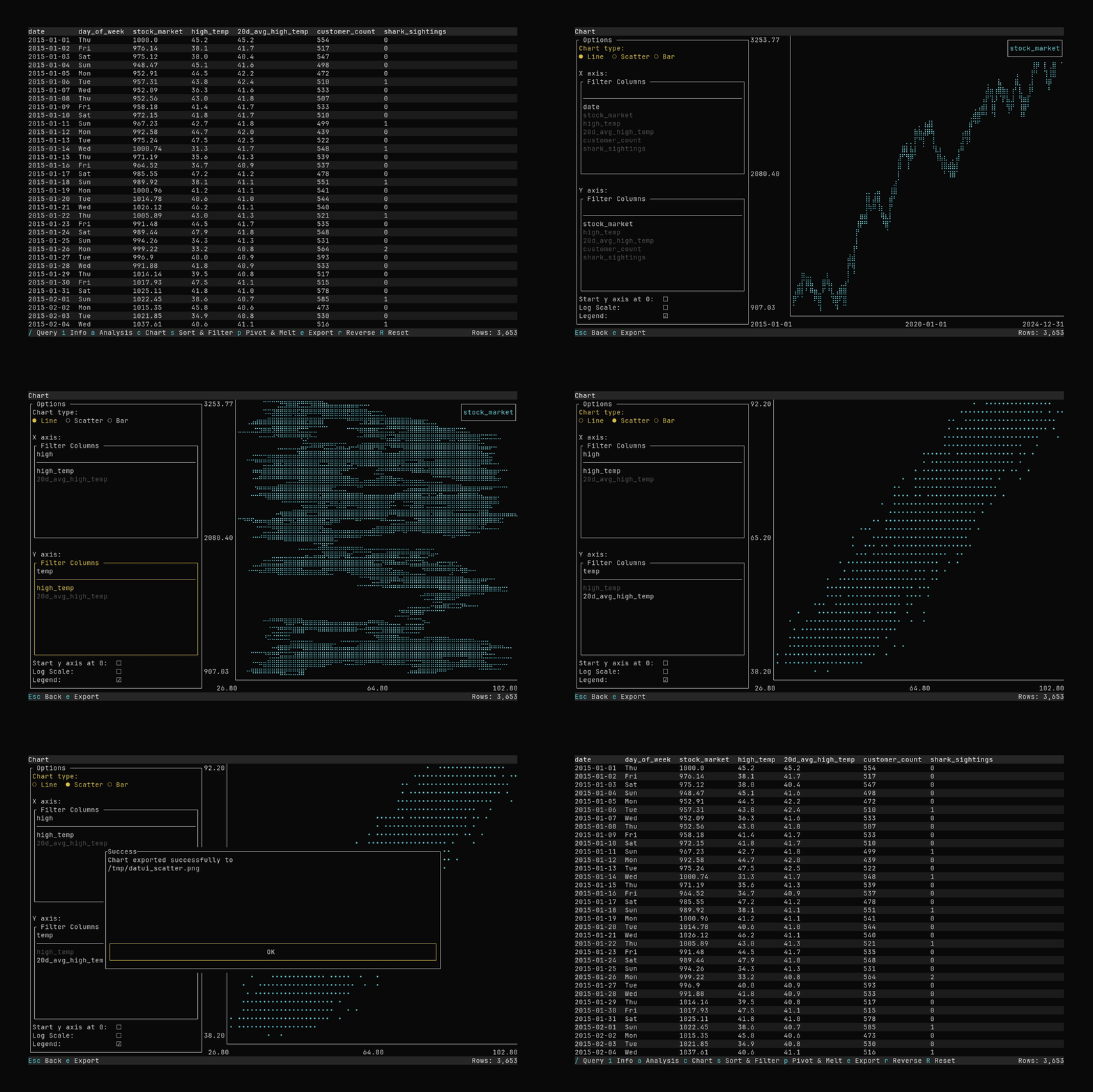
Press c from the main view to open the chart.
Controls in Chart View
- Chart type: Line, Scatter, or Bar (cycle with ↑/↓ or ←/→ when focused).
- X axis: Search for and select a numeric or temporal column
- Y axis: Search for and select a numeric column
- Options:
- Y axis starts at 0 (defaults to data range)
- Log scale
- Show legend
Tab/Shift+Tabmove focusEscreturns to the main view
Currently, only a single series can be charted at a time.
Export to File
Press e to open the chart export dialog.
- Choose format
- Enter a file path
- Press
Enteror navigate to theExportbutton to export.
If the file already exists, you will be asked to confirm overwrite.
Extensions (like
.png,.eps) are added automatically if missing.
Configuration
Series colors can be configured in theme.colors as chart_series_color_1 through chart_series_color_7. See Configuration.