Chart View
The chart view supports multiple chart types using tabs across the top: XY, Histogram, Box Plot, KDE, and Heatmap.
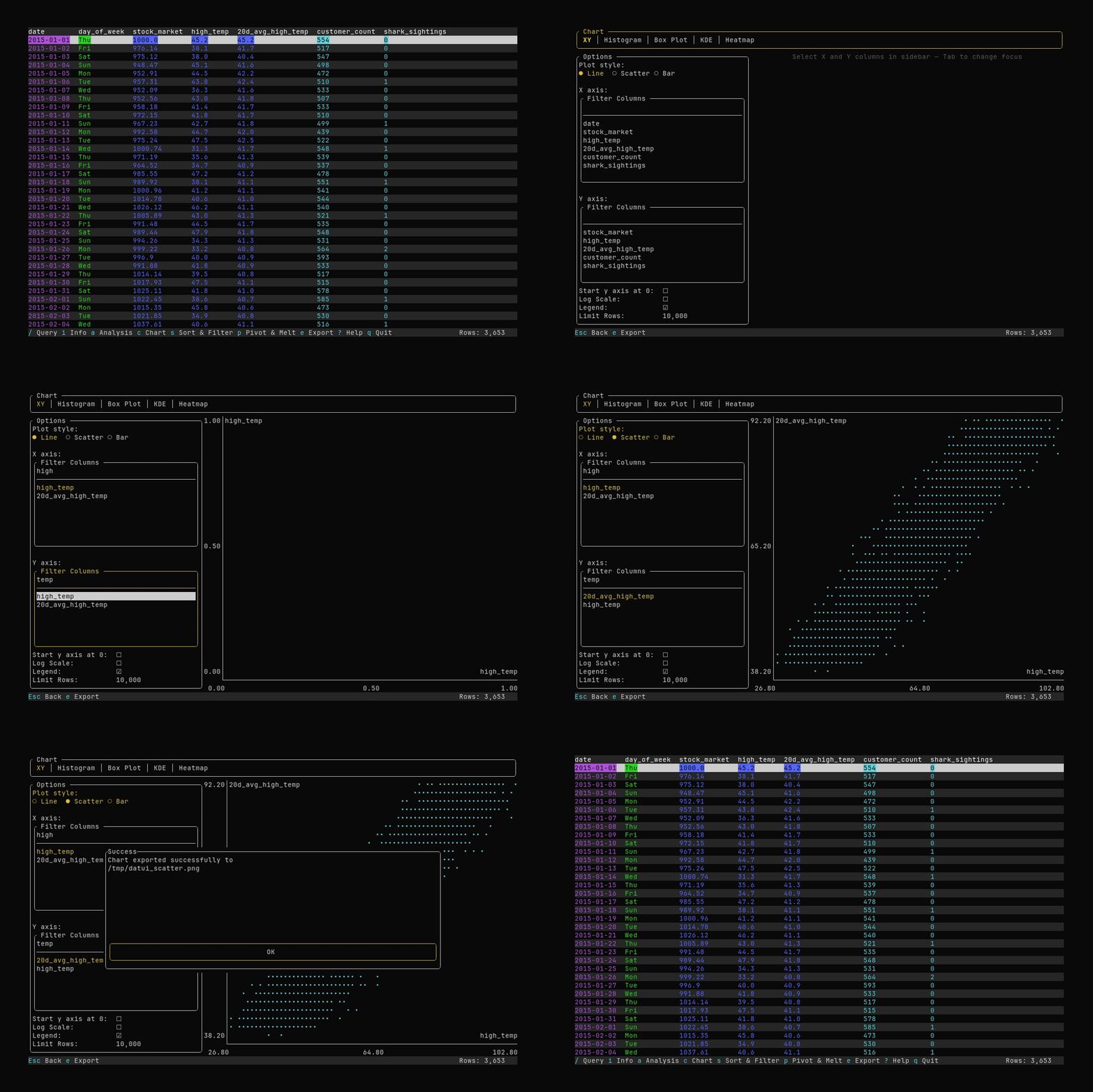
Press c from the main view to open the chart.
Controls in Chart View
- Tab bar: Switch chart type with ←/→ when the tab bar is focused.
- XY:
- Plot style: Line, Scatter, or Bar (cycle with ↑/↓ or ←/→ when focused).
- X axis: Search for and select a numeric or temporal column (single selection).
- Y axis: Search for and select one or more numeric columns. Use
Spaceto toggle columns on or off; up to seven series can be plotted at once. - Options:
- Y axis starts at 0 (defaults to data range)
- Log scale
- Show legend
- Histogram:
- Value column: Select a numeric column.
- Bins: Adjust with
+/-or ←/→ when focused.
- Box Plot:
- Value column: Select a numeric column.
- KDE:
- Value column: Select a numeric column.
- Bandwidth: Adjust with
+/-or ←/→ when focused.
- Heatmap:
- X axis / Y axis: Select numeric columns.
- Bins: Adjust with
+/-or ←/→ when focused.
- Limit Rows (all chart types, at bottom of options): Maximum rows used to build the chart. Adjust with
+/-or ←/→ when focused. Default comes from config (chart.row_limit, typically 10,000). Tab/Shift+Tabmove focusEscreturns to the main view
Export to File
Press e to open the chart export dialog.
- Choose format
- Enter a file path
- Press
Enteror navigate to theExportbutton to export.
If the file already exists, you will be asked to confirm overwrite.
Extensions (like
.png,.eps) are added automatically if missing.
Configuration
- Series colors: In
theme.colors, setchart_series_color_1throughchart_series_color_7. See Configuration. - Default row limit: In
[chart], setrow_limit(e.g.10000) to change the default maximum rows used for chart data. You can override it in the UI with Limit Rows.