Querying Data
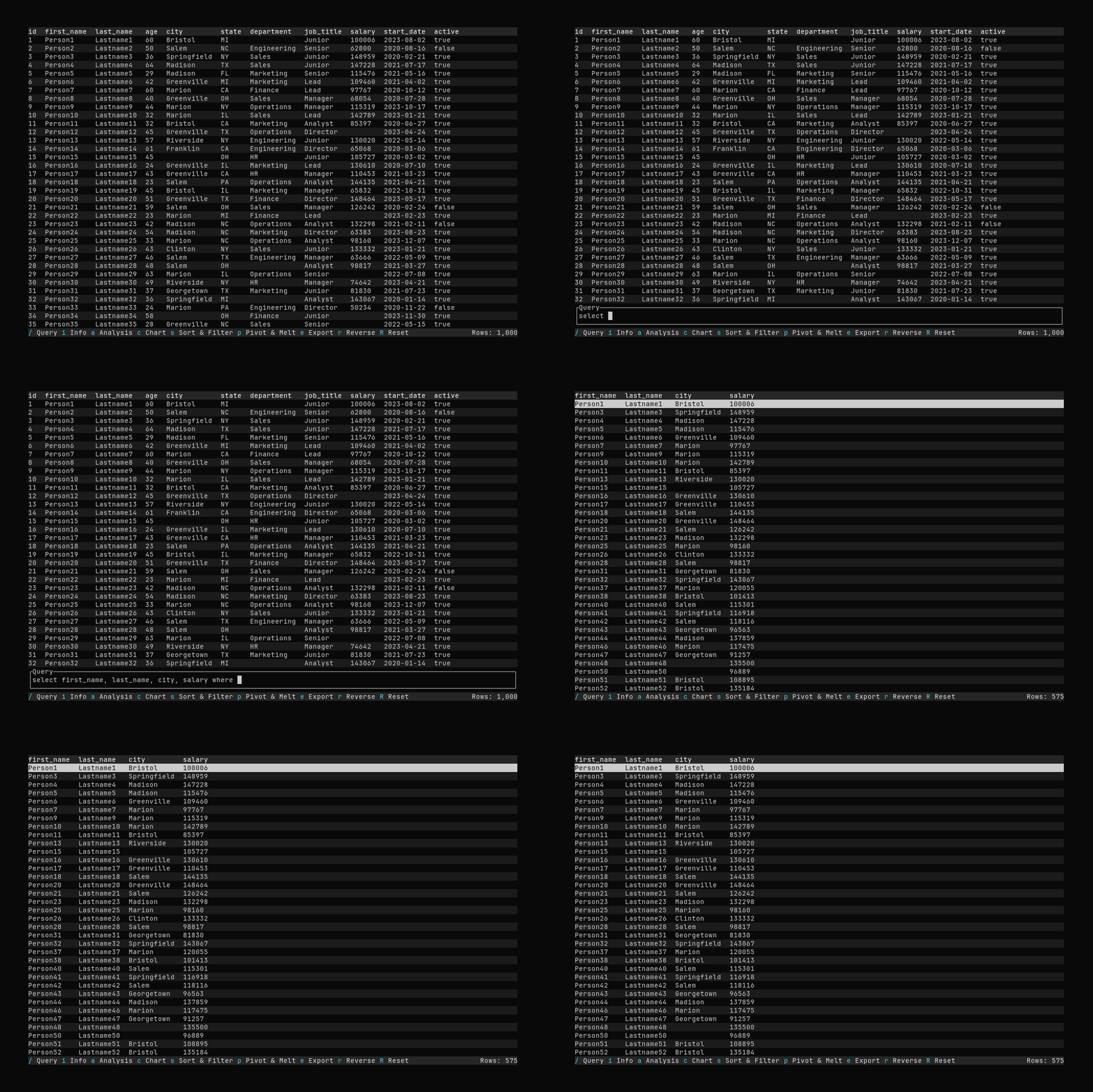
Press / to open the query prompt. The prompt has three tabs:
- SQL-Like — Datui’s built-in query language (described below).
- Fuzzy — Coming soon.
- SQL — Run standard SQL against the current table (see Using the SQL tab).
Use Tab or Shift+Tab (or Left / Right) to switch tabs. Focus stays on the tab bar when you change tabs; press Tab to move focus into the text input for the selected tab.
See the Query Syntax Reference for additional detail about the structure of SQL-Like queries.
Using the SQL tab
When the SQL tab is selected and focus is in the input box, you can run SQL against the current data. The table is registered as df, so use FROM df in your queries.
- Up / Down — Browse SQL history (stored separately from SQL-Like history).
- Enter — Run the query (or submit an empty line to reset the view to the full table).
- Esc — Cancel and close the prompt.
Example:
SELECT * FROM df LIMIT 100
SELECT category, COUNT(*) AS n FROM df GROUP BY category ORDER BY n DESC
Selecting Columns (SQL-Like)
The select clause can be used to select columns:
select a, b, c
Use select alone to select all columns:
select
Rename columns using the : assignment operator (creates a column d that is the same as a):
select a, b, c, d: a
To create, or query, columns with spaces in their names, use the col["name"] syntax:
select no_spaces:col["name with spaces"]
or
select col["name with space"]: no_spaces
Filtering Results
The where clause can be used to filter results.
select where a > 10
Separate where clause expressions with , (logical and).
Get all data where a > 10 and b < 2:
select where a > 10, b < 2
Use the | to form a logical or between a bool column and a numeric:
select where some_bool | a > 10
Select a, b, and c where a > 10 and b < 2 and (d > 7 or e = 2)
select a, b, c where a > 10, b < 2, (d > 7) | (e = 2)
Calculations and Transformations
There is a simple expression language built-in to the query language using:
+, -, *, and % for arithmetic (the % is division, not modulo).
select a, b: c+d where c > 0
See the Syntax Reference for important details about the expression syntax.
Working with dates and times
For columns of type Date or Datetime, use dot accessors to extract components:
select event_date: timestamp.date, year: timestamp.year
select where created_at.date > 2024.01.01, created_at.month = 12
select order_date, order_date.month, order_date.dow by order_date.year
Use YYYY.MM.DD for date literals in comparisons (e.g. where dt_col.date > 2021.01.01).
Available accessors include date, time, year, month, week, day, dow (day of week), month_start, month_end, and tz (timezone). See the Query Syntax Reference for the full list and more examples.
Grouping and Aggregation
The by clause in the query language allows you to group your data, or aggregate it within group.
Enabling Drill-Down with Grouping
Executing a query with a by clause will result in a grouped table. This table can be drilled down into
through the UI by selecting the resultant grouped row and pressing Enter. Go back to the grouped result
by pressing Esc.
select name, city, state, salary by department
Aggregate Queries
Using the same by syntax, you can introduce an aggregation function to summarize your data.
select min_salary: min salary, avg_salary: avg salary, max_salary: max salary by department