Demo Gallery
This page showcases interactive demonstrations of Datui’s features.
Navigation

What it shows:
- Loading a Parquet file (
people.parquet) - Scrolling through data using
↑/↓(orj/k) keys
See Loading Data for more information about file formats and options.
Querying
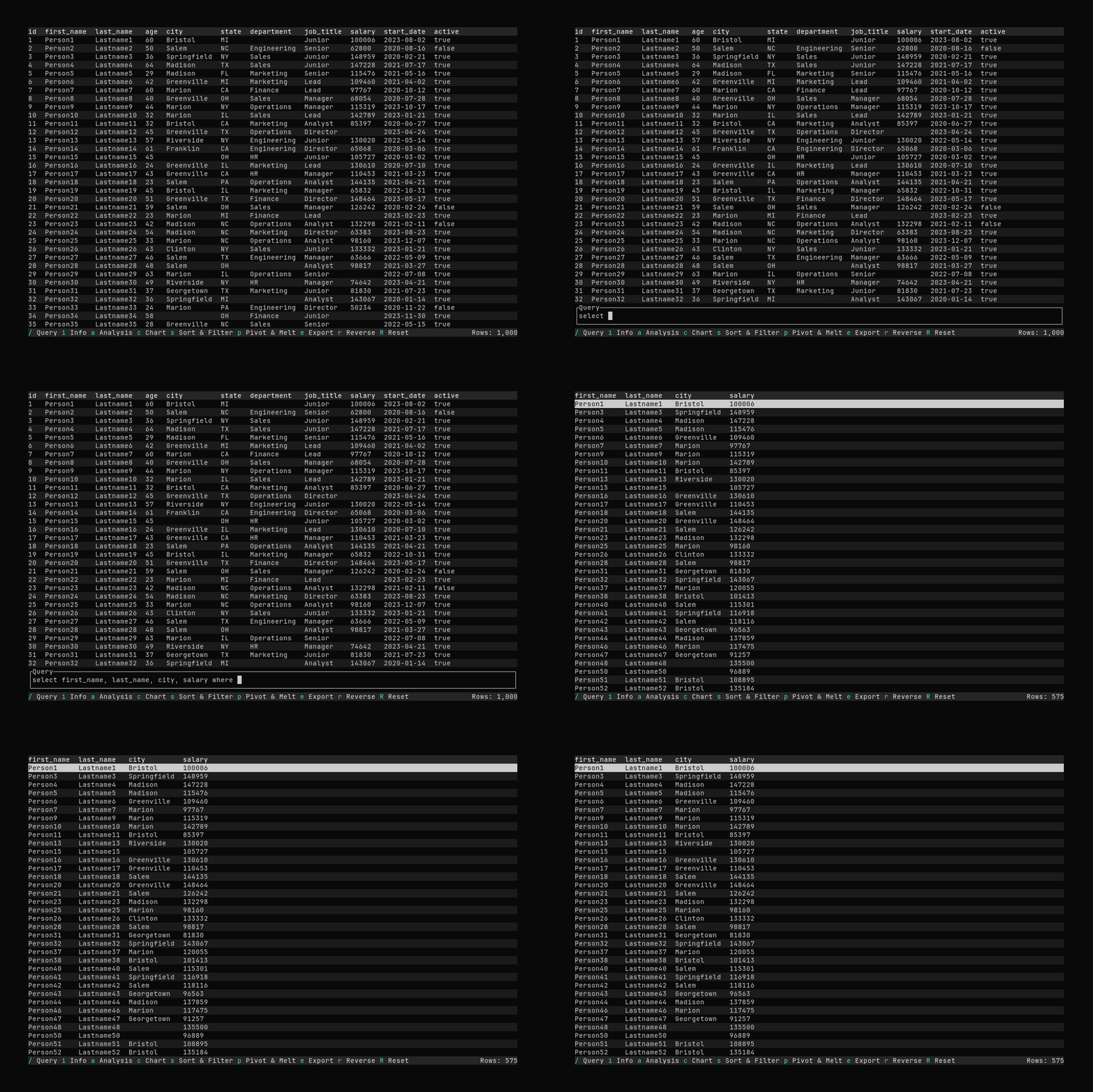
What it shows:
- Opening the query input with
/ - Typing a query:
select first_name, last_name, city, salary where salary > 80000 - Executing the query and seeing filtered results
See Querying Data for detailed query syntax and examples.
Info Panel
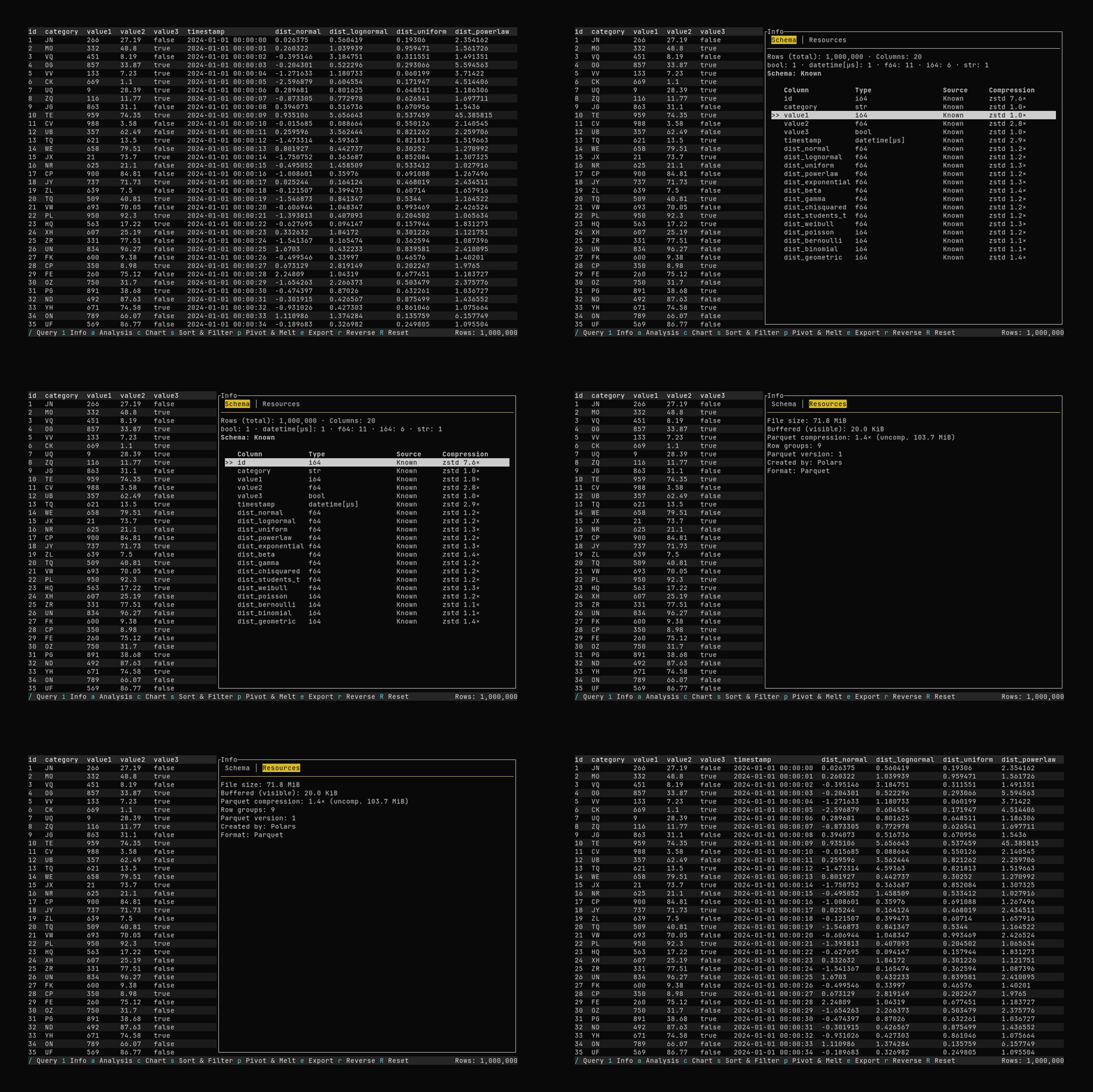
What it shows:
- Opening the Info panel with
i - Viewing information about the dataset
See Dataset Info for details about the Schema and Resources tabs.
Pivot
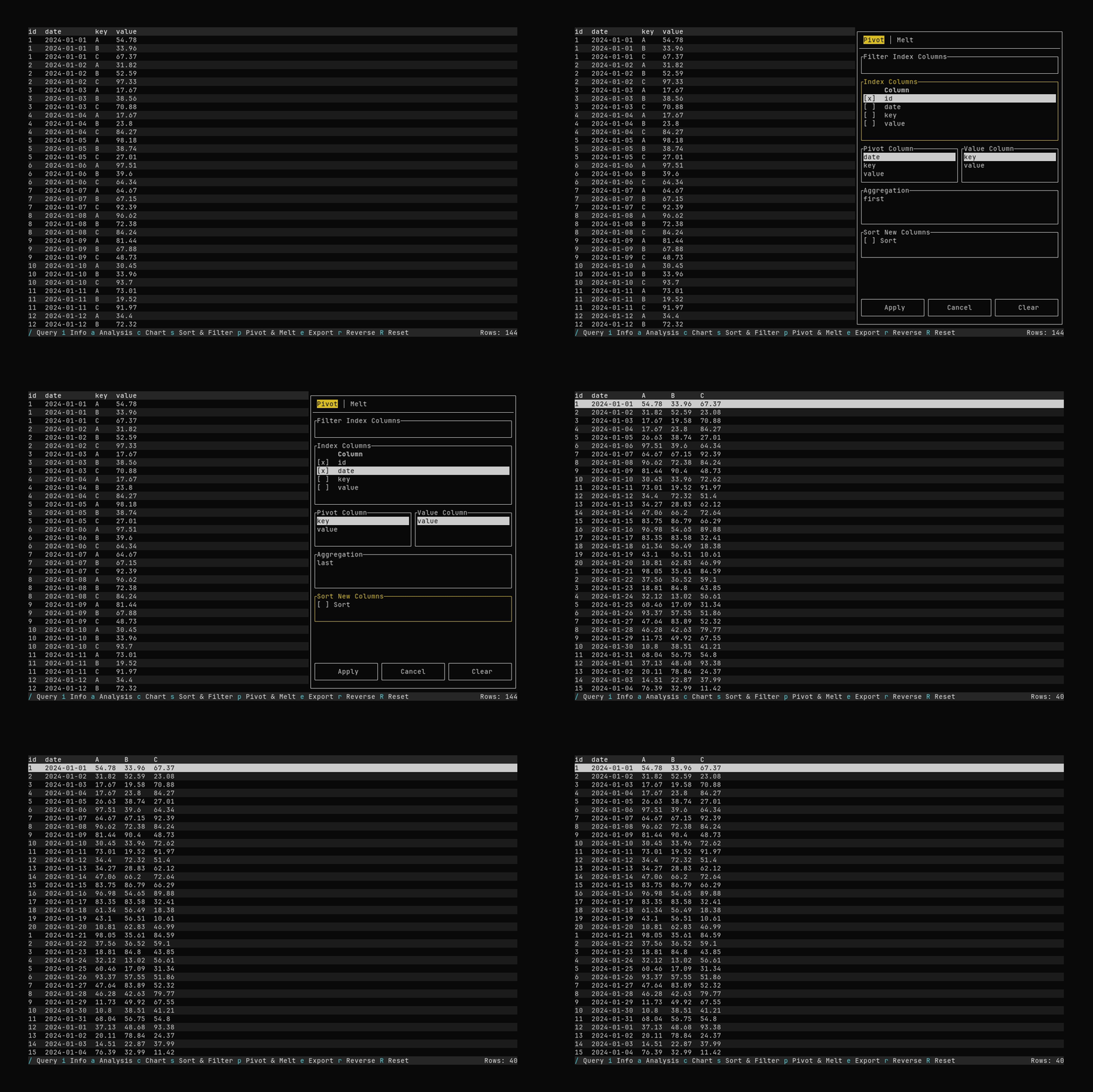
What it shows:
- Opening the Pivot & Melt dialog with
p - Selecting index columns and applying a pivot (long → wide)
See Pivot and Melt for pivot and melt options.
Melt
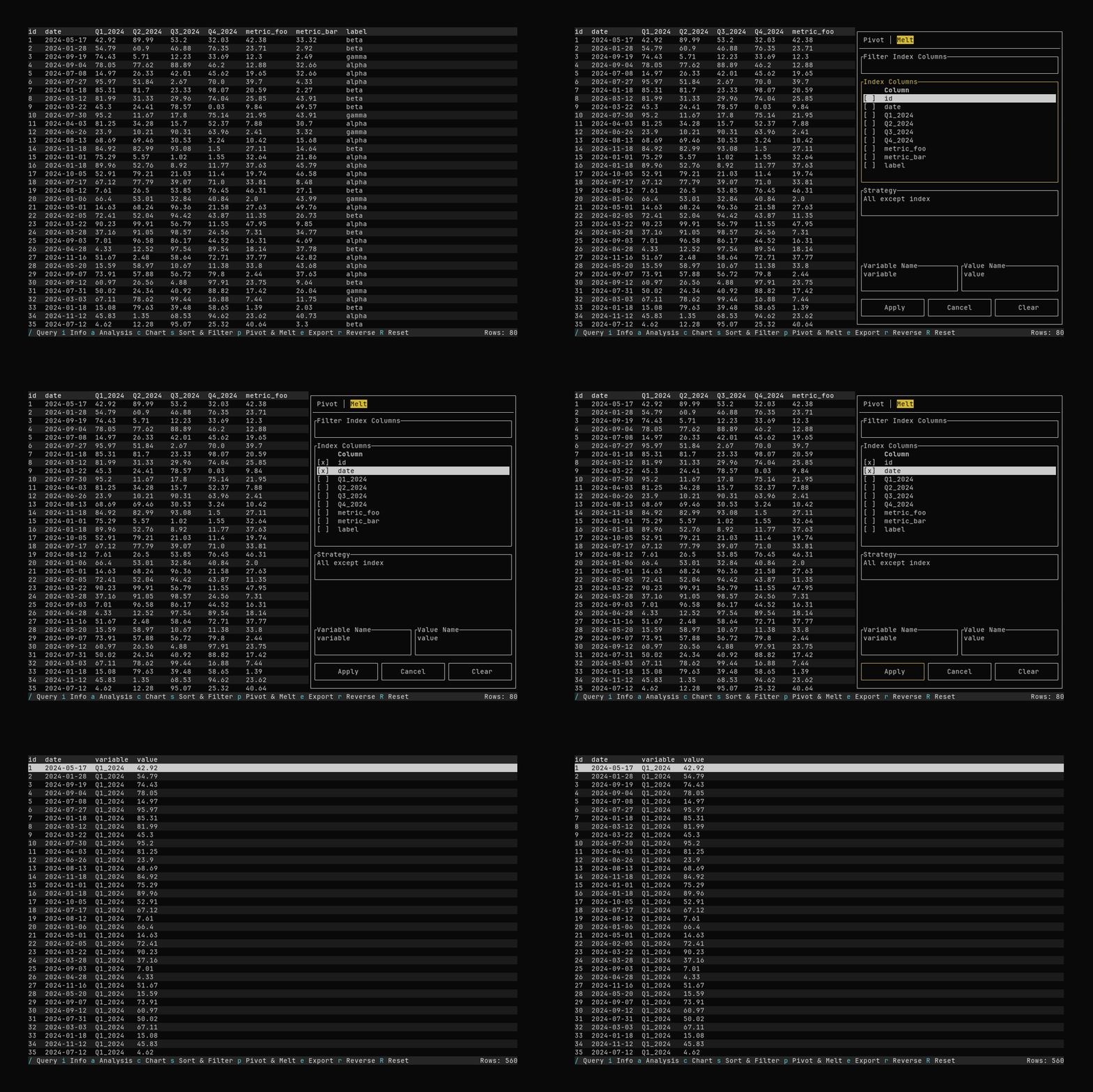
What it shows:
- Switching to the Melt tab and selecting index columns
- Applying a melt (wide → long)
See Pivot and Melt for pivot and melt options.
Sorting
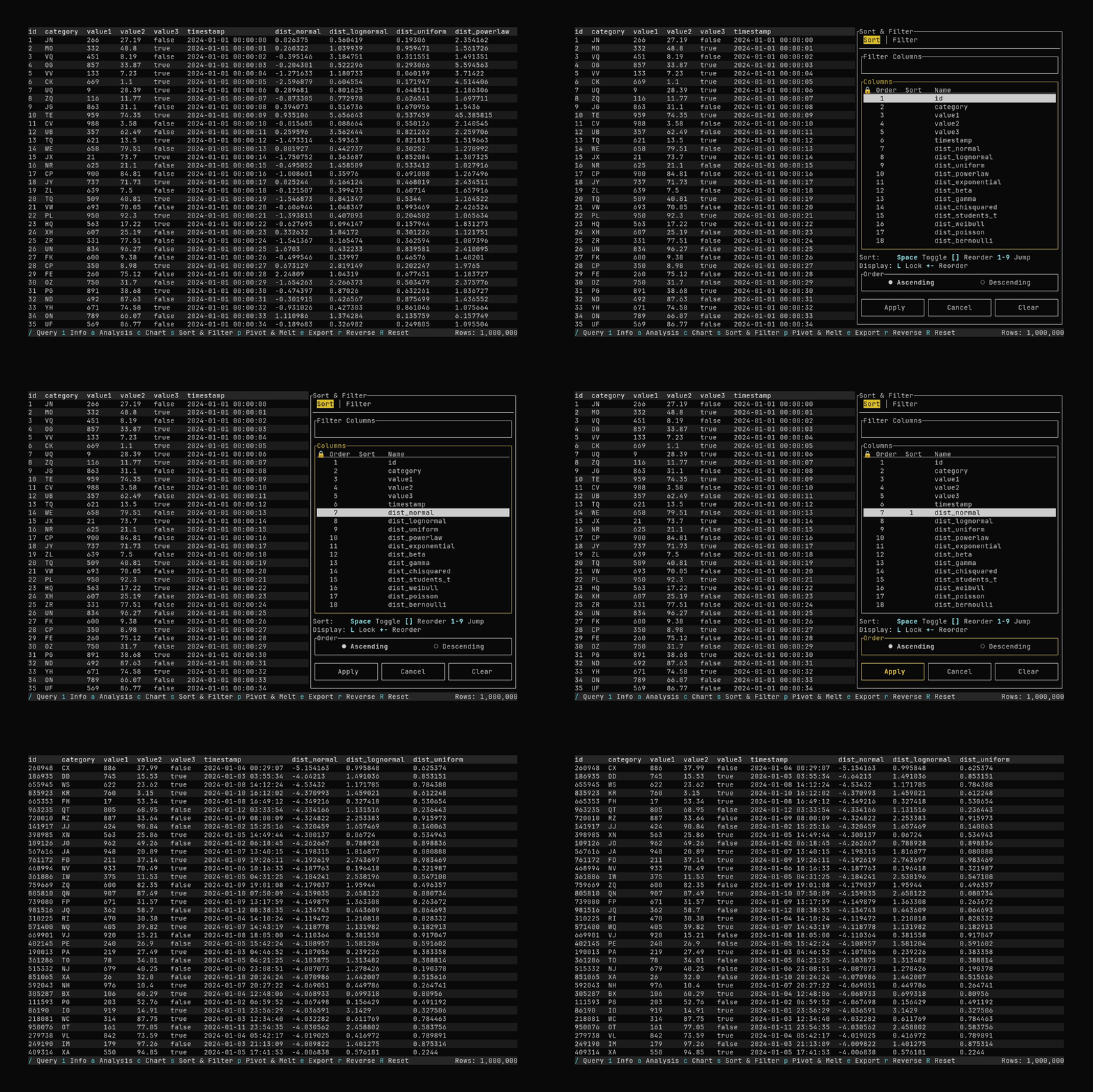
What it shows:
- Opening the Sort & Filter dialog with
s - Selecting a sort column and applying the sort
See Filtering and Sorting for sort and filter options.
Filtering
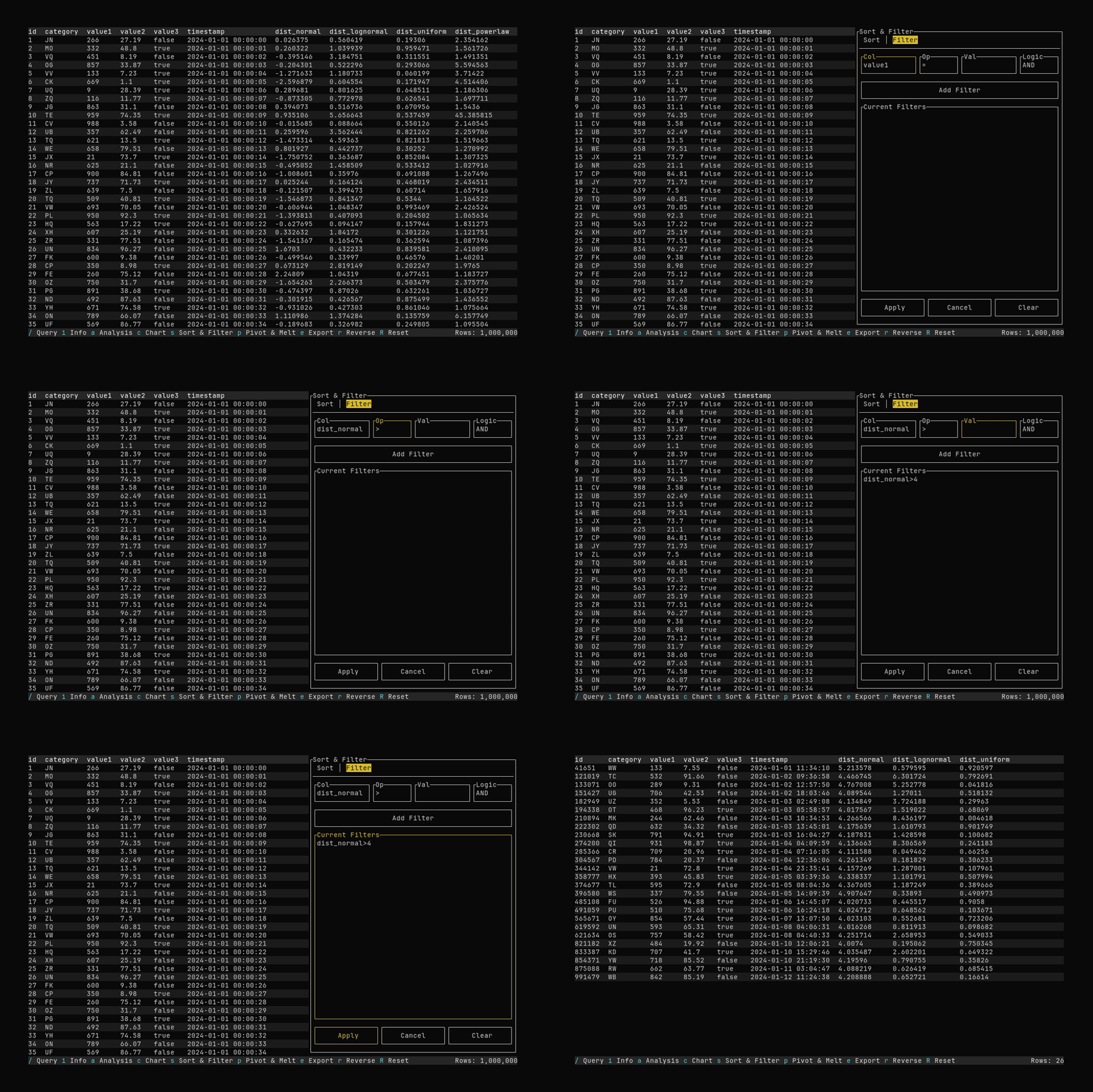
What it shows:
- Switching to the Filter tab and adding a filter (e.g.
dist_normal > 4) - Applying the filter to the table
See Filtering and Sorting for sort and filter options.
Export
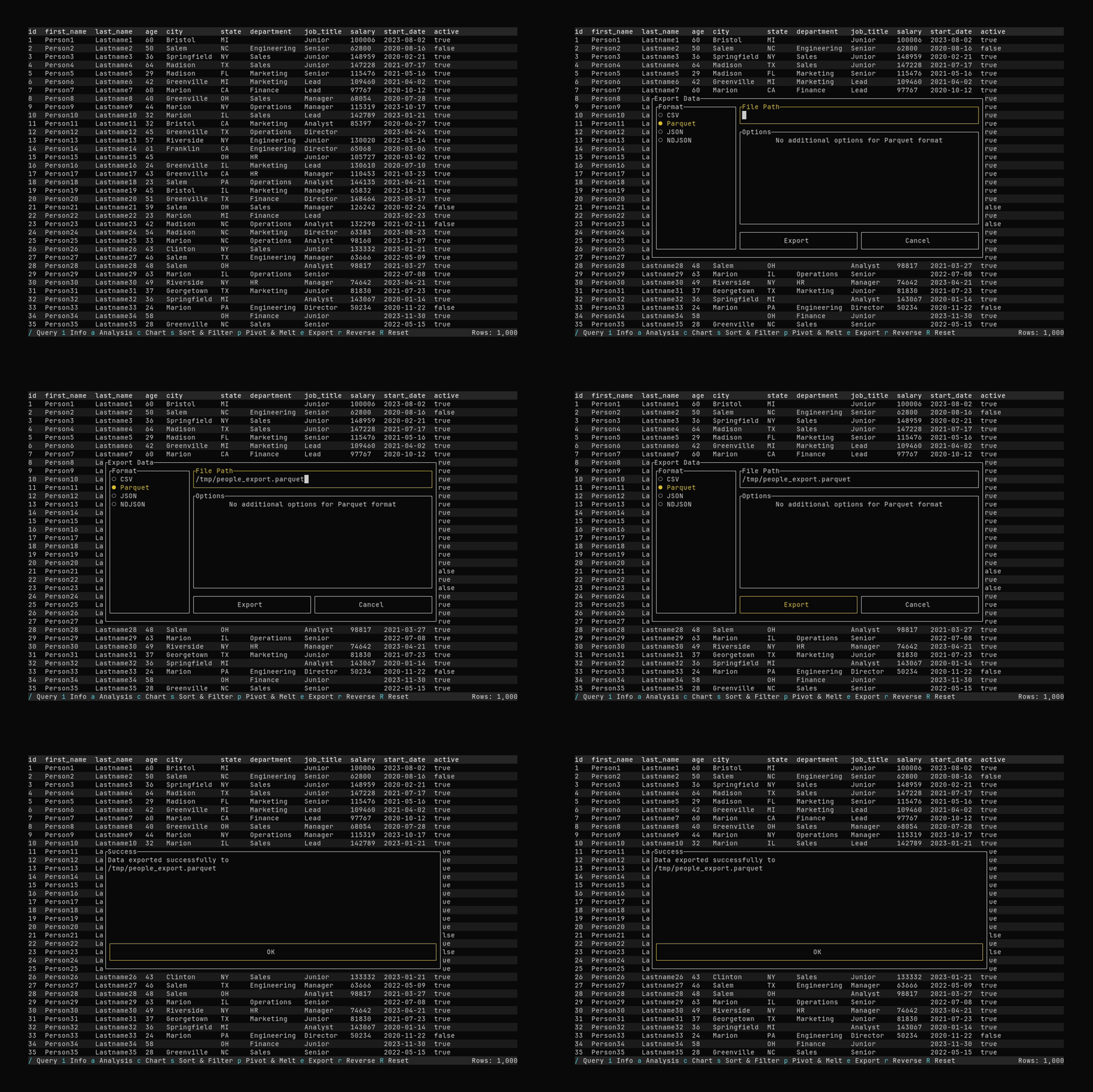
What it shows:
- Opening export with
eand entering an output path - Exporting the current data to Parquet in
/tmp
See Exporting Data for supported formats and options.
Correlation Matrix
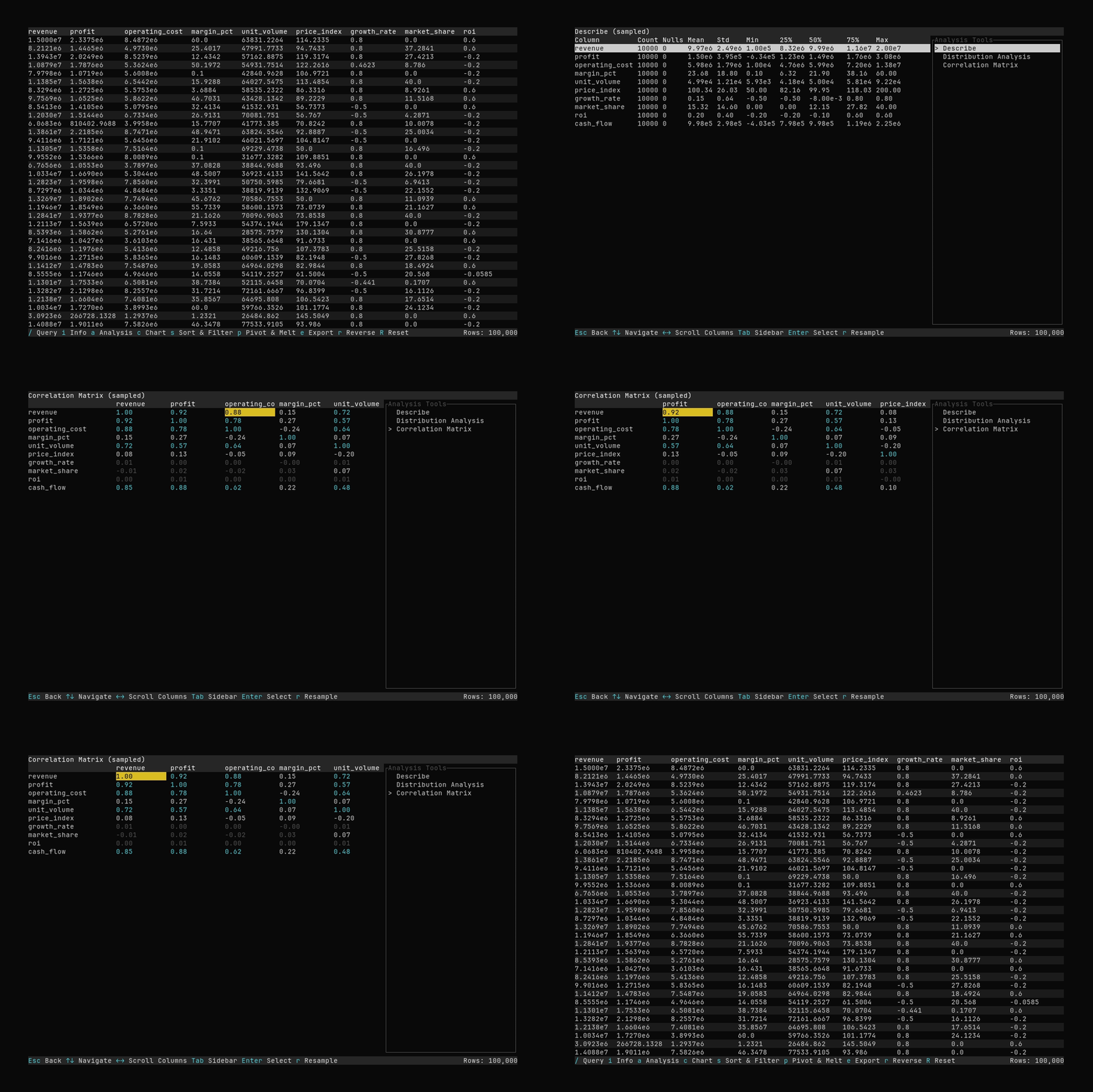
What it shows:
- Opening analysis with
aand selecting the Correlation Matrix tool - Scrolling the correlation matrix
See Analysis Features for details.
Charting
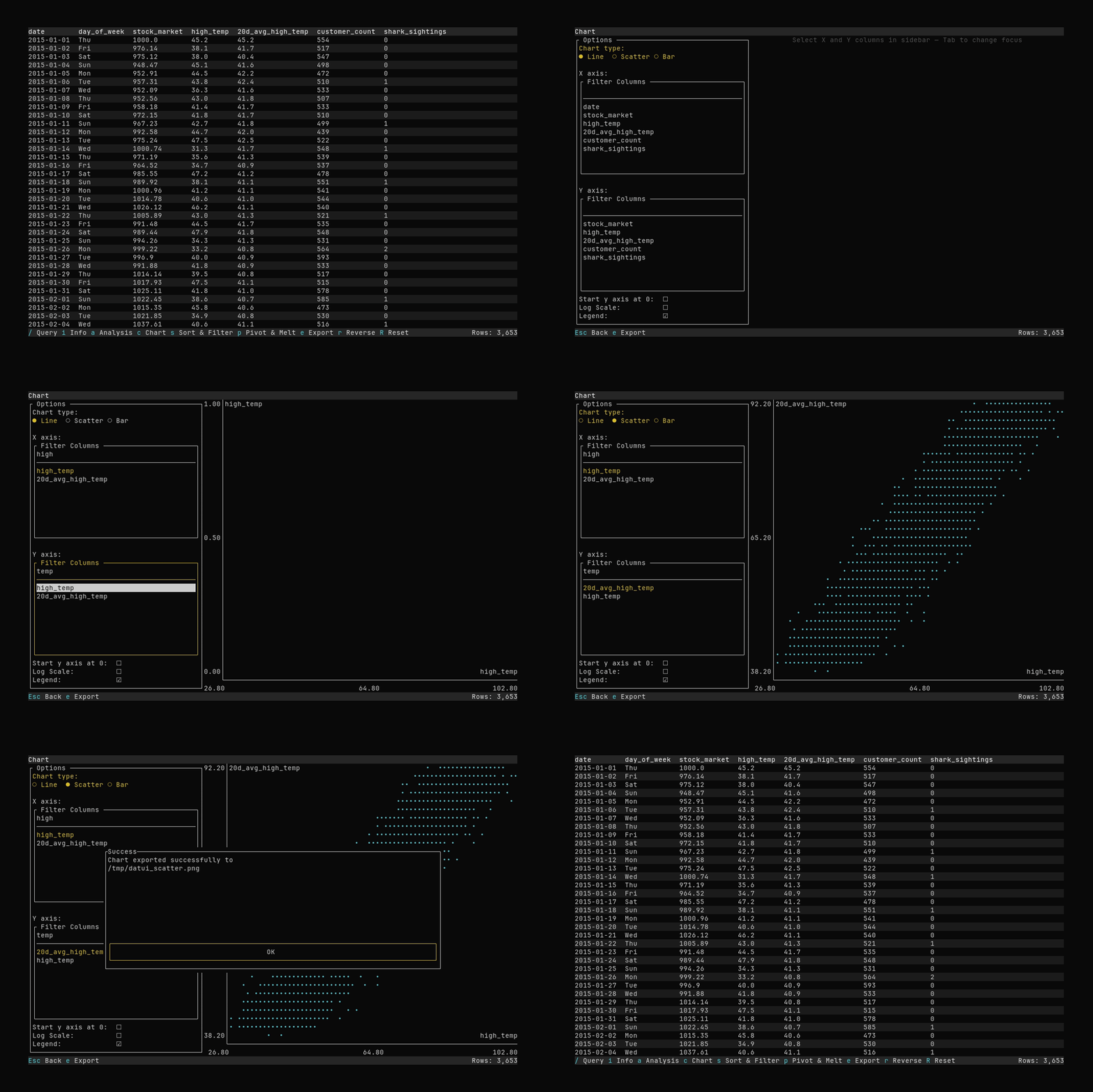
What it shows:
- Opening the chart with
c - Viewing data in a line chart, and then a scatter plot
- Exporting the chart to a PNG file
See Charting for more details.
To install and run Datui, see the Getting Started Guide.