Pivot and Melt
Datui supports reshaping tabular data between long and wide formats via the Pivot & Melt dialog.
Open it with p from the main view.
Pivot demo: 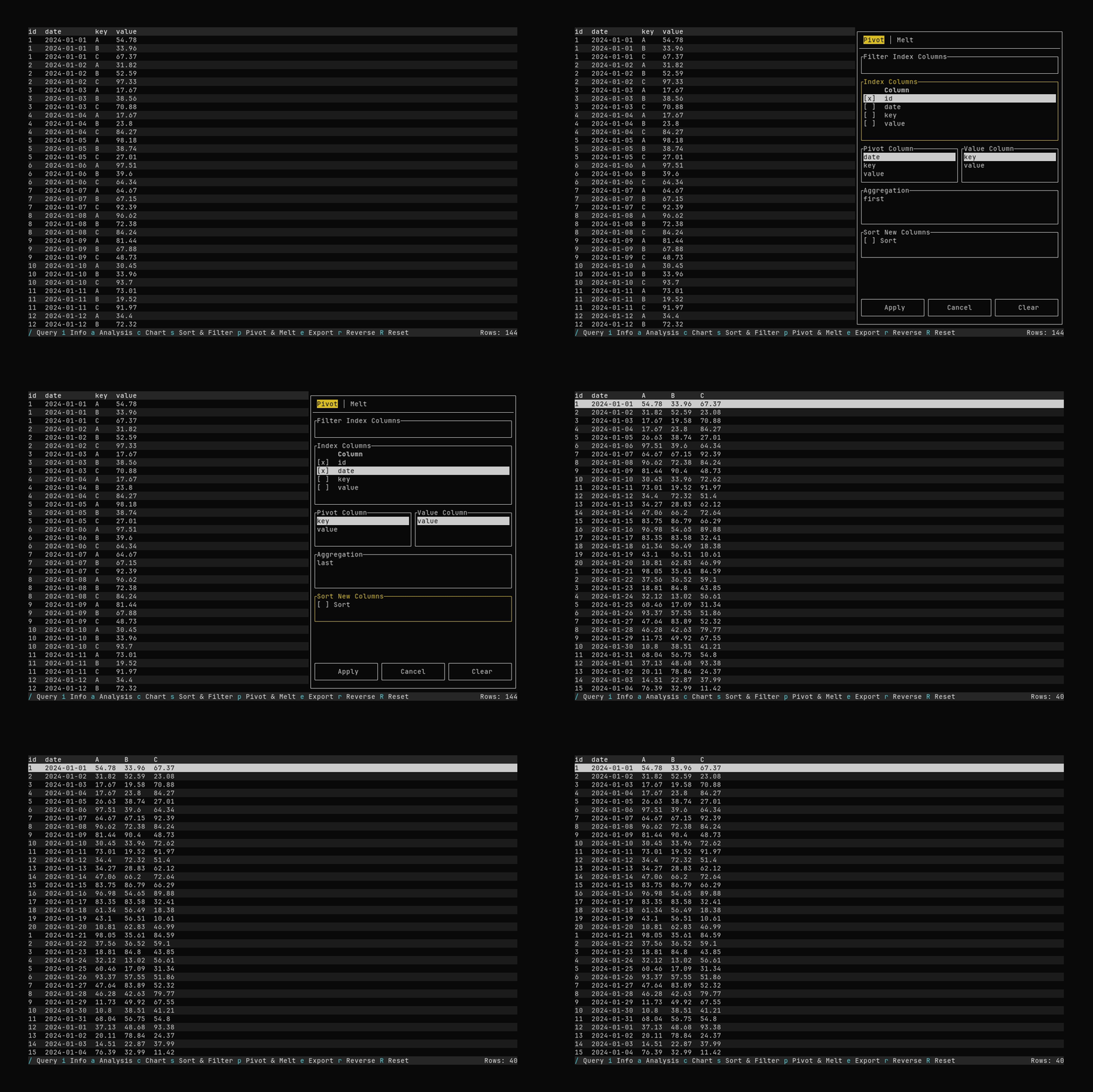
Melt demo: 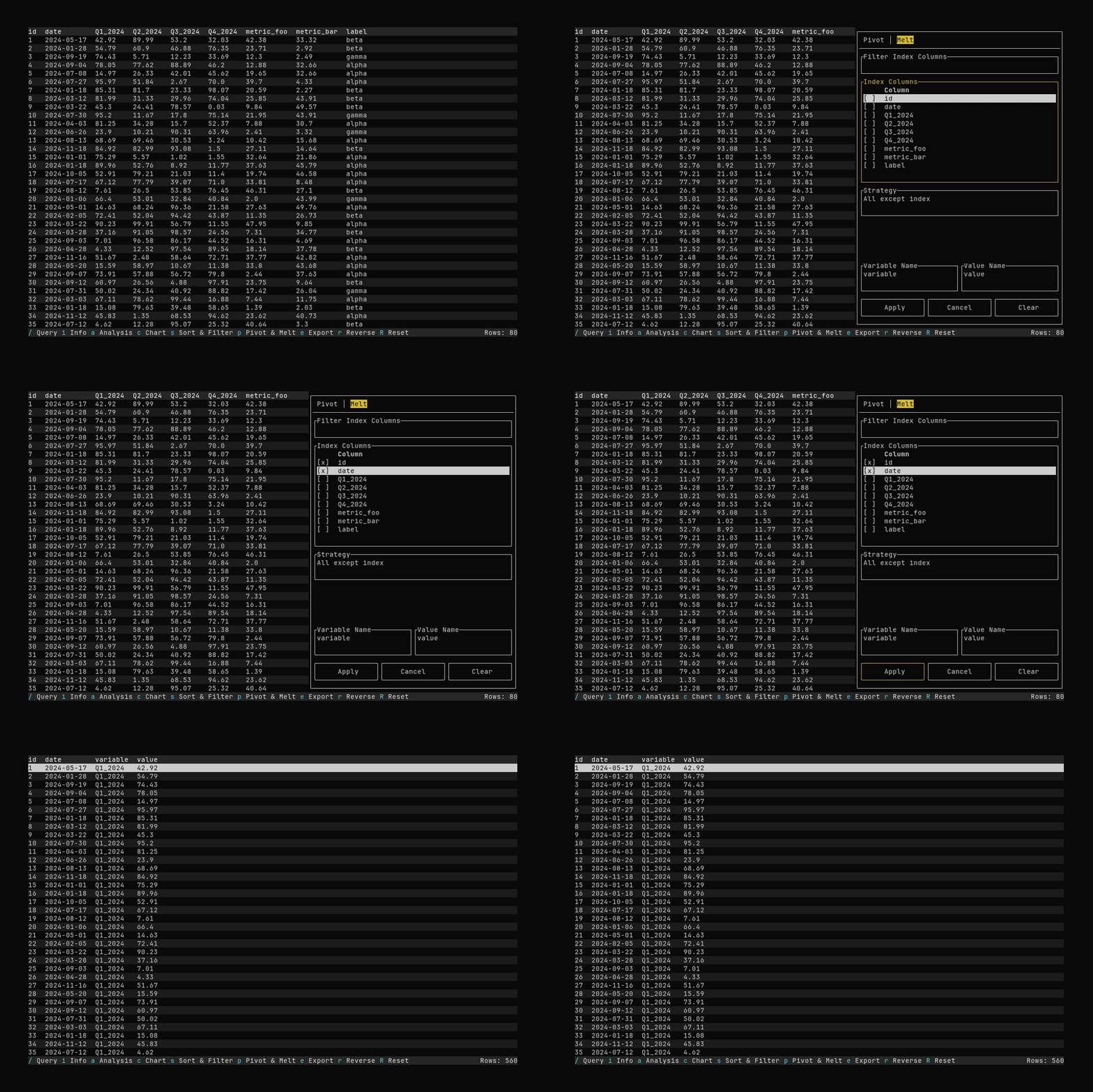
- Pivot (long → wide): Turn rows with a key column into new columns. Example:
id,date,key,value→id,date,key_A,key_B,key_C. - Melt (wide → long): Collapse many columns into
variableandvaluecolumns. Example:id,Q1,Q2,Q3→id,variable,value.
Both operations run on the current table—i.e. the result of any filters, sorts, or queries you’ve applied. You can filter or sort first, then pivot or melt that view.
Pivot (long → wide)
Pivoting a table is by nature an eager operation. To form the columns, the data must be read. Be sure to filter or query the data as appropriate before pivoting to manage memory usage.
- Index columns: Group columns that stay on the left (e.g.
id,date). Use the filter to search, Space to toggle selection. Order matters. - Pivot column: The column whose distinct values become new column headers (e.g.
key→A,B,C). Use ↑/↓ to select. - Value column: The column whose values fill the new cells. Use ↑/↓ to select.
- Aggregation: How to combine multiple values per group: last, first, min, max, avg, med, std, count. Default is last. If the value column is string-typed, only first and last are available.
- Sort new columns: Toggle to sort new column names alphabetically.
Apply runs the pivot and closes the dialog. Cancel or Esc closes without changing the table. Clear resets the form.
Melt (wide → long)
- Index columns: Columns to keep as identifiers (e.g.
id,date). Same multi-select pattern as Pivot. - Value-column strategy:
- All except index: Melt every column not in the index. Good default when you want to unpivot all measure columns.
- By pattern: Regex over column names (e.g.
Q[1-4]_2024,metric_.*). Type the pattern in the Pattern field. - By type: Melt all Numeric, String, Datetime, or Boolean columns (excluding index).
- Explicit list: Manually pick value columns with Space to toggle.
- Variable name / Value name: Output column names for the melted dimension and values. Defaults:
variable,value.
Apply runs the melt and closes the dialog. Cancel or Esc closes without applying. Clear resets the form.
Keyboard Shortcuts
- Tab / Shift+Tab: Move focus (tab bar → form fields → Apply → Cancel → Clear → tab bar).
- Left / Right: On the tab bar, switch between Pivot and Melt. In text fields (filter, pattern, variable/value names), move the cursor.
- ↑ / ↓: Move selection in lists (index, pivot, value, aggregation, strategy, type, explicit list).
- Space: Toggle selection in index and explicit value lists; toggle “Sort new columns” in Pivot.
- Enter: Activate focused control (Apply, Cancel, Clear).
- Esc: Close dialog without applying.
- Ctrl+h: Show help.
Templates
Pivot and melt settings can be saved in templates. When you save a template from the current view (e.g. after applying a pivot or melt), the reshape spec is stored. Applying that template (e.g. with T for the most relevant template, or from the template manager) will run query → filters → sort → pivot or melt → column order in that order, so the same reshape is applied appropriately in the lazyframe processing flow.